Connect Instagram to Facebook Page: Steps and Fixes
To connect Instagram to Facebook Page, first switch the Instagram account to a professional account, which is either Business or Creator. Then link the two from your Page's settings, from the Instagram app, or in Meta Business Suite. You need full control of the Page, and both accounts must end up in the same business portfolio.
The link lets Meta Business Suite treat the two as one profile, and any tool that signs you in with Facebook needs it. When it breaks, you see a missing Instagram account, a greyed-out button or a role error. This guide gives Meta's own steps for three ways to link, explains the roles behind them, and sorts the usual failures into a table. The table marks each cause as documented by Meta or only reported by vendors. It also shows what a publishing tool asks for when you connect.
Last checked: 17 October 2026. Meta renames menus often, so each step names the Meta page it came from.
On this page
- Connect Instagram to Facebook Page: what you need first
- Switch Instagram to a professional account
- Method 1: connect from your Facebook Page settings
- Method 2: connect from the Instagram app
- Method 3: use Meta Business Suite or a business portfolio
- Accounts Center is not the same as linking a Page
- Roles and permissions: who can do what
- When it will not connect: causes and fixes
- How PublishClip uses the connection
- Security and housekeeping
- Disconnect or switch accounts
- Key takeaways
- Frequently asked questions
Connect Instagram to Facebook Page: what you need first
Linking means pointing an Instagram professional account and a Facebook Page at each other. Meta calls both of them business assets. Its Business Help Center says that connecting them "enables cross-posting, shared insights, and access to Instagram's business tools".
For publishing there is one more reason. Meta's Instagram Platform overview says the Facebook Login setup serves Instagram professional accounts "linked to a Facebook Page". The Instagram Login setup "serves Instagram professional accounts without requiring a linked Facebook Page". So a tool that signs you in with Facebook, like the one described later in this guide, finds your Instagram account through the Page. A tool built on Instagram Login does not need the link.
What you need, in one table
Check these five things before you start. Each one sits behind at least one failure in the fix table further down.
| What you need | Why it matters | What Meta says |
|---|---|---|
| A professional Instagram account. | Only Business and Creator accounts can be linked. | A personal account is "prompted to switch to a professional account during the linking process" (Business Help). |
| Full control of the Page. | It lets you switch into the Page and manage its linked accounts. | Meta words the rule three ways: "Facebook access or task access" (Facebook Help), "Full control" (Business Help) and "Facebook access" (a follow-up page). Ask for full control. |
| The right Facebook profile signed in. | The link is made by a profile that has access to the Page. | Logging in is "a required authentication step to confirm that your personal Facebook account has access to the Page" (Business Help). |
| Both accounts in one business portfolio. | The Instagram account must sit in the same portfolio as the Page. | Instagram accounts "can only be in one business portfolio at a time" (Business Help). |
| No publishing block on the Page. | Some Pages must finish an identity check first. | A Page that requires Page Publishing Authorization "cannot be published to until PPA has been completed" (publishing guide). |
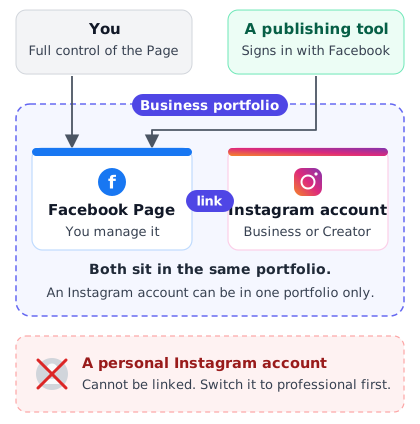
The figure shows how the pieces fit. You hold access to the Page. A tool signs in with Facebook and reaches the Instagram account through the Page. A personal Instagram account cannot join in.
A five-minute pre-flight check
Run these checks in order. They catch most of the problems later in this guide.
- In Instagram, open your profile, tap the menu, and look under For professionals for Account type and tools. If the screen offers Switch to professional account, the account is still personal.
- In Facebook, switch into your Page. Open Settings & privacy, Settings, Page setup, then Page access, the path in Meta's page on viewing your access. Confirm that you have full control.
- In Meta Business Suite, open Settings and note which business portfolio holds the Page and which holds the Instagram account.
- Sign out of any Facebook profile that does not manage the Page.
- Clear any notice in Facebook that asks you to finish Page Publishing Authorization.
Which method suits you
- One Page and one Instagram account that you manage yourself: Method 1 or Method 2. Both are short.
- The Instagram app does not list your Page, or asks for someone else's Facebook login: Method 1. Two vendor help centres advise this (Later and Metricool), though we did not see this advice on the Meta pages we read.
- The Page belongs to a business portfolio, or a team or agency works on it: Method 3.
- You only have a phone: Method 1 in the Facebook app, or Method 3 in the Business Suite app. Meta documents phone steps for both.
If your goal is one Reel on both apps, our guide to cross-posting Reels to Facebook and Instagram picks up where this section ends.
Switch Instagram to a professional account
Only a professional account can be linked to a Page. Meta's Instagram Help Center says professional accounts "can either be set to Business or Creator". Switching is a setting on the account you already have. Meta's setup article says you "can change your personal Instagram account to a business or creator account", and that you can switch back or change type at any time.
Business or Creator
Both types can link to a Page and publish Reels. The table lists what Meta documents about each.
| Point | Business | Creator |
|---|---|---|
| Who Meta says it suits. | Retailers, local businesses, brands, organizations and service providers. | Public figures, content producers, artists and influencers. |
| Link to a Facebook Page. | Yes. | Yes. |
| Publish Reels through the Facebook Login API. | Yes. | Yes. |
| Publish Stories through that API. | Yes. | No. Meta says Stories "are only available to business accounts". |
The sources are the Instagram Help Center and Meta's page on the Instagram API with Facebook Login, last updated on 3 March 2025. The category you pick during setup, such as a shop or a public figure, does not decide the account type. You choose Business or Creator on a separate step.
What changes when you switch
- The account becomes public. Meta says "Professional accounts can't be set to private". If yours is private, switching makes it public, and all pending follow requests are accepted. If the account must stay private, do not switch.
- A category label appears. Meta says it "is the same as the category of your linked Facebook page".
- A business portfolio is created. The last part of this section explains why that matters.
Steps in the Instagram app
These steps come from Meta's setup article as it read on 17 October 2026.
- Tap your profile picture at the bottom right to open your profile.
- Tap More to open Settings and activity.
- Below For professionals, tap Account type and tools.
- Tap Switch to professional account.
- Choose the category that best describes what you do.
- Tap Switch to professional account again. Choose Creator or Business, then tap Next.
- Add contact details, or tap Don't use my contact info to skip them.
- To link a Page now, tap Login to Facebook. Meta calls this step optional. Tap Skip to link later.
On a computer, click More, then Settings. Below For professionals, choose Account type and tools, then Switch to professional account. Pick Creator or Business, click Next, choose a category, click Done, and confirm with Continue.
Why Meta creates a business portfolio
Meta's Business Help Center says an Instagram professional account "must be associated with a business portfolio to exist". When you switch an account, "you'll automatically create a new business portfolio" with the same name as the account. You can see it at business.facebook.com.
This explains many failed links. If your Page already lives in an older portfolio, the new Instagram account sits in a different one. Meta's connect article says the two must share a portfolio, so one has to move. Meta's page on connected business assets is softer: when only one of the two is in a portfolio, the other is added to it. The pages do not say what happens when both already have portfolios, so treat a move as the fix. Method 3 shows how.
A personal account cannot be linked
Meta says so in three places. Its article on connecting an Instagram account to a business asset says "Personal Instagram accounts can't be connected to a business asset in Meta Business Suite". Its page on sharing from Instagram to a Page says sharing from a personal profile "is no longer available". And the developer page for the Facebook Login API says it "cannot access Instagram consumer accounts". That is why no tool can post to a personal Instagram profile through Meta's official API.
Method 1: connect from your Facebook Page settings
This is the route Facebook Help documents first. It works on a computer and in the Facebook app. You do it as the Page, not as your personal profile, which is why the first steps switch into the Page. Meta says you can connect or disconnect "if you have Facebook access or task access to a Page". Use full control and you meet every wording Meta uses.
Steps on a computer
Meta's article gives these steps. The wording here is shortened.
- Log in to Facebook and click your profile photo at the top right.
- Click See all profiles, then choose your Page.
- Click the Page's profile picture at the top right.
- Click Settings & privacy, then Settings.
- Under Permissions, click Linked accounts.
- Click Instagram, then Connect account.
- Follow the prompts and log in to the Instagram account.
- Check that Linked accounts now shows your Instagram account.
Meta's page says only "follow the steps to connect your Facebook Page and Instagram account". It does not list each screen. Vendors that walk through the flow, such as Later and Metricool, describe a Connect button, a choice about Instagram messages in the Page inbox, and a window that asks you to log in to Instagram. Treat their screen names as a guide, not as Meta's wording.
The inbox choice is real. Meta's page on what happens after connecting says you can let people with access to the Page "read and respond to Instagram comments and Direct messages from the Facebook Page Inbox".
Steps on a phone
Meta lists nearly the same path for the Facebook app on iPhone and Android.
- Tap Menu, then Options, and choose the Page you want to switch into. On iPhone you can also tap your profile picture first.
- Tap Menu again.
- Tap Settings & privacy, then Settings.
- Tap Linked accounts, then Instagram.
- Tap Connect account and follow the prompts.
If the Instagram account is still personal
Meta covers this in the same article. If you link a personal Instagram account to a Page managed in Business Manager, "you'll be prompted to switch to a professional account during the linking process". Meta adds: "Your professional account will be public". That page links the words "Business Manager" to its article on adding a Page to a business portfolio, so Meta's pages use the two names for the same container.
What success looks like
- Linked accounts lists your Instagram account. Meta's disconnect steps start from the same screen, and Later's guide uses it as the check.
- In Meta Business Suite, the two appear as one. Meta's page on managing several Pages and accounts says "they will be grouped together as a single asset".
- Meta's page on connecting an Instagram account to Business Suite adds that a linked pair is "automatically under the same business portfolio".
What the link switches on
Meta's page on what happens after connecting lists the effects. People with access to the Page can create Instagram ads from Facebook. Anyone logged in to the connected Instagram account can share Instagram posts to your Page. And "the connection between the Instagram account and Facebook Page may be viewable by others". The security section below covers the biggest side effect: access to one account now reaches the other.
Once the link works, a publishing tool can find both accounts. PublishClip is a free one for Facebook Reels and Instagram Reels, and a later section shows exactly what it asks for.
Method 2: connect from the Instagram app
Use this route when you are already in the Instagram app and the Page exists. The steps come from Meta's Business Help article on connecting and disconnecting, as it read on 17 October 2026. Keep your Facebook login to hand, because the flow asks for it.
Steps in the app
- Tap your profile picture at the bottom right to open your profile.
- Tap Edit profile.
- On a business account, scroll to Public business information. On a creator account, scroll to Profile information.
- Tap Page, then Connect or create.
- Tap Continue.
- Tap Login to Facebook, then Continue to review your Facebook account. To use a different one, tap Switch Facebook account.
- Choose the Page you want, then tap Connect. Or tap Create a new Facebook Page and follow the steps.
Meta adds a note about the login. If you choose an existing Page, "you may be prompted to log into your personal Facebook account. Logging in is a required authentication step to confirm that your personal Facebook account has access to the Page."
When your Page is not offered
Meta's article does not say what to do when the Page is missing from the list. The help centres of scheduling vendors do. They are not Meta, so treat this advice as reported, not documented.
- Wrong Facebook account. Tap Switch Facebook account and sign in with the profile that manages the Page. This one is Meta's own step.
- You do not manage the Page. Metricool says a Page that is missing from the list "may be because you don't manage it".
- The Page belongs to a business. Both Metricool and Later describe an error saying the Page already belongs to a business. Their advice is to ask the owner to finish the link, or to link from Facebook if you have full control.
- An orange Confirm icon. Both describe this icon beside the Page in Edit profile. They say the Page owner may need to approve the link, and that you may be asked to sign in to Business Manager.
- An Accounts Center prompt. Both say Instagram may ask you to set up Accounts Center first. If it asks you to log in to someone else's Facebook account, they say another person manages that Instagram account in Accounts Center. Link from Facebook instead, using Method 1.
A Page may already exist
Meta's Instagram Help article on unmanaged Pages explains a surprise. If you create a business account and choose not to connect a Page, "an unmanaged Facebook Page is automatically created so that people can find your business more easily and check into your business". You can ask to claim it and become its admin. On iPhone, open your profile menu and, below For professionals, tap Business tools and controls, or Creator tools and controls for a creator account. Then tap Others, Connect to a Facebook Page, and Continue, and log in to Facebook to finish.
If you have no Page at all, tap Create a new Facebook Page in the last step. Later's help page adds a vendor-reported tip: a new Page gives you full control by default, which "helps prevent access and role errors later".
After you link
Open your profile again. Metricool's guide says the Page name shows under the business information once the link works. Meta's own undo step is Page, then Disconnect Page, and Meta says you repeat the connect steps if you want a different Page afterwards.
Method 3: use Meta Business Suite or a business portfolio
Choose this route when several Pages or people are involved, or when your Page already sits in a business portfolio. Meta's page on how Meta Business Suite works says the tool is "free to use on desktop and in the Meta Business Suite mobile app". It also says your business needs a business portfolio, "a container that holds your organization's business assets, such as a Facebook Page, Instagram account and ad account, along with the people who have access to them".
Connecting is not the same as adding
This is the detail people miss. Putting two assets in one portfolio does not link them. Meta's page on connecting an Instagram account to Business Suite draws the line.
| What you do | What Business Suite shows |
|---|---|
| Connect the Instagram account to the Page. | They are "automatically under the same business portfolio and will appear as one profile". |
| Add the Instagram account to the same portfolio, but not to the Page. | They "will appear as two separate profiles under the same business portfolio". Meta says adding an account to a portfolio "does not automatically connect it to a Facebook Page". |
Aim for the first row. A tool that signs you in with Facebook needs the real link, not just a shared portfolio.
Add the Instagram account to the portfolio
Meta's article on adding an Instagram account to a business portfolio asks for three things. You need a professional Instagram account, full control of the portfolio, and an account that is not already in another portfolio. Then, on a computer:
- Go to Settings in Meta Business Suite for your business portfolio.
- Under Accounts, click Instagram accounts, then Add.
- Review the information, then click Add Instagram account.
- In the window that opens, enter your Instagram username and password, then click Log in.
- If asked, allow cookies, or set up your professional account if it is still personal.
- If you use two-factor authentication, enter your security code.
- Click Confirm.
Only type your password into a window that Meta opens, and check that it sits on Instagram's own address first.
Connect the account to the Page from Business Suite
Meta wrote its article on connecting an Instagram account to a business asset for people who lost access to support options. It also gives the path for the connection itself. You need full control of the portfolio.
- Open Meta Business Suite at business.facebook.com and click Settings.
- Under Accounts, click Pages.
- Select the Facebook Page, then click Connect assets.
- Follow the prompts to connect your Instagram account to the Page.
The same article says you can also start from the Page: "On your Facebook Page settings, select Instagram account and click Connect." That is Method 1 again.
If the Page is not in the portfolio yet
Meta's article on adding a Page to a business portfolio gives the steps. Go to Settings, click Pages under Accounts, click + Add, then Add an existing Facebook Page. Enter the Page name or URL, click Next, accept the terms and click Add Page.
Three warnings from the same page are worth reading twice. First, "When you add a Page to your business portfolio, your business owns that Page." Second, "If your Page is linked to an Instagram account, you should also add your Instagram account to your business portfolio." Third, the Page must not be owned by another person or business.
A Page that already has an Instagram account needs one extra move. Meta's troubleshooting article says "you'll have to claim the Page and the Instagram profile together". The last button reads Claim Page and Instagram.
On a phone: the Business Suite app
Meta's article on the mobile app says you must have Facebook access to the Page and an Instagram account for your business. Open the Business Suite app and tap More, then Settings. Next to Instagram, tap Connect, then Connect account. Choose whether to allow access to Instagram messages in the inbox, which Meta says is on by default. Log in to the Instagram account, or tap Log in with another Instagram account if you do not see it. Review the portfolio notice and tap Continue, then OK. Meta says you will see Connected next to Instagram when it worked.
Instagram in Business Suite without a Page
Business Suite does not insist on a Page. Meta says "To use Meta Business Suite to manage your Instagram account, you must have an Instagram business or creator account", and you can log in with your Instagram details. If Business Suite keeps asking you to link a Page, Meta suggests signing out of Facebook first, or using a private or Incognito window. That works for Business Suite itself. A publishing tool that signs you in with Facebook still needs the Page.
Ownership pitfalls
- Full control of the portfolio. Several Meta pages ask for it. If you lack it, Meta says people with full control get an email and a Facebook notification to confirm the connection. Even then, a second person with full control may need to approve the request under Requests.
- At least one owner. Meta's Page access article says "If no one has full control over a Facebook Page, the Facebook Page will be automatically deactivated and scheduled for deletion."
- Agencies and partners. If you work on a client's Page, ask for access rather than claiming it, because claiming makes your business the owner. Meta's add-a-Page flow offers Request shared access to a Facebook Page for partners.
Accounts Center is not the same as linking a Page
People mix these up because both sit in Meta's settings and both "connect" Facebook and Instagram. They do different jobs, and a publishing tool cares about only one of them.
Meta's Accounts Center page says that when you add accounts to the same Accounts Center, you enable "connected experiences across these accounts". Examples are sharing posts or stories automatically, syncing your profile picture, and managing logging in with accounts. Meta's Facebook Help adds that it is "gradually updating people to Meta Accounts", so you may see Accounts Center or Meta Account settings for the same place.
The page also states a limit that matters for businesses: "When sharing your Facebook posts or stories to Instagram, you can only share posts from your personal profile. If you have one or more Facebook business Pages, you can't share any posts or stories you make on your Pages."
| Point | Accounts Center | Page link |
|---|---|---|
| What it joins. | Your own profiles, such as a personal Facebook profile and an Instagram account. | A professional Instagram account and a Facebook Page. |
| Where you set it. | Accounts Center, also called Meta Account settings. | Page settings, the Instagram app or Business Suite. |
| What it is for. | Sharing between profiles, syncing profile details and signing in across accounts. | Ads, a shared inbox, business tools and sharing to the Page. |
| What a Facebook Login tool needs. | The Instagram Platform pages we read do not mention it. | The link. The overview marks a Facebook Page as required. |
Where the two meet
In the Instagram app, the two meet in one menu. Meta's page on sharing from a professional account to a Page says that to share all future posts, reels and stories automatically, you open the menu, tap Crossposting, and under Share to Facebook as tap Meta Account to open Sharing across profiles. Then you select your Page and switch on Automatically share.
That route needs the Page link first. The same page lists "Connected your professional Instagram profile and your Facebook Page" among the things you need before you begin. So Accounts Center decides how posts travel, and the Page link decides whether the Page is available at all. You can also turn connected experiences off. Meta's help page on that choice says you then cannot share stories, posts or reels across your Instagram and Facebook profiles. It says nothing about the Page link, which you set somewhere else.
Why this matters for tools
In Meta's walk-through for the Facebook Login API, a tool asks for your Pages first. It then asks each Page for its Instagram account. Accounts Center does not appear in those calls, so the Page link is the thing to check when a tool cannot find your Instagram account.
Sharing a Reel between the two apps is a separate topic. Our guide to cross-posting Reels to Facebook and Instagram compares the three ways to do it.
Roles and permissions: who can do what
Roles decide who can link accounts, who can publish and who can undo it. Meta uses two role systems. Which one applies depends on whether your Page sits in a business portfolio.
Pages outside a portfolio: Facebook access and task access
Meta's page on Facebook Page access splits access in two. Facebook access "comes with full control or partial control". People with it can switch into the Page, and Meta lists "Linked Accounts: Add, manage or remove linked accounts, such as Instagram" among the things they can manage. Task access is for people who manage the Page "from other management tools such as Meta Business Suite or Ads Manager". Meta says they "can't switch into the Page or manage it on Facebook". Full control adds all settings, and the power to give or remove other people's access to the Page "or linked Instagram account".
Pages inside a portfolio: three levels
For Pages in a business portfolio, Meta's Page access article names three levels: partial access (business tools only), partial access (business tools and Facebook), and full control. People with business-tools-only access "cannot switch into the Facebook Page on Facebook". Full control adds Page settings and the power to "Give or remove people's access to the Facebook Page or a linked Instagram account".
Meta's pages do not word the requirement for linking the same way. Facebook Help says "Facebook access or task access to a Page". Business Help says "Full control of a Facebook Page", and so does Instagram Help on sharing to a Page. A third page says "You must have Facebook access". When the wordings differ, full control is the safe choice.
The task names Meta's developer pages use
A tool that signs you in with Facebook cares about tasks, not titles. Meta's Instagram Platform overview, updated on 28 September 2026, says: "For a Page-linked setup, your app user must also be able to perform admin-equivalent tasks on the linked Facebook Page." It adds a table that maps each task's name in Meta's screens to its API name and to the permissions the person can then grant.
| Task in Meta's screens | Task name in the API | Permissions the person can grant |
|---|---|---|
| Ads. | PROFILE_PLUS_ADVERTISE. | instagram_basic. |
| Content. | PROFILE_PLUS_CREATE_CONTENT. | instagram_basic and instagram_content_publish. |
| Full control. | PROFILE_PLUS_FULL_CONTROL. | instagram_basic and instagram_content_publish. |
| Insights. | PROFILE_PLUS_ANALYZE. | instagram_basic and instagram_manage_insights. |
| Messages. | PROFILE_PLUS_MESSAGING. | instagram_basic and instagram_manage_messages. |
| Community Activity. | PROFILE_PLUS_MODERATE. | instagram_basic and instagram_manage_comments. |
By this table, only the Content and Full control tasks let a person grant instagram_content_publish, the permission that publishes to Instagram.
Other Meta pages use older names. The IG User Media reference says the person "must be able to perform the MANAGE or CREATE_CONTENT tasks". The first item in the "Before You Start" list of the Reels Publishing API for Pages is "A Page access token requested from your app user who can perform the CREATE_CONTENT task on the Page". Meta's get-started guide shows GET /me/accounts returning each Page with a tasks list that includes those older names.
The pages were written at different times, and we could not check which names the live API returns today, because that needs a real token. In every version the idea is the same. The person needs a content task or full control.
Page Publishing Authorization
Page Publishing Authorization, or PPA, is the one block that can stop a correct setup. Meta's publishing guide says an Instagram professional account connected to a Page that requires it "cannot be published to until PPA has been completed". A Page can start needing it later, so Meta tells developers to advise people "to preemptively complete PPA".
Facebook Help explains the check in its article on getting authorized to post as your Page. It is required of "people who manage high potential reach Pages", and you know you need it if Facebook sends you a notification. If you miss the deadline, your ability to switch into and post as the Page is limited, though you "can still post on the Page from your personal profile". The steps are:
- Log in to Facebook and click your profile photo at the top right.
- Click Settings & privacy, then Settings.
- Click Meta Account in the left menu.
- Click Your information and permissions, then Identity confirmation.
- Click Get started and follow the on-screen steps.
Meta says completing it "applies to all the Pages you manage". One more detail: Meta's publishing guide links to a Page Publishing Authorization page at facebook.com/business/m/one-sheeters. When we opened that link on 17 October 2026, it answered "Page not found". Use the Facebook Help article instead.
Two-factor authentication: where Meta mentions it
Two-factor authentication is often called an API requirement. The truth is narrower, and it depends on which Meta page you read.
- The Instagram Platform overview and the publishing guide do not mention it. We read both on 17 October 2026.
- The IG User Media reference does: "If the Page connected to the targeted Instagram professional account requires two-factor authentication, the Facebook User must also have performed two-factor authentication or the request will fail".
- The Page reference says a Page access token is returned only if the person has a role on the Page, and adds: "If your business requires two-factor authentication, the User must also be authenticated".
- Meta's PPA article warns that if you turn off two-factor authentication or Location Services, "you may be asked to complete the authorization process again".
So two-factor is not a blanket rule for every Page. It is a condition. When your Page, or the business that owns it, requires it, publishing fails until you pass it. Turn it on regardless. Instagram's own security page calls it "the single most effective step to protect your account from hackers".
Keep access narrow and current
- Give the least access that does the job. Meta's table says the Content task is enough to grant the Instagram publishing permission, so a person who only publishes may not need full control. Linking and unlinking are safest with full control.
- Remove people who leave. In Business Suite, open Settings, then Pages under Accounts. Select the Page, click People, find the person, click Manage, then Remove access. Meta's article says you need full control to do it.
- Keep a second owner. Meta says a Page in a portfolio needs at least one person with full control. Two is safer, because only people with full control can give access back. Meta's page on requesting access says you must ask one of them.
When it will not connect: causes and fixes
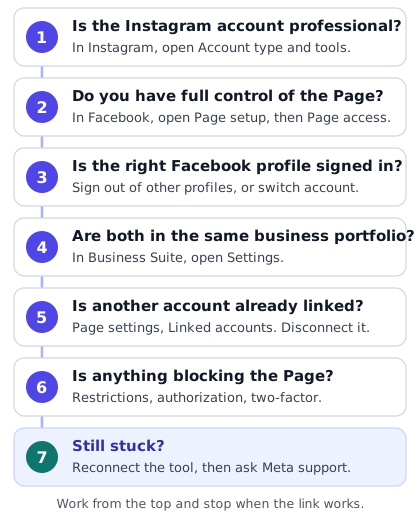
Work through the seven checks in the figure, in order. Then use the table to match what you see to a cause. The last column says where each cause comes from. Meta-documented means Meta's own pages say it. Vendor-reported means only the help centres of scheduling tools say it. Both means Meta documents the rule and vendors describe how it shows up.
We did not test these fixes on a live account. Menus and messages change, so quote Meta's wording if you contact Meta support.
The fix table
| What you see | Likely cause | What to do | Source |
|---|---|---|---|
| The Instagram option under Linked accounts is greyed out, or Linked accounts will not open. | You may not have full control of the Page. | Open Page setup, then Page access. Ask someone with full control to raise your access. | Both. Meta sets the rule (Business Help). Vendors report the symptom (Later, Leadsie). |
| Instagram has no Page option, or asks you to switch account type. | The Instagram account is personal. | Switch to a professional account, then link. | Meta-documented (Instagram Help). |
| Your Page is missing from the list in the Instagram app. | You are signed in to Facebook as a profile that does not manage the Page. | Tap Switch Facebook account, or link from Page settings (Method 1). | Both. Meta documents the switch step. Metricool reports the cause. |
| "The Facebook Page already belongs to a business." | A business portfolio owns the Page. | Ask the portfolio owner to finish the link, or link from Facebook if you have full control. | Vendor-reported message (Later, Metricool). Meta documents that a portfolio owns its Pages (Business Help). |
| "The page is already linked to an Instagram account." | A Page links to one Instagram account at a time. | Open Linked accounts, see which account is linked, and disconnect it first. | Vendor-reported (Later, Metricool). |
| The Instagram account will not join the portfolio. | It is already in another business portfolio. An account can be in only one. | Remove it from that portfolio, or ask its owner for access. Then add it to the Page's portfolio. | Meta-documented (Business Help). |
| Instagram and the Page show as two profiles in Business Suite. | They share a portfolio but are not linked. | Link them from Page settings, or use Connect assets in Business Suite. | Meta-documented (Business Help). |
| A request is waiting, or you cannot add the account. | You lack full control of the portfolio, or another admin must approve. | Ask someone with full control to approve it under Requests. If nobody has full control, submit a request to Meta. | Meta-documented (Business Help). |
| Business Suite refuses the Instagram account. | It is linked to a personal Facebook profile, not to a Page in the portfolio. | Claim the Page and the Instagram account together: Settings, Pages, Add, Add an existing Facebook Page. | Meta-documented (Business Help). |
| Nothing can be added, and you see an account notice. | A restriction on the portfolio, ad account, user account or Page. | Open Business Support Home, read the notice, and appeal if Meta offers it. | Meta-documented (Business Help). |
| Instagram asks you to log in to someone else's Facebook account. | Another person manages that Instagram account in Accounts Center. | Link from Facebook instead, with a profile that has full control of the Page. | Vendor-reported (Later, Metricool). |
| An orange Confirm icon sits beside the Page in Edit profile. | The Page owner may need to approve the link. | Tap it, or ask the owner to, and sign in to Business Manager if asked. | Vendor-reported (Later, Metricool). |
| The Facebook sign-in window does not open. | A pop-up blocker or a browser extension is in the way. | Allow pop-ups, switch off extensions, or try a private window. Then retry. | Vendor-reported (Later). Meta also suggests a private window for Instagram log-in trouble in Business Suite (Business Help). |
| The link exists, but publishing through a tool is blocked. | The Page requires Page Publishing Authorization. | Finish Identity confirmation in your Meta Account settings. | Meta-documented (publishing guide, Facebook Help). |
| A tool or Business Suite asks for a security code, or fails without one. | The Page, or the business that owns it, requires two-factor authentication. | Turn on two-factor, enter the code, and sign in again. | Meta-documented (IG User Media reference, Page reference). |
| A tool says it found no Instagram account. | The account is not professional or not linked. Or you lack tasks on the Page, or left the account unticked on Facebook's screen. | Check each in turn. Then reconnect the tool and tick both the Page and the Instagram account. | Meta-documented (overview, get-started guide, permissions reference). |
| A tool that worked now asks you to reconnect. | Meta stopped accepting its access after a password change, a removed app or an expiry. | Reconnect the tool. If it keeps happening, check Business Integrations in your Facebook settings. | Meta-documented (error handling guide, Facebook Help). |
| The Page link vanished after you changed account type. | Switching a professional account to personal disconnects any linked Page. | Switch back to professional and link the Page again. | Meta-documented (Instagram Help). |
Meta-documented causes
Meta's own troubleshooting article is titled "Why can't I add my Instagram profile to my business portfolio in Meta Business Suite?". It lists five reasons: "You don't have full control of the business portfolio", "Another admin needs to approve adding the Instagram profile to the business portfolio", "You're trying to connect a Facebook profile instead of a Facebook Page", "You have a restriction on your business portfolio, ad account, user account or Page", and "The Instagram profile is already in a different business portfolio". Read the full article for each fix. All five appear in the table above.
The fifth case has an odd tip. Meta says: "You can also try switching your Instagram professional profile to a private profile. Then change it to a professional profile again and connect the Instagram profile to the Facebook Page which you have admin access to." Professional accounts cannot be private, so we read this as switching to a personal account and back. That is a last resort, because Meta's setup article warns that switching to personal removes ads access and disconnects any linked Page.
A worked example
This walk-through is hypothetical. It shows how the checks combine, and it is not a real case.
Suppose your Page sits in an older business portfolio. You switch your Instagram account to professional, so Meta creates a new portfolio for it. You then try to link the two, and the link is refused. Work through the figure in order:
- Check 1 passes. The account is professional.
- Check 2 may fail. If you hold less than full control of the Page, someone with full control must raise your access. Meta words this rule three ways, so ask for full control.
- Check 4 fails. The Instagram account sits in its new portfolio and the Page sits in the old one. Remove the account from the new portfolio, then add it to the old one, as Method 3 explains.
- Link. Connect them from the Page settings, as Method 1 explains. Linked accounts should then show the Instagram account.
Vendor-reported causes
Scheduling tools handle many connections, and their help centres collect the failures their users hit. That makes them useful. It does not make them Meta. Several rows in the table come from vendors only.
- One Page, one Instagram account. Later says "A Facebook Page can only be connected to one Instagram profile at a time". Metricool says only one Instagram account can connect to one Page "and vice versa". We found no Meta sentence in those words. Meta's pages speak of one linked Page, and of connecting a different Page only after you disconnect. Meta's Page reference also shows a single
instagram_business_accountfield on a Page. - Two quoted errors. Metricool quotes "The Facebook Page already belongs to a business" and "The page is already linked to an Instagram account". Later names the first one.
- The orange Confirm icon and the Accounts Center login quirk. Both vendors describe them, with the same fixes.
- The sign-in window. Later says a pop-up blocker or a browser extension can stop Facebook's window from opening.
- A greyed-out or empty option. Leadsie says that without the right permissions "the Instagram option may appear greyed out or you won't see your Page listed". Meta says what access you need, but not how the button looks.
When only a tool cannot see the account
Sometimes the link is fine and a tool still shows no Instagram account. Meta's get-started guide shows why. The tool lists the Pages you can perform tasks on, then asks each Page for its Instagram account. A gap at either step hides the account.
- Check the Page link in Linked accounts.
- Check your tasks in Page access.
- Reconnect the tool. On Facebook's screen, tick the Page and also the Instagram account. Meta's permissions reference expects the login flow to show the person who "selects their Instagram account".
- Ask the tool whether its Meta app is approved for everyone. Meta's overview says Standard Access is meant for people "who have roles" on the app, and Advanced Access is needed "if your app serves Instagram professional accounts that you don't own or manage".
How PublishClip uses the connection
PublishClip is a free web app that posts Facebook Reels and Instagram Reels, now or on a schedule, through Meta's official Graph API. This section describes its connect flow as the code and pages stood on 17 October 2026. We built it, so we can show exactly what it asks for, and what it does not do.
PublishClip cannot post to a personal Instagram profile, and no tool can, as the sections above show. It also does not link your accounts for you. Facebook and Instagram do that, using the methods in this guide.
The flow, step by step
- You open Accounts and click Connect Facebook. PublishClip sends you to Facebook's own login and consent screen. You type your Facebook password into Facebook, never into PublishClip.
- Facebook shows the permissions PublishClip asks for. There are six, and the table below explains each. You choose which Pages to share. Meta's permissions reference tells app reviewers to expect a login flow in which the person "selects their Instagram account".
- Facebook sends you back with a short-lived token. PublishClip swaps it for a long-lived one and calls
me/accountsonce. The call asks for each Page's ID, name, access token and picture, plus itsinstagram_business_accountwith ID, username and picture. These are the two lookups that Meta's get-started guide describes, combined into one call. - PublishClip lists each Page with a tick box. Under it sits the linked Instagram account with its own tick box. Everything starts ticked, so untick what you do not want. A Page with no link says that no Instagram Professional account is linked to it. Nothing is saved yet.
- You confirm. PublishClip saves only what is still ticked.
What it keeps and what it drops
- Your personal Facebook token is not stored. PublishClip uses it once to list your Pages, then discards it.
- Page access tokens are stored, encrypted. The Page gets one, and its Instagram account gets a copy, because Meta's publishing guide lists a Facebook Page access token for the Facebook Login setup.
- The list from Facebook is held briefly. While you choose, it sits encrypted in your login session. It is dropped when you finish or the session expires.
- One identifier stays. PublishClip keeps your Facebook user ID, as known to the app only, so it can find and erase your data if Meta sends a deletion request.
Meta's page on long-lived tokens says long-lived Page access tokens "do not have an expiration date and only expire or are invalidated under certain conditions". Meta's error guide, covered below, lists some of those conditions.
The six permissions
Meta's descriptions come from its permissions reference, updated on 15 October 2026.
| Permission | What Meta says it allows | Why PublishClip asks |
|---|---|---|
| pages_show_list | Access "the list of Pages a person manages". | To show the Pages you can post to. |
| pages_read_engagement | Read content posted by the Page, followers data and "metadata and other insights about the Page". | To read Page basics such as the name and picture. Meta lists it as a dependency of the publishing permissions. |
| pages_manage_posts | "create, edit and delete your Page posts". | To publish your Reel to the Facebook Page you chose. |
| instagram_basic | "read an Instagram account profile's info and media". | To read the linked account's ID, username and picture. |
| instagram_content_publish | "create organic feed photo and video posts on behalf of a business user". | To publish your Reel to the Instagram account you chose. |
| business_management | "read and write with the Business Manager API". | PublishClip's own notes say Pages owned through a business portfolio show up in the Page list only with it. |
The last row needs a plain note. business_management is the broadest of the six, and Meta says its allowed usage is to "manage business assets such as an ad account". We found no Meta page that says Pages in a portfolio need it to appear in the list, so that reason is PublishClip's own observation. What we can show is the code. It makes no call to Meta's Business Manager API or to ad accounts. The calls it makes for your accounts are the token exchange, me/accounts and the publishing calls. It asks for no messaging or comment permissions.
Messages you may see
These are texts PublishClip shows while you connect, taken from its code.
| Message | What it means | What to do |
|---|---|---|
| "Facebook connection was cancelled." | You closed or declined Facebook's screen. | Start again from Connect Facebook. |
| "No Facebook Pages were shared. Pick at least one Page on the Facebook screen." | Facebook returned no Pages. You may have unticked them all, or your access lists none. | Connect again and tick the Page. Check your access in the roles section above. |
| "Facebook did not accept the connection:" followed by Meta's text. | Meta rejected the token exchange or the Page list. | Read Meta's text and match it to the fix table. |
| "That connection expired. Connect Facebook again." | The Page list held in your session is gone. | Connect again and finish in one sitting. |
When Meta stops accepting the access
Tokens can stop working. Meta's error guide lists code 190 as "Access token has expired" and code 102 as an API session error. Its subcodes include 458 "App Not Installed", 460 "Password Changed", 463 "Expired" and 467 "Invalid Access Token".
When Meta answers a post with 190 or 102, PublishClip does not retry it. The post fails, the account is marked as needing a reconnect, and the Accounts page offers a reconnect button. PublishClip also tells you in the app and, unless you turned it off in your notification settings, by email. The email says this usually happens after a password change, or when the app was removed in Facebook settings. Posts scheduled to that account fail until you reconnect. PublishClip keeps them, and you can retry a failed post afterwards. Reconnecting runs the same flow again, and accounts you added before are refreshed.
If a post fails for another reason, PublishClip shows Meta's own error text on the post. Our guide to fixing an Instagram Reel that will not upload has a decoder for those codes, and our guide to the Instagram Reels API explains the calls PublishClip makes.
Scheduling adds one more demand. A post that runs weeks from now needs a link and a token that still work on the day. Our guide to scheduling Instagram Reels covers the windows and limits.
What PublishClip does not do
- It does not post to personal Instagram profiles.
- It does not create the link between your Page and Instagram. You do that on Facebook or Instagram.
- It does not see your Facebook or Instagram password.
- It posts Facebook Reels and Instagram Reels, and nothing else.
If your accounts are linked and you want to try it, you can create a free account. The privacy policy lists what is kept and why.
Security and housekeeping
Linking two accounts joins their security too. Meta's Business Help article says: "Once you connect your Instagram account to a Page, anyone with access to either the Page or your Instagram account will be able to manage both assets." A weak lock on one door opens both. A short check every quarter keeps the setup tidy.
A quarterly checklist
| Check | How | Why |
|---|---|---|
| Two-factor is on for Facebook and Instagram. | On Facebook, open your profile picture, then Settings and privacy, Settings, Accounts Center, Password and security, then Two-factor authentication. | Instagram calls it "the single most effective step to protect your account from hackers". It turned two-factor on by default for creator accounts, and asks you to check you did not turn it off. |
| You know who has access to the Page. | Switch into the Page, then open Settings, Page setup and Page access. For a portfolio, use Settings, then Pages, then People in Business Suite. | Access to the Page now reaches the linked Instagram account. |
| Former staff and agencies are gone, and two people hold full control. | In Business Suite, open the Page, click People, then Manage, then Remove access. Give a trusted second person full control. | Meta says removed people "can no longer access the Page, its insights or tools". Only people with full control can give access back. |
| Unused apps are removed. | In Facebook, open Settings and privacy, Settings, then Business Integrations. Select an app, click Remove, then Remove. | An active integration "can manage one or more of your ads, Pages, groups, events, or messages". |
Old apps keep their reach longer than you think
Meta's help page on business integrations holds a detail that surprises people. If you have not used an integration for 90 days, its access to your personal, non-public information, such as your email address, expires. But Meta adds that this "expired access does not affect a business integration's connection to your Facebook business assets and information".
In plain words, an app you stopped using may still be connected to your Page. Removing the integration is how you end that. The same page offers View and Edit to narrow what an active integration can see. Removed integrations may still hold what you shared while they were active, so Meta suggests asking the developer to delete it.
Passwords and tokens
Never give anyone your Facebook or Instagram password, and never paste an access token into a form. Instagram's security page warns that you "should never share your login information with an app you don't trust". It adds that if you hand over your login details, "whether with an access token or by giving them your username and password, they can gain complete access to your account".
A legitimate publishing tool needs neither. It sends you to Facebook's own login window, and you approve what it may do there. For a team or an agency, give people Page access or a place in your business portfolio. Meta's page on shared access also lets eligible Instagram accounts invite people to post "without sharing your password".
How to see and remove PublishClip's access
Meta lists the apps you logged in to with Facebook, and that can manage your Pages, under Business Integrations. PublishClip is one of them, and our data deletion page tells you to look for it there. Use View and Edit to see what it holds, or Remove to end its access. That page says that when you remove PublishClip, Facebook sends it a data deletion request, and it deletes every Page and Instagram account connected through your Facebook user, with their tokens and post history.
PublishClip's own Disconnect option under Accounts works one account at a time. It deletes that account's stored token and the history of its posts, but it does not remove the app from your Facebook settings, so the app stays in your Business Integrations list until you remove it there. Neither route deletes your PublishClip login or your uploaded videos. The data deletion page explains how to delete those too.
Disconnect or switch accounts
You may need to undo the link to move to a different Page, to retire an old Instagram account, or to stop a tool. Meta documents three places to do it.
Disconnect from Facebook
Meta's Facebook Help article gives the disconnect steps next to the connect steps.
- Log in to Facebook and click your profile photo at the top right.
- Click See all profiles, then choose your Page.
- Click the Page's profile picture at the top right.
- Click Settings & privacy, then Settings.
- Under Permissions, click Linked accounts, then Instagram.
- Click Disconnect account, then Yes, disconnect.
On a phone, the path is the same through Menu, Options and the Page. Tap Linked accounts, then Instagram. On iPhone, Meta says to tap Disconnect account at the bottom of the screen. On Android, it adds Yes, disconnect.
Disconnect from Instagram
Meta's Business Help article gives this route. Open your profile. On a business account, scroll to Public business information. On a creator account, scroll to Profile information. Tap Page, then Disconnect Page. To use a different Page afterwards, repeat the connect steps from Method 2.
Remove or switch in Business Suite
Meta's page on connected business assets lists the other ways to break a link. You can remove an Instagram account or a Page from a business portfolio, switch back to a personal Instagram account, or delete the portfolio. Meta adds that you "may also need to separately turn off certain features that are enabled via connected business assets, such as multi-placement ads and Meta Verified".
What disconnecting changes
- Shared features stop. Cross-posting, the shared inbox and ads from the Page rely on the link.
- Meta Verified may end. Meta says: "In some cases, your active Meta Verified subscription may be canceled if you disconnect a subscribed Facebook Page and Instagram account." Check before you disconnect if you pay for it.
- Switching to personal has more side effects. Meta says you'll "no longer have access to ads and may lose access to select tools", and that any connected Page "will be disconnected".
- Tools lose the account. Meta's overview says the Facebook Login setup serves accounts "linked to a Facebook Page". Once the link goes, a tool that signs in that way can no longer find the Instagram account through the Page.
Switch to a different Page or Instagram account
The order matters. First disconnect the old pair. Then connect the new one with Method 1, 2 or 3. If the new Instagram account sits in another business portfolio, move it first, as the fix table explains. Last, reconnect your tool so that it finds the new pair.
In PublishClip, open Accounts, remove the old entries with Disconnect, then use Connect Facebook and tick the new Page and Instagram account. Disconnecting deletes an account's stored token and its post history, and posts scheduled only to that account are cancelled with it. Reschedule anything you still need after you reconnect.
Key takeaways
- Only a professional Instagram account, Business or Creator, can link to a Facebook Page. Switching makes the account public, and Meta creates a business portfolio for it.
- You can link from the Page's settings, from the Instagram app, or in Meta Business Suite. Meta words the access rule three ways, so ask for full control of the Page.
- The Page and the Instagram account must end up in the same business portfolio. An Instagram account can belong to one portfolio only, and adding it to a portfolio does not link it to the Page.
- Accounts Center shares posts between personal profiles. It is not the Page link, and posts made on a business Page cannot be shared to Instagram through it.
- A Page that needs Page Publishing Authorization blocks publishing until you finish it. A Page that requires two-factor authentication fails until you pass it.
- Labels matter. Meta documents the roles, the portfolio rules and the blocks. Only vendors report the one-Page-one-account rule, the orange Confirm icon and the exact error messages.
- A tool that signs you in with Facebook asks for your Pages, then for the Instagram account linked to each. If the account is missing, check the link, your tasks, and the tick box on Facebook's screen.
- Linking joins security. Turn on two-factor, remove old people and old apps, and never share a password or token.
Frequently asked questions
Short answers to common questions about linking Instagram and Facebook.
Do I need a Facebook Page to use Instagram?
No. Instagram works without a Page, and Meta calls linking one optional when you set up a professional account. Meta does recommend connecting your business Page "to get the most out of Instagram's business tools". You need the link for features that depend on it, such as ads from the Page, a shared inbox, and any tool that signs you in with Facebook. Tools built on Instagram's own login do not need a Page, and Meta Business Suite can manage a professional Instagram account with no Page. PublishClip signs in with Facebook, so it needs one.
Can I connect a personal Instagram account to a Facebook Page?
No. Meta says personal accounts can't be connected to a business asset in Meta Business Suite, and that sharing from a personal profile to a Page is no longer available. If you start the link from a personal account, Meta prompts you to switch to a professional account during the process, and that account becomes public. You can switch back to personal later, but Meta says any connected Page is then disconnected. Meta's Facebook Login API also cannot access personal accounts, so no tool can post to one.
Can one Instagram account be linked to two Pages?
Not at the same time, as far as we can tell. Meta's pages describe one linked Page and tell you to disconnect before you connect a different one. Meta's Page reference shows a single Instagram account field on each Page. Later and Metricool, two scheduling tools, say a Page links to one Instagram account and the other way round. We found no Meta sentence in those exact words, so part of this is vendor-reported. If you run several Pages, give each its own Instagram account and keep them in one business portfolio.
Why can I not see my Instagram account when I connect a tool?
The tool asks Meta for your Pages and then for the Instagram account linked to each one, so a gap at either step hides the account. Check that the account is professional, that it is linked to the Page, and that you can perform tasks on the Page, such as Content or Full control. Then reconnect and tick both the Page and the Instagram account on Facebook's screen. A tool whose Meta app is not yet approved can serve only people who have a role on that app. PublishClip tells you when a Page has no linked account.
Does linking Instagram to a Page post my content to both automatically?
No. Linking only makes sharing possible. Meta says that once the accounts are connected, you can share one post or reel to your Page, or allow all future posts, reels and stories to be shared automatically. Each is a separate choice that you make in Instagram, under Crossposting. A publishing tool posts only what you give it, and PublishClip sends a Reel to the accounts you tick for that post. Our guide to cross-posting Reels compares the ways to put one Reel on both apps.
Is a Creator or a Business account better for publishing?
For publishing Reels through Meta's API, either works. Meta's page on the Facebook Login API says content publishing is available to all Instagram professional accounts, except Stories, which are only available to business accounts. Meta says business accounts suit retailers, local businesses, brands, organizations and service providers, and creator accounts suit public figures, content producers, artists and influencers. You can switch type at any time, so choose by the features you want, not by publishing.
How do I disconnect Instagram from a Facebook Page?
In Facebook, switch into the Page and open Settings and privacy, then Settings. Under Permissions, choose Linked accounts, then Instagram, then Disconnect account, and confirm with Yes, disconnect. In the Instagram app, open Edit profile, tap Page, then tap Disconnect Page. Meta warns that in some cases an active Meta Verified subscription may be canceled when you disconnect. Tools that sign in with Facebook will no longer find the Instagram account. In PublishClip, also use Disconnect under Accounts to delete the stored token.
Sources and how this was checked
Last checked: 17 October 2026. We opened each page below on that date, and every quote and number comes from the page as it read that day. Meta edits help pages without notice, so open the page itself before you rely on a step.
Facebook Help
- Connect or disconnect an Instagram account and your Page, with its computer, iPhone and Android steps
- What happens after connecting and cross-profile experiences
- About Page access, see your Page access, give, edit or remove access and request access
- Get authorized to post as your Page, business integrations and two-factor authentication
Instagram Help
- About professional accounts and Set up a professional account
- Connecting a professional account to a Page and sharing to a Page
- Claim unmanaged Pages, Secure your account and Shared access
Meta Business Help Center and Meta Help Center
- Connect or disconnect your professional Instagram account and a Facebook Page
- About Page access, give access and remove access
- Connect your Instagram account to Business Suite, on the mobile app and to a business asset
- Add an Instagram account to a portfolio, add a Page to a portfolio and why you cannot add an Instagram profile
- Business portfolios and Instagram accounts, About business portfolios and connected business assets
- How Business Suite works, managing several Pages and accounts and Accounts Center
Meta for Developers
- Instagram Platform overview, updated 28 September 2026, and content publishing, updated 30 June 2026
- IG User Media, updated 28 September 2026, and Reels Publishing API for Pages, updated 30 July 2026
- Instagram API with Facebook Login, updated 3 March 2025, and its get-started guide, updated 30 June 2026
- Permissions reference, updated 15 October 2026, and long-lived tokens, updated 30 June 2026
- Page reference and Graph API error handling
Vendor help pages (reported, not Meta)
What we could not confirm
- A live test. We did not link a live account for this guide. Every step comes from Meta's pages as they read on 17 October 2026, and menus change.
- Error #2534013. Meta's connect article has a box called "Resolve error #2534013". Our tools could not read what is behind it.
- A dead link. Meta's publishing guide points to a Page Publishing Authorization page that answered "Page not found" when we opened it. We used Facebook Help instead.
- Today's task names. Meta's pages use two sets of names for Page tasks, and we could not check which set the live API returns, because that needs a real token.
- One Page per Instagram account, in Meta's words. Meta's pages imply it. Only vendors state it.
- Special characters in names. One secondary article says an emoji or special character in a name can block linking. We could not open it, and Meta does not document it.
About this guide
This guide comes from the team behind PublishClip, and the PublishClip section describes our own product as its code and pages stood on 17 October 2026. We checked each quote against the page it came from, and we will re-check the guide as Meta changes its menus. If you find a mistake, tell us.