Instagram Reels Size, Length and Format: 2026 Specs
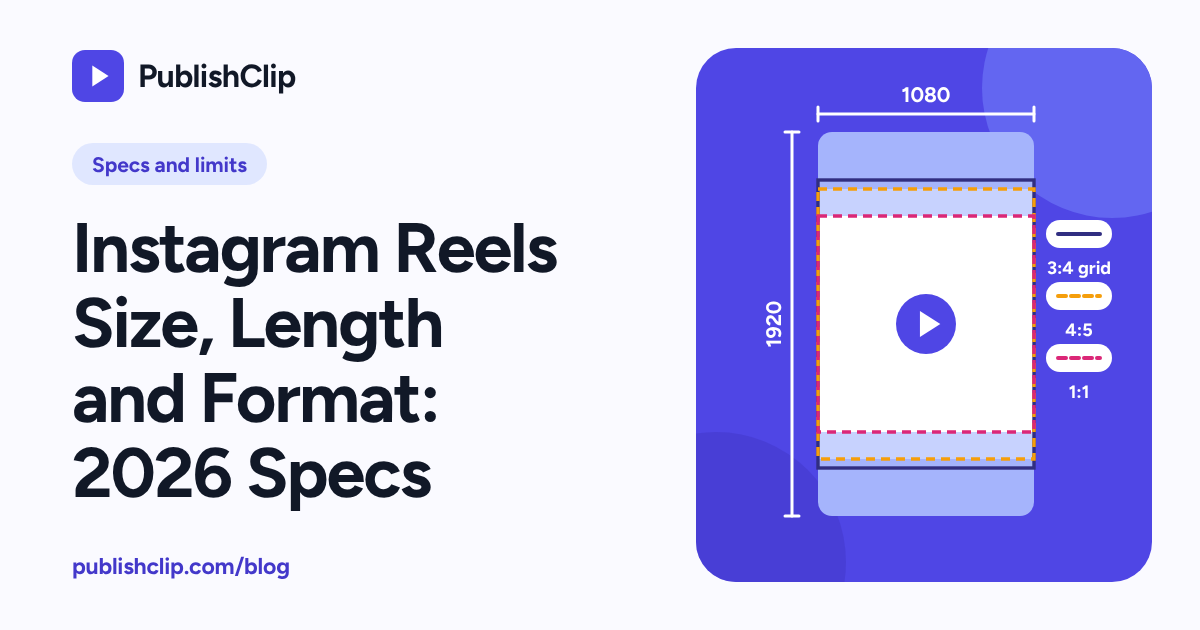
The recommended Instagram Reels size is 1080 by 1920 pixels at a 9:16 vertical aspect ratio, saved as an MP4 or MOV file with H.264 video, AAC audio and a constant frame rate around 30 frames per second. Export at those settings and your video fills a phone screen from edge to edge without black bars, unexpected cropping or a slow server-side conversion.
Where most guides go wrong is on length. If you search for how long a Reel can be in 2026, you will see five different numbers: 90 seconds, 3 minutes, 15 minutes and 20 minutes. None of those numbers is made up, and none of them is the whole truth on its own. Instagram applies different duration caps depending on whether you are recording inside the app camera, trying to reach non-followers in recommendations, publishing through the Instagram Graph API, or cross-posting to Facebook Reels at the same time.
This guide puts every dimension, duration rule, codec requirement, safe-zone crop and caption limit in one place, separating what Meta's developer documentation requires from what the mobile app accepts. We also tested the video rules with FFmpeg 6.1.1 so you can copy a proven export command that meets every line of Meta's specification.
Last checked: 17 October 2026. Meta updates its app limits in gradual rollouts and edits developer pages without notice, so every rule below includes its source and the date we checked it.
Instagram Reels size and format at a glance
Instagram Reels are 9:16 vertical videos at 1080 by 1920 pixels, exported as MP4 or MOV with H.264 video, 4:2:0 chroma subsampling, a closed GOP, a frame rate of 30 frames per second (23 to 60 accepted), VBR video up to 25 Mbps, and AAC audio at 128 kbps and 48 kHz.
The specification table below compares three columns: the practical export target that works everywhere, what the Instagram mobile app accepts when you film or pick a clip from your phone, and the hard limits published in Meta's IG User Media API reference as of 17 October 2026.
| Setting | Recommended export target | Instagram app (in-app camera and upload) | Instagram Graph API rule (17 Oct 2026) |
|---|---|---|---|
| Aspect ratio | 9:16 vertical | 9:16 full screen (Help Center notes 1.91:1 to 9:16 accepted) | 0.01:1 to 10:1 (9:16 recommended to avoid cropping or blank space) |
| Resolution | 1080 × 1920 pixels | At least 720p recommended by Instagram Help | Maximum width 1920 pixels; height scales with aspect ratio |
| Duration | 15 to 90 seconds (up to 3 min for discovery) | Up to 20 minutes in-app camera (upload cap 15 or 20 min by account; over 3 min not recommended to new audiences) | 3 seconds minimum to 15 minutes maximum |
| Cross-post duration (PublishClip / Facebook API) | 3 to 90 seconds | N/A | 3 to 90 seconds when also publishing via the Facebook Reels API |
| Container format | .mp4 (MPEG-4 Part 14) | .mp4 or .mov | .mov or .mp4 (MPEG-4 Part 14), no edit lists, moov atom at the front |
| Video codec | H.264 (libx264), High profile | H.264 or HEVC (H.265) | H.264 or HEVC, progressive scan, closed GOP, 4:2:0 chroma subsampling |
| Pixel format | 8-bit yuv420p | 8-bit SDR or 10-bit HDR from phone cameras | 4:2:0 chroma subsampling (8-bit yuv420p safest for third-party tools) |
| Frame rate | 30 fps constant | 30 fps minimum recommended by Instagram Help | 23 to 60 fps |
| Video bitrate | 5 to 12 Mbps VBR (or CRF 18–20) | Handled automatically by the app | Variable bitrate (VBR), 5 Mbps recommended, 25 Mbps maximum |
| Audio codec and rate | AAC-LC, stereo, 48 kHz, 128 kbps | Phone microphone or in-app audio | AAC, up to 48 kHz sample rate, 1 or 2 channels, 128 kbps constant bitrate |
| Maximum file size | Under 150 MB for fast uploads | Depends on phone storage and connection | 300 MB maximum |
| Cover image | 1080 × 1920 JPEG, sRGB, under 8 MB | Pick a frame or upload from camera roll | JPEG up to 8 MB, sRGB, 9:16 recommended (feed post uses middle 1:1 square) |
| Caption length | Hook in first 55–70 characters, under 2,200 total | Up to 2,200 characters | Up to 2,200 characters |
| Hashtags | 3 to 5 focused hashtags | Up to 5 hashtags per Reel (rolling out since Dec 2025) | API reference still states 30; app cap is 5 |
| Mentions and collaborators | Only accounts that belong in the post | Up to 20 @mentions, up to 3 collaborators | Up to 20 @mentions, up to 3 collaborators |
Why the three columns differ
When you upload a video from your camera roll inside the Instagram phone app, the app runs a local pre-processor on your handset before sending the file to Meta's servers. If your phone recorded a 4K 60 fps clip with an index at the back of the file and two edit lists, the app quietly scales, trims and re-wraps it on your phone. You rarely see a technical rejection message unless the file is corrupted.
When you schedule or publish through a web tool, Meta's servers fetch your file directly from a URL and validate it against the Graph API specification. There is no phone app sitting in the middle to rescue an oversized width or an unsupported container layout. Building your presets around the API column guarantees that the same master file works in the Instagram app, in Meta Business Suite, and in any scheduler that uses Meta's official publishing endpoints.
Instagram Reels size, aspect ratio and resolution
Getting the Instagram Reels size right starts with three numbers that video editors often mix up: aspect ratio, pixel dimensions and pixel aspect ratio. Each one controls a different part of how the player draws your frame.
Why 1080 by 1920 at 9:16 is the standard canvas
Every modern smartphone screen is built around a tall vertical rectangle. In the Reels tab, Instagram reserves a 9:16 viewport for the video player. For every 9 units of horizontal width, the player gives you 16 units of vertical height.
At standard Full HD density, 9:16 translates to 1080 pixels wide by 1920 pixels tall. That resolution hits the sweet spot between sharpness and file weight:
- Sharp enough for mobile screens. Even on high-density OLED phones, a well-encoded 1080 × 1920 frame at 5 to 10 Mbps looks crisp, with clean edges on burned-in captions and product labels.
- Inside Meta's width ceiling. Meta's IG User Media reference sets a hard maximum horizontal width of 1920 pixels. Because a vertical 1080 × 1920 video is 1080 pixels wide, it sits comfortably under that ceiling.
- No unnecessary server downscaling. Uploading a 1080 × 1920 file at a sensible bitrate reduces the amount of heavy resizing Instagram's transcoder has to perform after upload, which is one of the main ways to keep text and faces from turning soft.
What Meta's API and Help Center say about other aspect ratios
You will see two different aspect-ratio ranges quoted across the web, and both come from Meta:
- The Instagram Help Center range (1.91:1 to 9:16). Instagram's Help Center article on Reel size and aspect ratios is widely cited for stating that Instagram accepts aspect ratios between 1.91:1 (landscape) and 9:16 (full vertical), while recommending a minimum resolution of 720 pixels and a frame rate of at least 30 frames per second. Note that Instagram's Help Center serves a script-rendered shell to automated tools, so open that link in a standard browser if you want to read the live regional wording for your account.
- The Instagram Graph API range (0.01:1 to 10:1). In the IG User Media reference, checked on 17 October 2026, Meta lists the technical aspect-ratio range for the
REELSmedia type as 0.01:1 to 10:1, and immediately adds that 9:16 is recommended to avoid cropping or blank space.
In practice, just because the API accepts a wide or square file does not mean you should upload one as is. When you post a 16:9 horizontal video (1920 × 1080) as a Reel without converting it first, the player shrinks your picture into a narrow strip across the middle of the screen and fills the top and bottom two-thirds of the phone with dark empty bars. Viewers scrolling a full-screen vertical feed swipe past that layout almost immediately. If you start from a horizontal recording, use one of the five conversion layouts in our guide on converting horizontal video to vertical (9:16) for Reels.
Why 4K vertical (2160 × 3840) fails or hurts quality
Many cameras and phones shoot 4K vertical video at 2160 × 3840 pixels. Creators often assume that uploading a 4K file will force Instagram to store a higher-quality version. For Reels, the opposite happens, and through the API it can fail outright:
- API rejection above 1920 pixels wide. Meta's specification table states: "Maximum horizontal pixels: 1920." A vertical 4K video is 2160 pixels wide. Even though 2160 is the shorter side of a
2160 × 3840frame, it is still the horizontal width, so it exceeds 1920 pixels. A developer write-up testing files against Meta's Reel specification reported that a 2160-pixel-wide file was rejected by the API. - Aggressive re-compression in the app. When you upload a massive 4K file in the mobile app, Instagram downscales it to 1080 × 1920 anyway and compresses it to fit its delivery bitrates. Doing the downscale yourself in Premiere Pro, DaVinci Resolve, CapCut or FFmpeg gives you control over the scaling filter and sharpening before Instagram touches the file.
Minimum resolutions and the 720p floor
What if you have an older clip at 720 × 1280? A 720 × 1280 frame is still an exact 9:16 rectangle (720 ÷ 1280 = 9 ÷ 16). Both the Instagram app and the Graph API accept it, and it meets the 720-pixel recommendation cited from Instagram Help. On Facebook, Meta's Reels Publishing API for Pages goes as low as 540 × 960 as a minimum while recommending 1080 × 1920.
Whenever your source footage allows it, export at 1080 × 1920. Only drop to 720 × 1280 when the original recording is already 720p and upscaling it would only bloat the file without adding real detail.
Square pixels (SAR 1:1) versus anamorphic stretches
Resolution is only half of the geometry equation. Every MP4 or MOV file stores two aspect flags:
- SAR (Sample Aspect Ratio): the shape of an individual pixel. Modern digital video uses square pixels (
1:1). - DAR (Display Aspect Ratio): the shape of the final picture (
width × SAR ÷ height).
Sometimes a screen recorder, an older camcorder or a complex filter chain writes a file with 1080 × 1920 pixels but tags the SAR as something slightly off, such as 16:9 or 404:405. Some players ignore the tag, while others stretch the picture or reject the aspect ratio. Adding setsar=1 at the end of your scaling filter forces square pixels (SAR 1:1) so that 1080 × 1920 always equals an exact 9:16 display ratio.
Instagram Reels length: three limits, not one
There is no single "Instagram Reel length limit" in 2026. If someone tells you Reels stop at 90 seconds, they are repeating a 2022–2024 rule—or talking about cross-posting to the Facebook Reels API. If someone tells you Reels can be 20 minutes long without mentioning reach, they are leaving out the recommendation cliff at 3 minutes.
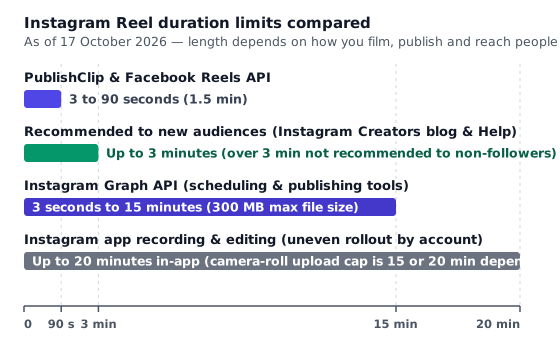
As of 17 October 2026, four distinct duration ceilings govern Instagram Reels. Which one applies to you depends on how you record, how you publish, and whether you want the Reel recommended to people who do not follow you yet.
Limit 1: Recording and editing in the Instagram app (up to 15 or 20 minutes)
When Reels launched in August 2020, clips were limited to 15 seconds, then 30 seconds, 60 seconds and 90 seconds. In late 2025, Instagram expanded the in-app limit dramatically. On 25 November 2025, photography and creator press (including PetaPixel, citing an update shared through Instagram's official @design account) reported that the Instagram Reels camera could record up to 20 minutes. Instagram's Help Center page on recording a Reel reflects that 20-minute ceiling for recording and editing in the app.
Two real-world caveats matter if you publish long videos in the app:
- Camera-roll uploads versus in-app filming are disputed across guides. Secondary documentation disagrees on whether uploading a pre-edited video from your phone's camera roll stops at 15 minutes or reaches the full 20 minutes. Buffer's Reels length guide states that in-app filming allows up to 20 minutes while camera-roll uploads cap at 15 minutes and lose some editing tools; other vendor guides state that 20-minute uploads began rolling out in June 2025.
- Rollouts vary by account and region. Instagram turns on new length tiers account by account. Do not edit a 19-minute episode on your computer assuming your phone will accept it until you open the Reel creation screen on your own account and check the duration timer or upload a quick test file.
Limit 2: Eligibility for recommendations to non-followers (up to 3 minutes)
Being allowed to upload a 10-minute or 20-minute Reel is not the same as having Instagram show that Reel to new people in the Reels tab or Explore.
On 21 January 2025, Instagram announced in its Instagram for Creators blog that creators in the United States could publish Reels up to 3 minutes long in the Reels editor, and explicitly stated that Reels up to 3 minutes "will be eligible to be seen by non-followers". Before that update, recommendation guidance stopped at 90 seconds. Instagram's Help Center page on recording a Reel pairs the 20-minute recording figure with the warning that Reels longer than 3 minutes are not recommended to new audiences.
That creates a clear strategic split:
- Under 3 minutes (180 seconds): Your Reel can be distributed both to your existing followers and to unconnected viewers through Instagram's recommendation engine.
- Over 3 minutes (up to 15 or 20 minutes): Your Reel can still be watched by your followers, shared in direct messages, and viewed on your profile grid, but Instagram states it will not push the clip to new audiences in recommendations.
If your goal is account growth and discovery, treat 3 minutes as your real ceiling, and aim for 30 to 90 seconds unless the topic genuinely earns the extra time.
Limit 3: Publishing through the Instagram Graph API (3 seconds to 15 minutes)
When you use a third-party scheduling tool or your own custom workflow built on Meta's API, neither the 20-minute in-app camera limit nor the 90-second legacy cap applies to Instagram alone.
According to Meta's IG User Media reference, checked on 17 October 2026, the Instagram Graph API accepts Reels with:
- Minimum duration: 3 seconds.
- Maximum duration: 15 minutes (900 seconds).
- Maximum file size: 300 MB.
If you hand an API-based tool a 2-second clip or a 16-minute video, Meta's container processor rejects the upload during media validation. Notice also how the 300 MB file-size cap interacts with a 15-minute duration: a 15-minute video (900 seconds) must stay under 300 MB (about 2,400 megabits total), which means your combined video and audio bitrate for a full 15-minute API Reel cannot average more than roughly 2.6 Mbps. For a normal 60-second Reel, 300 MB leaves plenty of headroom even at 15 or 20 Mbps. For the full container creation and polling workflow, see our Instagram Reels API guide.
Limit 4: Cross-posting with Facebook Reels and PublishClip (3 to 90 seconds)
Why do so many tools—including PublishClip—still enforce a 3 to 90 second limit when Instagram's API accepts 15 minutes?
The reason sits on the Facebook side of Meta's developer platform. In the consumer Facebook app, Meta announced on 17 June 2025 that all videos on Facebook would be shared as Reels without length or format restrictions. However, Meta did not remove the length cap from its developer endpoint for Pages. As of 17 October 2026, Meta's Reels Publishing API for Pages still specifies a strict duration requirement of 3 to 90 seconds (and returns error code 1363128 when a video falls outside that range).
PublishClip is built to schedule and publish short vertical videos to both Instagram Reels and Facebook Reels from one upload. Because a 2-minute video would succeed on the Instagram API but fail on the Facebook Reels API, PublishClip validates that your clip is between 3 and 90 seconds before queuing it. You can compare every Facebook-side rule in our Facebook Reels size and specs guide, or see how these numbers line up against YouTube Shorts (up to 3 minutes) and TikTok (up to 10 minutes via API) in Reels vs YouTube Shorts vs TikTok.
| Publishing path | Minimum length | Maximum length | Eligible for non-follower reach on Instagram | |---|---|---|---| | Instagram app camera | 3 seconds | Up to 20 minutes (rollout varies by account) | Up to 3 minutes | | Instagram app camera-roll upload | 3 seconds | 15 or 20 minutes (disputed in secondary guides; check your app) | Up to 3 minutes | | Instagram Graph API | 3 seconds | 15 minutes (and under 300 MB) | Up to 3 minutes | | Facebook Reels API for Pages | 3 seconds | 90 seconds | N/A (Facebook Page Reels) | | PublishClip (Instagram + Facebook Reels) | 3 seconds | 90 seconds | Yes (well inside the 3-minute rule) |
File format, codecs, bitrate and file size
Dimensions and length are what you see on the timeline. Container layout, video codec and audio encoding are what Meta's ingestion servers inspect when your file arrives. When a Reel fails to upload or gets stuck on "Processing", one of these underlying file properties is usually to blame.
What Meta's Instagram Graph API specification lists
Meta publishes its most specific technical table in the IG User Media reference under "Reel Video Specifications". As of 17 October 2026, here is every item in that specification:
- Container:
MOVorMP4(MPEG-4 Part 14), no edit lists,moovatom at the front of the file. - Audio codec:
AAC, 48 kHz sample rate maximum, 1 or 2 channels (mono or stereo). - Video codec:
HEVC(H.265) orH.264, progressive scan, closed GOP, 4:2:0 chroma subsampling. - Frame rate: 23 to 60 FPS (frames per second).
- Picture size: Maximum horizontal width of 1920 pixels; aspect ratio between
0.01:1and10:1(9:16recommended to avoid cropping or blank space). - Video bitrate: VBR (variable bitrate), 5 Mbps recommended, 25 Mbps maximum.
- Audio bitrate: 128 kbps.
- Duration: 3 seconds minimum, 15 minutes maximum.
- File size: 300 MB maximum.
H.264 versus HEVC (H.265)
Meta's specification accepts both H.264 (AVC) and HEVC (H.265). If you shoot on a recent iPhone or Android phone, the camera app often records in HEVC by default because it packs the same visual quality into roughly half the file size.
When you export from a desktop editor or an automated script, H.264 (libx264) in the High profile with 8-bit yuv420p color remains the most predictable choice:
- Every browser preview player, scheduling dashboard and social platform decodes 8-bit H.264 without needing hardware-specific HEVC extensions.
- Phone recordings in HEVC are frequently paired with 10-bit HDR color (
yuv420p10le, Dolby Vision or HLG). While the Instagram app handles HDR from phones well, third-party tools and older transcoding pipelines sometimes wash out 10-bit color or stall during container processing. Converting to 8-bityuv420pH.264 removes that variable completely.
Frame rate: 23 to 60 fps, and why constant 30 fps wins
Meta's API allows frame rates from 23 to 60 fps, which covers cinema 23.976 / 24 fps, PAL 25 fps, NTSC 29.97 / 30 fps, 50 fps and 59.94 / 60 fps. Instagram's Help Center recommends at least 30 fps.
Two frame-rate traps cause trouble in short-form video:
- Variable frame rate (VFR) from phones and screen recorders. Front-facing phone cameras in dim rooms and screen recording tools (such as QuickTime, OBS or phone screen capture) often drop frames when the scene is still and speed up when motion starts. That produces a variable frame rate where the average might read
28.4 fpswith dips below 23 fps. On Facebook's Reels API, Meta explicitly calls for a fixed frame rate, and on both platforms VFR files frequently drift out of audio sync after re-encoding. Always export at a constant frame rate (-r 30in FFmpeg). - Spending bitrate on 60 fps when you do not need it. A 60 fps video has twice as many frames per second as a 30 fps video. At the same 5 to 8 Mbps bitrate, each frame in a 60 fps video gets half the data budget of a 30 fps frame. Unless your Reel shows fast sports action, dance choreography or high-frame-rate gameplay, 30 fps gives each frame more detail and keeps files smaller.
Video bitrate, CRF and the 300 MB ceiling
Meta recommends a 5 Mbps variable video bitrate and sets a 25 Mbps maximum, alongside a 300 MB total file-size cap.
At 1080 × 1920 and 30 fps, here is what different bitrates produce for a 60-second Reel (including a 128 kbps audio track):
| Video bitrate | 30-second file size | 60-second file size | 3-minute file size | When to use it | |---|---|---|---|---| | 5 Mbps (Meta recommended) | ~19 MB | ~38 MB | ~114 MB | Talking-head clips, simple motion, fast uploads on slow connections | | 8 to 10 Mbps | ~30–38 MB | ~61–76 MB | ~182–228 MB | Detailed B-roll, street scenes, burned-in text overlays | | 15 Mbps | ~57 MB | ~113 MB | ~339 MB (exceeds 300 MB at 3 min!) | Short 15–60 second clips with heavy foliage, confetti or fast pans | | 25 Mbps (API max) | ~94 MB | ~188 MB | ~565 MB (exceeds 300 MB!) | Maximum allowed bitrate; only fits under 300 MB if clip is under ~95 seconds |
Look closely at the 3-minute column: at 15 Mbps, a 3-minute Reel hits roughly 339 MB and breaks the 300 MB file-size limit even though 15 Mbps is well below the 25 Mbps bitrate cap. When you use FFmpeg's Constant Rate Factor (-crf 20), the encoder varies the bitrate automatically based on scene complexity—usually landing between 3 and 10 Mbps for typical vertical video—so you stay well inside both the 25 Mbps rate cap and the 300 MB size cap. If you encode a long 5-to-15-minute video for the API, add -maxrate 8M -bufsize 16M (or lower for 15-minute files) so a complex scene never pushes the file over 300 MB.
What we found when testing FFmpeg against Meta's container rules
Meta's specification requires two specific MP4 container properties: moov atom at the front and no edit lists.
On 16 and 17 October 2026, we tested what a standard build of FFmpeg (6.1.1-3ubuntu5 with libx264 core 164) actually writes when you encode a 1080 × 1920 MP4 file:
- Default FFmpeg encode (
ffmpeg -i in.mp4 out.mp4):- Wrote the top-level MP4 boxes in the order
ftyp,free,mdat,moov. That puts themoovindex at the very end of the file, after the media stream—the opposite of Meta's specification. - Wrote two
edts/elstedit list boxes (one on the video track and one on the audio track)—again violating the literal wording of "no edit lists".
- Wrote the top-level MP4 boxes in the order
- Adding
-movflags +faststart:- Moved the
moovbox to the front (ftyp,moov,free,mdat), fixing the index order. - Left the two edit lists in place.
- Moved the
- Adding
-use_editlist 0without changing B-frames:- Removed both
edts/elstboxes completely. - However, because
libx264enables B-frames by default and uses an edit list to signal the initial composition delay, turning off edit lists while keeping B-frames caused the video track'sstart_timeto sit at0.067seconds while audio started at0.000seconds.
- Removed both
- Adding
-movflags +faststart -use_editlist 0 -bf 0:- Put
moovat the front (ftyp,moov,free,mdat). - Wrote zero edit lists.
- Kept both video
start_timeand audiostart_timeat0.000000seconds.
- Put
An honest note on enforcement: Meta does not publish any statement on whether its API ingestion servers hard-reject every MP4 that has an edit list or a trailing moov atom, or whether they merely slow down processing while re-indexing the file. Many files exported straight from Premiere or Final Cut contain edit lists and still publish, while other uploads fail with generic processing errors (2207053 or 2207026). Treat Meta's table as the documented target: when you build an export preset or troubleshoot a rejected file, matching the specification removes those container quirks from the equation. If a Reel is currently stuck or failing, walk through the error codes in our guide on fixing an Instagram Reel that is not uploading.
The spec words in plain English
If you are not a video engineer, phrases like "moov atom at the front", "no edit lists", "closed GOP" and "4:2:0 chroma subsampling" read like another language. Here is what each term in Meta's specification table means, why it is there, and the one-line command to check it on your own file.
Container (MP4 or MOV) and the moov atom
An .mp4 or .mov file is a container—a digital box that holds a compressed video stream, an compressed audio stream, and a table of contents that tells a player where every frame sits and when to play it.
Inside that container, MPEG-4 files organize data into chunks called atoms or boxes, each with a four-letter name:
ftyp(File Type): identifies the file standard near byte zero.mdat(Media Data): the heavy payload of actual video frames and audio samples.moov(Movie Box): the index or table of contents listing track dimensions, codecs, frame timestamps and byte offsets.
When an encoder writes a video in a single pass, it does not know the exact byte position of every frame until it finishes encoding the last second of video. By default, it writes mdat first and tacks the moov index onto the end of the file. When Meta's server fetches your video from a URL, a trailing moov box forces the server to download the entire multi-megabyte file before it can even read the frame rate or duration. Putting the moov atom at the front (with -movflags +faststart in FFmpeg, or "Fast Start" / "Web Optimized" in editors) lets Meta's server read the index in the first kilobytes of the HTTP download.
Edit lists (edts and elst) and the AAC priming shift
An edit list (edts containing an elst box) is a small instruction inside a track header that tells a player to skip a few milliseconds at the start of a stream or offset one track relative to another without re-encoding the media data.
Why do encoders write edit lists on brand-new files? For two reasons:
- AAC audio priming: AAC encoders prepend a tiny silent warm-up block—typically 1,024 samples, or about
21.3milliseconds at 48 kHz—at the start of the audio stream, then write an edit list telling the player to skip those priming samples so audio starts on beat zero. - B-frame video delay: When a video stream uses bidirectional frames (B-frames), the order frames are decoded differs from the order they are displayed. The muxer writes an edit list so the first displayed frame lines up with timestamp zero.
When we tested -use_editlist 0 -bf 0 in FFmpeg 6.1.1 on 17 October 2026, stripping the edit lists produced a clean file with zero edts boxes and both tracks starting at 0.000000 seconds. Because the muxer can no longer use an edit list to hide the 1,024-sample AAC priming block, it shifts every video frame after frame 0 by roughly 21 milliseconds (0.021 seconds) so audio and video remain locked in sync. That makes the first video frame last about 55 milliseconds instead of 33.3 milliseconds, places the frame-60 keyframe at 2.021 seconds, and makes ffprobe report avg_frame_rate as roughly 29.84 while the nominal stream rate r_frame_rate stays 30/1. That tiny first-frame offset is normal when edit lists are disabled and keeps speech in sync.
Closed GOP, keyframes and B-frames
Video codecs do not store every frame as a complete standalone photograph. Instead, they group frames into a GOP (Group of Pictures):
- I-frame (Intra / Keyframe): a full picture that can be decoded on its own.
- P-frame (Predicted): stores only what moved since a previous frame.
- B-frame (Bidirectional): looks both backward and forward to compress motion even further.
In an open GOP, frames near the end of one group are allowed to reference frames across the boundary in the next group. In a closed GOP, every group between keyframes is completely self-contained. Meta requires a closed GOP on Instagram (and specifically a closed GOP of 2 to 5 seconds on Facebook's Reels API) so its server can split a video at keyframe boundaries and transcode chunks in parallel without broken frames at the seams.
In our 17 October 2026 verification with FFmpeg 6.1.1 (libx264 core 164), we checked the encoder metadata string embedded in the output stream:
libx264setsopen_gop=0(closed GOP) by default.- Passing
-bf 0disables B-frames altogether, which makes an open GOP structurally impossible and removes the edit-list offset described above. - Passing
-g 60 -sc_threshold 0at 30 fps places an I-frame at frame 0 and every 60 frames after that (roughly every 2 seconds), and prevents scene-change detection from inserting irregular GOP lengths. (Note: you do not need-keyint_min 60;x264internally clampskeyint_mintokeyint / 2 + 1, recording31when60is requested, and our test confirmed that omitting-keyint_minproduced the exact same keyframes and frame hashes.)
Chroma subsampling (4:2:0) and the 8-bit yuv420p precaution
Human eyes notice small changes in brightness (luma, Y) much more acutely than small changes in color tint (chroma, U and V). 4:2:0 chroma subsampling keeps full brightness resolution for every pixel (1080 × 1920), while storing color information in 2 × 2 pixel blocks (540 × 960). Almost all web video, Blu-ray discs and streaming platforms use 4:2:0.
Professional mirrorless cameras often shoot in 4:2:2 (twice as much color data) and 10-bit color depth (yuv422p10le), and recent iPhones shoot 10-bit HDR (yuv420p10le). Meta's specification explicitly requires 4:2:0 chroma subsampling. While Meta's table does not mention bit depth (8-bit versus 10-bit), in our FFmpeg test a 10-bit input remained High 10 / yuv420p10le unless -pix_fmt yuv420p was specified. Passing -pix_fmt yuv420p converts both 4:2:2 camera files and 10-bit phone files into standard 8-bit 4:2:0 video—a simple precaution that avoids profile mismatches.
Progressive scan and variable bitrate (VBR)
- Progressive scan: every frame is drawn all at once from top to bottom (
1080p), rather than split into alternating odd and even horizontal lines (1080iinterlaced video from older broadcast television). If you ever digitize old interlaced footage, run a deinterlacing filter (yadiforbwdif) before exporting. - VBR (Variable Bitrate): instead of spending the exact same number of bits on a static title card and a fast-moving crowd scene (Constant Bitrate, or CBR for video), a VBR encoder saves bits on simple frames and spends up to your ceiling (25 Mbps max in Meta's spec) when motion spikes. Note that while video uses VBR, Meta specifies a fixed 128 kbps for the AAC audio track.
Safe zones and the profile grid
Even when your video is a perfect 1080 × 1920 file, viewers almost never see all 1080 × 1920 pixels unobstructed. Two separate things cover or cut your frame: player UI overlays while the Reel plays, and centered aspect crops when the Reel sits on your profile grid or in the main home feed.
Hazard 1: In-player UI overlays (top, bottom and right rail)
When someone watches your Reel in the full-screen Reels tab, Instagram draws translucent interface controls directly on top of your video:
- Top bar: the Reels header, status icons or camera button.
- Right-hand action rail: the like heart, comment bubble, share plane, save ribbon, three-dot menu and spinning audio thumbnail stacked up the lower right edge.
- Bottom overlay: your profile picture, handle, Follow button, expanding caption lines, collaborator tags, location pill and scrolling audio marquee.
Meta publishes official safe-zone numbers in its Business Help Center article on text overlays and safe zones for Stories and Reels ads. Keep in mind that Meta wrote that page as guidance for paid Reels ads (which also carry a "Sponsored" label and a wide call-to-action button across the bottom), not as an enforced rejection rule for organic Reels. Still, the ad safe zone—roughly leaving the top 14% (~270 px), bottom 35% (~670 px) and side 6% (~65 px) free of critical text—is a helpful upper bound.
For organic Reels on a 1080 × 1920 canvas, keeping burned-in captions, logos and lower-thirds inside these margins prevents the UI from covering your words:
- Top margin: keep at least 220 pixels clear from the top edge (
y >= 220). - Bottom margin: keep at least 420 to 500 pixels clear from the bottom edge (
y <= 1420to1500), where the handle, caption and audio bar sit. - Right margin: keep at least 120 pixels clear on the lower right side (
x <= 960) so the like, comment and share icons do not sit on top of words. - Left margin: keep 60 pixels clear from the left edge (
x >= 60) so curved phone bezels and slightly zoomed screen sizes do not clip the first letter of a line.
If you burn subtitles into your video with FFmpeg or an editing tool, read our step-by-step guide on adding captions to Reels, which includes the exact coordinate math so captions never disappear behind the bottom UI.
Hazard 2: Profile grid and feed crops (3:4, 4:5 and 1:1 math)
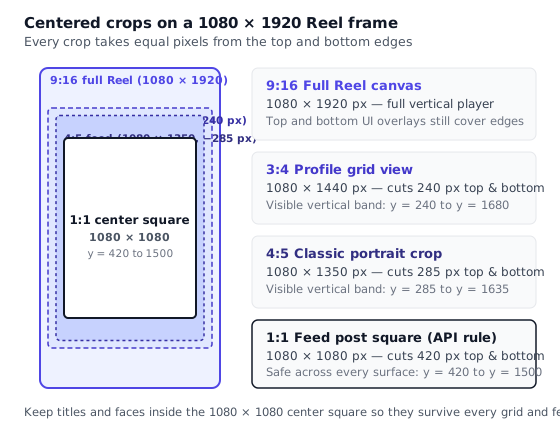
Before someone taps your Reel on your profile, they see it as a static thumbnail tile. Instagram crops your 1080 × 1920 cover frame around the center to fit three different rectangular views depending on where the thumbnail appears.
Because all three crops keep the full 1080-pixel width and slice equal amounts off the top and bottom, the pixel arithmetic on a 1080 × 1920 frame is exact:
| Surface | Aspect ratio | Cropped pixel dimensions | Total height removed | Pixels cut from top AND bottom | Visible vertical range (y coordinate) |
|---|---|---|---|---|---|
| Full Reel player | 9:16 | 1080 × 1920 | 0 px | 0 px | y = 0 to 1920 |
| Profile grid (3:4) | 3:4 | 1080 × 1440 | 480 px | 240 px top, 240 px bottom | y = 240 to 1680 |
| Portrait feed (4:5) | 4:5 | 1080 × 1350 | 570 px | 285 px top, 285 px bottom | y = 285 to 1635 |
| Feed post square (1:1) | 1:1 | 1080 × 1080 | 840 px | 420 px top, 420 px bottom | y = 420 to 1500 |
Here is how each calculation works:
- The 3:4 profile grid (
1080 × 1440): Divide the 1,080-pixel width by 3 and multiply by 4:1080 ÷ 3 × 4 = 1440pixels tall. Subtract 1,440 from 1,920 to get 480 pixels of vertical trim, or 240 pixels off the top and 240 pixels off the bottom. (Third-party creator publications report that Instagram began rolling out the 3:4 profile grid in January 2025 to replace the older square grid; Meta does not publish a standalone developer spec page for the grid's exact display density, as the app scales the 3:4 tile to each phone's screen width.) - The 4:5 portrait crop (
1080 × 1350): Divide 1,080 by 4 and multiply by 5:1080 ÷ 4 × 5 = 1350pixels tall. Subtract 1,350 from 1,920 to get 570 pixels removed, or 285 pixels off the top and 285 pixels off the bottom. - The 1:1 center square (
1080 × 1080): A square equal to the 1,080-pixel width leaves1920 − 1080 = 840pixels removed, or 420 pixels off the top and 420 pixels off the bottom. In the IG User Media reference, Meta explicitly notes that when you share a Reel to the feed (share_to_feed=true), Instagram crops the cover image to the middle-most 1:1 square for the feed post.
The one-box rule for cover titles: If you place your cover title and your subject's eyes inside the center 1080 × 1080 square (y = 420 to y = 1500), that design automatically survives the 4:5 crop, the 3:4 grid crop and the 9:16 player. For templates and cover typography rules, see our Instagram Reel cover guide.
Captions, hashtags and mentions
Your video file is only half of the Reel container. Meta validates your caption text, hashtags, @mentions, collaborator invites and disclosure labels at the same time.
Caption length and the fold before "more"
Both the Instagram app and Meta's IG User Media reference allow up to 2,200 characters in a Reel caption. If an API call sends a caption longer than 2,200 characters, Instagram returns error code 36004 (subcode 2207010, caption too long).
On screen, viewers only see the first one to two short lines—roughly 55 to 70 characters—at the bottom of the Reel before Instagram truncates the text with ... more. When a viewer taps more, the caption expands into a dark scrollable sheet over the video. Write your caption in two distinct layers:
- Line 1 (under 65 characters): A clear hook or promise that complements the visual without repeating the exact words already burned onto the first frame.
- The body below the fold: Step-by-step details, recipes, gear lists, timestamps or context for viewers who want the full story.
Also remember that URLs in Reel captions are not clickable. Pasting https://example.com/offer/summer-collection?utm_source=ig into a caption wastes characters and cannot be tapped. Point viewers to the link in your bio, or keep a memorable short domain on screen if they are willing to type it.
The 5-hashtag rule in the app versus 30 in the API documentation
For years, every Instagram cheat sheet repeated the same number: up to 30 hashtags per post or Reel. In December 2025, that changed inside the Instagram app.
On 18 December 2025, Social Media Today reported that Instagram was introducing a hard limit of 5 hashtags per Reel or feed post, quoting Instagram's official statement:
"We're going to gradually update the number of hashtags that you can include in a caption for a reel or post to five. Using fewer, more targeted hashtags (vs. more or generic hashtags) can improve both your content performance and people's experience on Instagram."
What about the Graph API? When we checked Meta's IG User Media reference on 17 October 2026, the caption field description still read: "A maximum of 2,200 characters, 30 hashtags, and 20 @ mentions are allowed." Meta has not documented whether an API-published Reel with 6 to 30 hashtags is rejected, silently stripped of hashtags, or accepted on accounts where the 5-hashtag app limit has already rolled out.
What you should do: Treat 5 hashtags as the practical rule everywhere, whether you post in the app or schedule through a tool. Three to five specific, topic-relevant hashtags match Instagram's own search and recommendation guidance and guarantee you will not trip an undocumented rollout check.
Mentions, collaborators, locations and AI labels
Beyond the text and hashtags, Meta's Reels publishing endpoint supports several structured fields:
@mentions(up to 20 in the caption): You can mention up to 20 Instagram handles inside thecaptionstring. Mentioning a 21st account triggers API error code100with subcode2207040("The post contains more than 20 mentions").- Collaborators (up to 3 accounts): Through the
collaboratorsparameter (or "Invite collaborators" in the app), you can invite up to 3 additional public Instagram accounts to co-author the Reel. Once a collaborator accepts, the Reel appears on their profile grid too and shares a combined view and comment count. Note that Meta's in-app scheduling help page states that collaborative posts cannot be scheduled inside the native Instagram app, whereas the Graph API supports passingcollaboratorsat publish time. - Location tag (
location_id): You can attach a single place page ID so the location pill appears right below your username on the Reel. - Paid partnership label (
is_paid_partnershipandbranded_content_sponsor_ids): Added to the API on 22 April 2026 (for Facebook Login apps) in the Instagram Platform changelog, allowing creators to attach the paid partnership disclosure and sponsor handles at publish time. - AI-generated content label (
is_ai_generated): Added on 22 June 2026 across both Facebook Login and Instagram Login paths, letting tools set the booleanis_ai_generatedflag when publishing photorealistic AI video or audio. - Trial Reels (
trial_params): Added on 3 December 2025, allowing a Reel to be shown first to non-followers only, with agraduation_strategyofMANUALorSS_PERFORMANCE(automatically sharing to followers if it performs well). - Alt text (
alt_text): While Meta added customalt_textto the API for single-image and carousel photo posts in March 2025, the media reference states thatalt_textis not supported for Reels. Instead, make sure your spoken dialogue, burned-in captions and text caption describe the visual clearly.
Audio: original sound, library music and business accounts
Audio on Instagram Reels works on two levels: the technical audio stream baked into your MP4 file, and the platform metadata that links your Reel to a named sound or a licensed music track.
Technical audio requirements (AAC, 48 kHz, 128 kbps)
In the IG User Media reference, Meta specifies three technical rules for the audio track inside your video file:
- Codec:
AAC(Advanced Audio Coding; standardAAC-LCis universal). - Sample rate: up to 48 kHz (
48000 Hzstandard for video;44100 Hzalso falls under the 48 kHz ceiling). - Channels: 1 or 2 channels (mono or stereo; never export 5.1 surround sound for a Reel).
- Bitrate: 128 kbps constant bitrate.
Why does 128 kbps deserve special attention? Many desktop editors default to 192 kbps, 256 kbps or 320 kbps AAC when you choose a high-quality H.264 preset. On Facebook's Reels API page, Meta writes "128kbps or more", whereas the Instagram media reference writes simply "128kbps". A developer write-up testing files against Meta's Reel specification reported a 256 kbps audio track being flagged during validation. Setting -b:a 128k -ar 48000 -ac 2 in your export preset costs nothing in audible phone quality and matches both tables to the letter.
Business accounts, Creator accounts and licensed music
When you post inside the Instagram app, the music library you see depends on your account type:
- Personal and Creator accounts generally have access to Instagram's full commercial music catalog, in addition to original audio created by other users.
- Business accounts face music licensing restrictions. As explained in Instagram's help article on using music in videos and Meta's Music Guidelines, Meta's agreements with record labels prohibit commercial use of mainstream popular recordings. Business accounts are steered toward Meta's Sound Collection (royalty-free tracks cleared for commercial use) and original audio.
If you are a brand or business editing videos outside the app, the safest workflow is to mix your own voiceover and licensed royalty-free music directly into the stereo AAC track of your MP4 file before exporting. That way the audio is part of your video file, never gets muted in a specific country due to label territory changes, and works identically on Instagram, Facebook, YouTube Shorts and TikTok.
The Instagram Audio API (June 2026) and original sound naming
Until mid-2026, third-party scheduling tools could only upload the audio baked into your video file and optionally rename it if it was original sound. On 1 June 2026, Meta launched the Instagram Audio API (documented in the Instagram Platform changelog for apps that use Facebook Login).
Here is what the API now supports and where Meta's own pages still have a documentation gap:
- Searching and attaching authorized tracks (
audio_configuration): Apps using Facebook Login can queryGET /ig_audio(filtering byaudio_typeoriginal_soundormusic, or omittingsearch_queryto fetch trending tracks) and pass anaudio_configurationobject (audio_id,audio_volume0–100, andvideo_volume0–100) when creating the Reel container. Meta notes that this API returns only audio "authorized for third party use", so the selection is smaller than the full in-app library, and previewing a Reel with attached audio is not supported. - Naming original audio (
audio_name): When your Reel contains your own original audio, the API lets you passaudio_nameto give the sound a custom title instead of "Original audio". (Note: while the June 2026 changelog introduced the Audio API and themedia_audio_typefield returningMUSICorORIGINAL_SOUND, the olderPOST /{ig-user-id}/mediareference page had not yet been updated on 17 October 2026 and still stated that music tagging was only available for original audio.) - Copyright status checks (
copyright_check_status): You can querycopyright_check_statuson a media object to see whether Meta's rights system detected a copyright match in the uploaded audio.
PublishClip does not attach library music through the Audio API; it publishes the exact stereo audio track inside your uploaded MP4 file.
Limits and caps that apply to publishing
Even if your video file passes every size, codec and audio check, your account has to clear Meta's publishing quotas and account gates.
Daily publishing limits: 50 versus 100 posts per 24 hours
How many Reels and posts can one Instagram professional account publish through the API in a 24-hour window? As of 17 October 2026, Meta's own developer pages give two different numbers:
- 100 posts per 24 hours: In the rate-limit section of the Instagram Platform content publishing guide, Meta writes that an Instagram professional account is limited to 100 API-published posts within a 24-hour moving period.
- 50 posts per 24 hours: Further down on that very same content publishing guide (in the carousel notes), Meta writes: "Accounts are limited to 50 published posts within a 24-hour period." Furthermore, Meta's IG User
content_publishing_limitreference—the endpoint tools call to check your live remaining quota—showsquota_totalas "currently 50" over aquota_durationof86400seconds (24 hours).
Because Meta's own documentation contradicts itself between 50 and 100, well-built tools do not hard-code either number: they query GET /{ig-user-id}/content_publishing_limit?fields=config,quota_usage before publishing and respect whatever quota_total the API returns for your account. If you hit the daily publishing limit, the API returns error code 9 with subcode 2207042 ("Maximum number of posts reached for this day").
Container creation caps and the 24-hour expiry rule
Publishing a Reel through the Instagram Graph API is a two-step process: first the tool creates an unpublished IG Container (POST /{ig-user-id}/media) so Meta's servers can download and transcode your video, and second, once status_code reaches FINISHED, the tool publishes that container (POST /{ig-user-id}/media_publish).
Two container limits in the IG User Media reference govern that workflow:
- 400 containers per rolling 24 hours: An account can create at most 400 media containers in any 24-hour window, whether or not those containers are ultimately published.
- 24-hour container expiration: Any container that is not published within 24 hours of creation transitions to
status_code = EXPIRED(and attempting to publish it returns error subcode2207020).
That 24-hour expiration rule is the technical reason why you cannot create an Instagram API container today and tell Meta to publish it next week. When you schedule a Reel for next month in a tool like PublishClip, the tool stores your video file securely and creates the Instagram container only a few minutes before your scheduled post time. You can compare how different schedulers handle that in our guide to scheduling Instagram Reels.
Account prerequisites and Page Publishing Authorization
Finally, remember the account requirements from Meta's Instagram Platform overview and content publishing guide:
- Your Instagram account must be a professional account (Business or Creator).
- If the tool signs you in with Facebook Login (as PublishClip does), your Instagram professional account must be linked to a Facebook Page, and your Facebook user must be able to perform the Content (
CREATE_CONTENT) or Full control (FULL_CONTROL) task on that Page. See our guide on connecting Instagram to a Facebook Page if the link is missing. - If the connected Facebook Page requires Page Publishing Authorization (PPA), Meta's publishing guide states that API publishing to the linked Instagram account is blocked until the Page manager completes PPA.
Covers and thumbnails in one paragraph
Your Reel cover is the static image that represents your video on your 3:4 profile grid, in the main feed and in search results. According to Meta's IG User Media reference as of 17 October 2026, a custom cover uploaded via cover_url must be a JPEG file up to 8 MB in the sRGB color space (images in other color spaces such as Display P3 or Adobe RGB have their color profile converted to sRGB by Instagram). Meta recommends a 9:16 aspect ratio (1080 × 1920 pixels); if you provide a wider image, Instagram crops the middle-most 9:16 rectangle, and if the Reel is also shared to the feed, Instagram crops the middle-most 1:1 square (1080 × 1080) for the feed post. If you do not supply a cover_url, you can select a video frame using thumb_offset in milliseconds (default 0; passing a timestamp longer than the video triggers error subcode 2207057), and if you pass both, cover_url wins. For safe-zone templates, grid legibility and how to change a cover after posting, read our full guide on Instagram Reel cover size and safe zones.
A tested export recipe and checklist
If you want one command that takes almost any input video and produces an MP4 that satisfies every line of Meta's Reel specification—1080 × 1920, square pixels (SAR 1:1), H.264 High profile, 8-bit yuv420p, constant 30 fps, closed GOP with keyframes every 60 frames, zero B-frames, zero edit lists, moov index at the front, and 128 kbps stereo AAC at 48 kHz—use the FFmpeg command below.
The canonical FFmpeg export command
We ran and verified this exact command on 16 and 17 October 2026 using FFmpeg 6.1.1-3ubuntu5 (libx264 core 164):
ffmpeg -i input.mp4 \
  -vf "scale=1080:1920:force_original_aspect_ratio=decrease,pad=1080:1920:(ow-iw)/2:(oh-ih)/2,setsar=1" \
  -c:v libx264 -profile:v high -preset medium -crf 20 -pix_fmt yuv420p \
  -r 30 -g 60 -sc_threshold 0 -bf 0 \
  -c:a aac -b:a 128k -ar 48000 -ac 2 \
  -movflags +faststart -use_editlist 0 \
  output.mp4
What each group of flags does:
-vf "scale=1080:1920:force_original_aspect_ratio=decrease,pad=1080:1920:(ow-iw)/2:(oh-ih)/2,setsar=1": Fits the video inside1080 × 1920without stretching it, pads any remaining space evenly if the input wasn't already 9:16, and forcesSAR 1:1square pixels. (If your source is already a 9:16 vertical clip, the pad step adds zero pixels.)-c:v libx264 -profile:v high -preset medium -crf 20 -pix_fmt yuv420p: Encodes progressive H.264 video in the High profile at quality level CRF 20 with standard 8-bit 4:2:0 color.-r 30 -g 60 -sc_threshold 0 -bf 0: Locks the frame rate at 30 fps, places an I-frame every 60 frames (about every 2 seconds) in a closed GOP, and turns off B-frames so disabling edit lists does not offset the video start time.-c:a aac -b:a 128k -ar 48000 -ac 2: Encodes stereo AAC-LC audio at 48 kHz and roughly 128 kbps.-movflags +faststart -use_editlist 0: Places themoovindex before themdatmedia box and suppressesedts/elstedit lists.
How to inspect your exported file with ffprobe
Before you upload a batch of Reels, run this ffprobe command to verify the codecs, dimensions, pixel format, frame rate and file size in one terminal output:
ffprobe -v error \
  -show_entries stream=codec_type,codec_name,profile,width,height,r_frame_rate,pix_fmt,bit_rate,sample_rate,channels:format=duration,size,bit_rate \
  -of default=nw=1 output.mp4
On our 17 October 2026 test file, that probe confirmed codec_name=h264, profile=High, width=1080, height=1920, pix_fmt=yuv420p, r_frame_rate=30/1, codec_name=aac, sample_rate=48000, channels=2, and an audio bitrate around 127.8 kbps, with top-level MP4 boxes ordered ftyp, moov, free, mdat and zero edts boxes.
Pre-flight checklist before you post or schedule
Run through these eight checks before queuing your Reel—especially if you are cross-posting the same Reel to Facebook and Instagram:
- Dimensions: Is the video
1080 × 1920(9:16) with square pixels (SAR 1:1), and is the width1920pixels or less? - Length: Is the clip between 3 and 90 seconds if cross-posting to Facebook Reels (or under 3 minutes if you want non-follower recommendations on Instagram, and under 15 minutes for an Instagram-only API publish)?
- Container and codecs: Is it an
.mp4or.movencoded with H.264 (yuv420p) and stereo AAC audio at 48 kHz and 128 kbps? - File size and bitrate: Is the file under 300 MB and the video bitrate under 25 Mbps?
- In-player safe zones: Are all burned-in subtitles and graphics at least 220 px below the top edge, 420 px above the bottom edge, and 120 px clear of the lower-right icon rail?
- Grid and feed crops: Do the cover title and the subject's face sit inside the centered
1080 × 1080square (y = 420to1500) so they survive both the 1:1 feed crop and the 3:4 profile grid (y = 240to1680)? - Caption and tags: Is the caption under 2,200 characters with a strong first line under 65 characters, at most 5 hashtags, at most 20
@mentions, and no raw URLs? - Audio rights: Is the audio either your own voiceover, royalty-free music cleared for commercial use, or a track allowed for your account type?
Frequently asked questions
Short, direct answers to the most common questions about Instagram Reels dimensions, length limits and file settings.
How long can Instagram Reels be?
As of 17 October 2026, Instagram has three main Reel length limits depending on how you post and who you want to reach. In the Instagram app camera, accounts with the late-2025 rollout can record and edit Reels up to 20 minutes long, though camera-roll upload caps are reported at 15 or 20 minutes depending on the account. For discovery, Instagram states that only Reels up to 3 minutes long are recommended to non-followers. Through the Instagram Graph API, Reels can be 3 seconds to 15 minutes long, while cross-posting via the Facebook Reels API caps at 90 seconds.
What is the best size for Instagram Reels?
The best size for an Instagram Reel is 1080 by 1920 pixels, which matches a 9:16 vertical aspect ratio at Full HD resolution. Export your video as an MP4 file using the H.264 codec, 8-bit yuv420p color, a constant 30 frames per second, a variable video bitrate around 5 to 10 Mbps, and stereo AAC audio at 48 kHz and 128 kbps. Keep critical burned-in text inside the center 1080 by 1080 pixel square so it is never cut off by the 3:4 profile grid crop, the 1:1 feed crop, or the player's bottom caption and right-side buttons.
What aspect ratio is an Instagram Reel?
The standard aspect ratio for an Instagram Reel is 9:16 vertical, meaning 9 units wide by 16 units tall (such as 1080 by 1920 pixels or 720 by 1280 pixels). While Meta's Instagram Graph API technically accepts aspect ratios between 0.01:1 and 10:1 and Instagram's Help Center notes support for 1.91:1 to 9:16, Meta explicitly recommends 9:16 to avoid automatic cropping or blank bars above and below your video. On your profile page, Instagram displays Reel thumbnails in a 3:4 vertical grid crop (1080 by 1440 pixels), and feed shares use a centered 1:1 square crop.
How many hashtags can I use on a Reel?
Inside the Instagram app, Instagram began rolling out a maximum of 5 hashtags per Reel or post caption on 18 December 2025, replacing the long-standing 30-hashtag ceiling and advising creators that fewer, more targeted hashtags improve both performance and reader experience. As of 17 October 2026, Meta's Instagram Graph API reference page still lists up to 30 hashtags and 20 mentions within the 2,200-character caption limit, and Meta does not document how the API handles captions with 6 to 30 hashtags on accounts under the new cap. Stick to 3 to 5 specific hashtags on every Reel.
Can I post a Reel longer than 90 seconds?
Yes, you can post a Reel longer than 90 seconds on Instagram, both in the mobile app and through the Instagram Graph API. In January 2025, Instagram expanded non-follower recommendation eligibility from 90 seconds up to 3 minutes, and the Instagram Graph API accepts Reels up to 15 minutes long (up to 300 MB), while the in-app camera supports recording up to 20 minutes on eligible accounts. The 90-second limit still applies only when you publish to a Facebook Page through Meta's Reels Publishing API, which is why cross-posting tools like PublishClip cap shared uploads at 90 seconds.
What file size can an Instagram Reel be?
When you publish or schedule a Reel through the Instagram Graph API, the maximum file size is 300 MB, as stated in Meta's IG User Media reference on 17 October 2026. The API also enforces a maximum video bitrate of 25 Mbps (with 5 Mbps recommended) and a maximum duration of 15 minutes. For a typical 30-to-90-second Reel exported at 1080 by 1920 and 5 to 10 Mbps, your file will weigh between 20 MB and 115 MB, staying well below the 300 MB ceiling. For custom cover thumbnails, the API accepts a JPEG file up to 8 MB.
Why does my Reel look blurry after I upload it?
A Reel usually looks blurry after upload when Instagram's server is forced to heavily re-scale or re-compress your file, or when you view it on a weak mobile connection before high-definition processing finishes. Uploading a 4K vertical file (2160 by 3840 pixels) or a video above 25 Mbps triggers aggressive downscaling on Meta's servers, and through the API a width over 1920 pixels can be rejected outright. Export directly at 1080 by 1920 pixels with square pixels, H.264 High profile, 30 frames per second, and around 5 to 10 Mbps VBR so Instagram barely has to touch your frames.
Sources and how this was checked
Last checked: 17 October 2026. We read the official developer pages and news announcements below on 16 and 17 October 2026 and ran the FFmpeg and ffprobe checks on a local Ubuntu machine (ffmpeg 6.1.1-3ubuntu5 with libx264 core 164). Because Meta changes limits in gradual rollouts, check the live pages when a number is critical to your workflow.
Meta for Developers documentation
- IG User Media reference (
POST /{ig-user-id}/media) — source of the Reel video specification table (MOV/MP4, no edit lists,moovat the front, H.264/HEVC, 4:2:0, closed GOP, 23–60 fps, 1920 px max width, 0.01:1–10:1 aspect ratio, 25 Mbps VBR max, AAC 48 kHz 128 kbps, 3 s–15 min, 300 MB), cover rules (JPEG 8 MB, sRGB, middle 1:1 for feed), caption limits (2,200 characters, 20 mentions, 3 collaborators), 400 containers per 24 hours, and 24-hour container expiry. - Instagram Platform content publishing guide — source of the container publishing flow, Page Publishing Authorization note, and the two conflicting daily publishing figures (100 versus 50 posts per 24 hours).
- IG User
content_publishing_limitreference — showsquota_totalas currently 50 per 86,400 seconds. - Instagram Platform overview — account types and Facebook Login versus Instagram Login Page requirements.
- Instagram Platform changelog — dated launches for Trial Reels (3 December 2025), paid partnership labels (22 April 2026), Instagram Audio API (1 June 2026) and
is_ai_generated(22 June 2026). - Instagram Audio API guide — audio attachment rules for Facebook Login apps.
- Instagram Graph API error codes — media container and publishing error subcodes (
2207010,2207020,2207026,2207040,2207042,2207053,2207057). - Reels Publishing API for Pages — source of the 3 to 90 second Facebook Reels API duration rule and error code
1363128.
Instagram Help, Creator blog, music rules and trade reports
- Instagram for Creators blog: Finding success on Reels in 2025 (21 January 2025) — announcement of 3-minute Reels in the editor and recommendation eligibility for non-followers up to 3 minutes.
- Instagram Help: Record a reel on Instagram and Reel size and aspect ratios on Instagram — Help Center references for the 20-minute recording limit, the 3-minute recommendation rule, and the 1.91:1 to 9:16 aspect range.
- Meta Business Help Center: About text overlays and the safe zone for ads in Stories and Reels — paid ad safe-zone guidance.
- Instagram Help: How to use music in your videos on Instagram or Threads and Meta Music Guidelines — commercial music rules for Business accounts.
- Meta Newsroom: Making it easier to create videos on Facebook (17 June 2025) — Facebook video-to-Reels unification.
- Social Media Today: Instagram implements new limits on hashtag use (18 December 2025) — quotes Instagram's statement on the gradual rollout of the 5-hashtag limit.
- FFmpeg H.264 Video Encoding Guide — reference for
libx264CRF, profile, pixel format and-movflags +faststart.
What we could not confirm from an official page
- Script-rendered Help Center shells: Automated HTTP fetches to
help.instagram.comreturn a client-side shell without the article body, so open those Help Center links in a normal desktop or mobile browser to see the exact wording served to your region. - Camera-roll upload cap (15 versus 20 minutes): Secondary guides disagree on whether camera-roll uploads in the app stop at 15 minutes or reach 20 minutes, and rollouts vary by account. Check your own upload picker in the app.
- When the 3:4 profile grid started: Third-party publications date the 3:4 profile grid rollout to January 2025; Meta does not maintain a developer reference page for the profile grid's exact pixel size.
- API enforcement of 5 hashtags and container edit lists: Meta has not documented whether the Graph API rejects or trims captions with 6 to 30 hashtags on accounts that have the 5-hashtag app limit, or how strictly its ingestion servers enforce
no edit listsandmoovorder on every upload.