Schedule Instagram Reels: Every Free Way (2026 Guide)
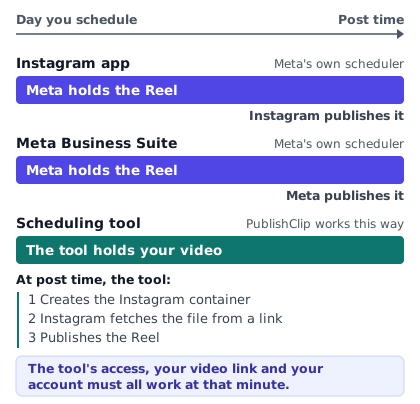
You can schedule Instagram Reels for free in three ways: in the Instagram app, in Meta Business Suite, or with a scheduling tool that posts through Meta's official API. The difference that matters most is who holds your video until post time. With the first two, Meta does. With a tool, the tool does.
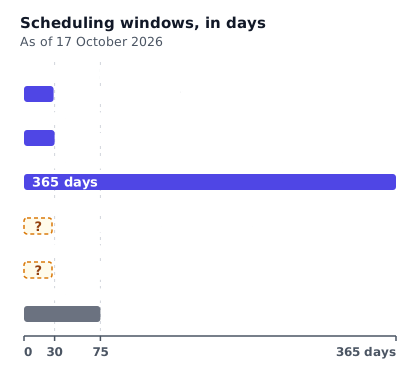
Meta launched its paid Meta One plans in September 2026, and they change how far ahead the app lets you schedule. As of 17 October 2026, Meta's help page says the Instagram app can schedule up to 30 days ahead without a subscription, and up to a year with Meta One Advanced, Expert or Max. Many guides still say 75 days. That is a 2022 figure, so this guide puts every window side by side, with its source and date.
Last checked: 17 October 2026. Meta edits limits and prices without notice, so the dates matter as much as the numbers.
On this page
- Schedule Instagram Reels: the quick answer and a decision table
- What your account needs before you can schedule
- Method 1: schedule Instagram Reels inside the Instagram app
- Meta One in plain words
- Method 2: schedule Reels in Meta Business Suite
- Method 3: schedule Reels with a tool such as PublishClip
- Time zones, daylight saving and the minute it goes out
- The best time to post Reels: how to find yours
- How many Reels to queue, and the daily limits
- When a scheduled Reel does not post
- A 30-day Reel calendar template
- Key takeaways
- Frequently asked questions
- Sources and how this was checked
Schedule Instagram Reels: the quick answer and a decision table
As of 17 October 2026, Meta's help page says the Instagram app schedules Reels up to 30 days ahead without a subscription, and up to a year (365 days) with Meta One Advanced, Expert or Max. For Facebook Reels that Meta holds, its Reels API for Pages takes a time more than 10 minutes away and no more than 29 days out. Business Suite and tools follow their own rules, and Instagram's own publishing API has no scheduling field.
The table compares the five options. "Not stated by Meta" means the Meta pages we could read are silent.
| Way | Cost | Where | How far ahead | Account | Library music | Best for |
|---|---|---|---|---|---|---|
| Instagram app | Free | Phone | 30 days | Public account | Not stated by Meta. Test one. | A few Reels in one app |
| Instagram app with Meta One | From 49.99 USD a month | Phone | 365 days | Public account, not for teens | Not stated by Meta | Long lead times without leaving the app |
| Meta Business Suite | Free | Computer or phone | Not confirmed. Open the date picker. | Instagram professional account | Not stated by Meta | Both apps in one place |
| Free plan of a scheduler | Free, with caps | Computer or phone | Set by the tool | Professional account linked to a Page | Only if the tool uses Meta's Audio API | Many networks, small volume |
| PublishClip | Free | Computer | Up to 365 days | Professional account linked to a Page | None | Facebook and Instagram Reels only |
Whichever you choose, ask one question first: who holds the video until post time? In the app and in Business Suite, Meta does, so no other company ever has your file. With a tool, the tool stores it and sends it to Meta at the chosen minute. That difference shapes the rest of this guide. It is why a tool must create its Instagram container close to post time, why an access token has to work on the day, and why tools use signed links.
What your account needs before you can schedule
The rules depend on the method. Check these before you blame the app or the tool.
For the Instagram app
Meta's help page describes in-app scheduling for "a public Instagram account". It names no account type. Older guides, and a 2022 news report, say you need a professional account. So the rule has either changed or varies by account.
The page also says "This feature is not available to teens", right after its sentence about the year-long window. It does not say whether that covers the 30-day window too.
Look for "Schedule this reel" under "More options". If it is missing, check three things. Is the account public? Is the account holder an adult? Is the app up to date?
For Meta Business Suite and tools
Tools that use Meta's API need an Instagram professional account, which means a Business or Creator account, and Business Suite is built around the same kind of account. Switching from a personal account is a setting in the app, and the 2022 report called it free. You also need a Facebook Page, and our guide to connecting Instagram to a Facebook Page walks through it.
Meta's Instagram Platform overview sets two rules for tools that log in with Facebook. The Instagram account must be connected to a Page. And the person connecting must be able to perform tasks on that Page, where Meta names Content and Full control. Tools that use Instagram's own login can work without a Page. PublishClip signs in with Facebook, so it needs the Page.
One more gate: Meta's publishing guide says an Instagram account connected to a Page that requires Page Publishing Authorization cannot be published to through the API until that step is done. A Page can start needing it later, so finish it early.
One last check
The video itself must be vertical and inside Meta's length limits. Our Reels size and specs guide has the numbers.
Method 1: schedule Instagram Reels inside the Instagram app
This is the simplest route, and for short lead times it is often the best one. Instagram itself keeps the scheduled Reel and publishes it, so no other company ever holds your video. It costs nothing, and scheduling is the last step of making the Reel.
The steps in the app
Here is how to schedule Instagram Reels in the app. The steps come from Meta's help page, read on 17 October 2026. Meta renames menu items now and then. In 2022 the same flow sat under "Advanced settings" and "Schedule content", so follow the labels on your screen.
- Open the create option, at the top left or by swiping right in Feed, and choose Reel.
- Select your video and continue.
- Add your caption, effects or filters.
- Open the "More options" menu.
- Turn on "Schedule this reel", then set the date and time. You can also pick a time under "Follower active times".
- Tap "Done".
- Tap "Back".
- Tap "Schedule".
How far ahead you can go, and what changed in 2026
As of 17 October 2026, the same Meta page says: "Without a subscription, you can schedule content up to 30 days in advance." With Meta One Advanced, Expert or Max, the limit is "up to a year (365 days) in advance". The page showed "Updated: 4 weeks ago" when we read it, which fits the mid-September launch of Meta One.
Where does 75 days come from? A news report dated 8 November 2022 said professional accounts could schedule posts and Reels up to 75 days ahead, up to 25 a day. Many vendor guides still repeat both numbers. They are history, not Meta's current rule. We could not find a Meta page that says when the no-subscription window changed, so we do not claim a date.
Stories are a separate case. Meta's page on scheduling Stories says only eligible accounts with a Meta One subscription can schedule them, up to 30 days ahead.
The figure sets every window side by side. Business Suite is marked "not confirmed" because no Meta page that we could read states its limit.
Manage a scheduled Reel after you save it
Meta's help pages describe two routes. From your profile, open the menu at the top right, choose "Your insights and tools", then "Scheduled content". Or open the create option, choose Reel, and tap "Scheduled". Select an item, tap "Options", and choose "Delete", "Edit post", "Reschedule" or "Share now". "Share now" publishes the Reel at once instead of at the chosen time.
Meta One Advanced, Expert and Max also add a grid preview. In Scheduled content, tap "Preview" to see your scheduled posts and Reels laid out in your profile grid, each with its publish date and time. Meta says the times "reflect your device's time zone settings".
What scheduled posts cannot do in the app
Meta lists four things that do not work with scheduled content "at this time": product tagging, collaborative posts, sponsored posts and fundraisers. If your Reel needs a collaborator or product tags, post it live, or check whether a tool supports it through the API.
Meta's page is silent on three questions that people ask often.
- Music. The page does not mention library music. Add your sound the way you normally do, schedule one test Reel, and check that the sound survived before you rely on it for a campaign.
- A daily limit. The page names none. The "25 a day" figure comes from the 2022 report.
- Bulk scheduling and computers. The page describes one Reel at a time, in the app. It mentions no bulk option and no steps for a computer.
Meta One in plain words
Meta One is a subscription that Meta announced on 15 September 2026. It adds AI features and professional tools for creators and businesses. Meta also says: "The core experience across our apps and Meta AI has always been free, and that's not changing."
For Reels, the part that matters is the scheduling window. Meta's help pages name only three plans for the longer window: Advanced, Expert and Max. The table lists every plan's starting price, in US dollars a month, as the announcement gives it.
| Plan | Starting price a month |
|---|---|
| WhatsApp Plus | 2.99 |
| Instagram Plus | 3.99 |
| Facebook Plus | 3.99 |
| Core | 7.99 |
| Essential | 14.99 |
| Premium | 19.99 |
| Advanced | 49.99 |
| Expert | 149 |
| Max | 499 |
Treat these as "starting at" prices. Meta's own wording is: "Plans, benefits, pricing, and availability may vary by region, by app, and by account." Yours may differ.
What Meta One changes for Instagram scheduling
On Instagram, the plans stretch the window for posts and Reels from 30 to 365 days and add the grid preview. Elsewhere:
- Facebook: Meta's Facebook scheduling page gives the same year-long window for a Page or a profile in professional mode. It is "only available on mobile devices". A scheduled Facebook post cannot be edited, and Meta says to "delete the post and recreate it". The page states no window for people without a plan.
- Meta Business Suite: the announcement does not mention it, so we cannot say whether Meta One changes anything there.
A simple decision rule
Pay for Meta One only if you must schedule from inside the Instagram app more than 30 days ahead, or if you want its other Advanced features for their own sake. At the starting price, Advanced comes to 599.88 USD a year (49.99 times 12), before any regional difference.
For many small teams the free routes cover the same ground. A scheduling tool holds the schedule itself, so its window does not depend on your Instagram plan, and Business Suite has its own rules. PublishClip has no connection with Meta, and you do not need Meta One to use it.
Method 2: schedule Reels in Meta Business Suite
Meta Business Suite is Meta's planning tool for Facebook Pages and Instagram professional accounts. Meta's page for creators says: "You can access Meta Business Suite on both desktop and through the mobile app." That makes it the free route for scheduling Reels from a computer, and a place where a single Reel can go to both apps.
The steps in Business Suite
One caution first. Meta's Business Help Center articles load their text with scripts. When we opened the article on posting in Business Suite, our tools saw only its title, so we cannot quote current button names. Treat the list as an outline and follow the labels on your screen.
- Open Business Suite in a browser on a computer, or in the mobile app. Sign in with the Facebook account that manages your Page.
- Check that your Instagram professional account is connected. If it is not, connect it first.
- Start a new Reel with the create button.
- Choose where it goes: the Facebook Page, the Instagram account, or both.
- Add the video and write the caption.
- Choose to schedule instead of posting now, and set the date and time.
- Confirm. The Reel should appear on the Business Suite calendar, where you can move it or delete it.
The article's title is "Post Facebook and Instagram content in Meta Business Suite", which fits the choice in step 4. Our guide to cross-posting Reels to Facebook and Instagram covers caption differences.
The window is the unresolved part
We could not find a Meta page that states how far ahead Business Suite lets you schedule a Reel. Third-party guides give figures from 29 to 75 days, and they cannot all be right. Some are older than Meta One, and some may mix up Business Suite with the Instagram app.
One firm Meta number sits nearby. For Facebook Reels that Meta holds, the Reels publishing guide says the publish time must be "greater than 10 minutes from the current time" and "within 29 days". Business Suite may follow that rule or its own. So open the date picker for your own account, move forward until it stops you, and note the real limit. Do not plan a launch around a number from a blog, ours included, until you have tried it once.
Scheduling Facebook Reels
On Facebook, a scheduled video is a scheduled Reel. Meta said in June 2025 that all videos on Facebook will be shared as reels. Its Help Center now says: "All videos posted to Facebook will be shared as reels, regardless of length or orientation."
You have three ways to schedule Facebook Reels:
- Business Suite, on a computer or a phone, as above.
- The Facebook app. Meta's Meta One page describes "Schedule for later" in post settings, with a time you pick or recommended times based on when followers are most active. Scheduled posts sit under "Manage Posts". That page states no window for people without a plan.
- A tool that uses the Reels API. The API can ask Meta to hold the Reel, or the tool can keep its own queue.
If a scheduled item fails in Business Suite, Meta keeps a troubleshooting article for errors creating, scheduling or publishing posts. It has the same script problem, so open it in a browser.
Method 3: schedule Reels with a tool such as PublishClip
A scheduling tool connects to your accounts through Meta's official API, stores your video, and posts it at the time you choose. Many tools exist. We make one of them, PublishClip, so read this section with that in mind. We say what it does and what it does not.
Why a tool has to hold your video
Instagram's publishing guide describes no way to ask for a future publish time. Its only mention of scheduling is a rate-limit note about apps that let users schedule posts, and the Reel container reference lists no scheduling field. So a tool keeps the video and the schedule itself.
It also has to time its calls. A container is Instagram's holding record for a Reel about to go out, and Meta's status list says an expired container "was not published within 24 hours". A tool therefore cannot create the container when you press Schedule and leave it for three weeks. Close to post time, it creates the container with a link to your video. It waits while Instagram fetches and processes the file, since Meta suggests checking the status "once per minute, for no more than 5 minutes". Then it publishes.
Facebook differs. Its Reels API can hold a scheduled Reel, with a time more than 10 minutes and at most 29 days away. A tool can use that or keep its own queue. PublishClip keeps its own for both apps, so one rule covers both.
Three things must be true at that minute, even though the schedule looked fine when you made it. The tool's access must still work, and Meta can reject a token for reasons such as a password change. Instagram must be able to fetch the video, which Meta says must be "hosted on a publicly accessible server at the time of the attempt". And the account must have no restriction and no pending Page authorization. Developers can read the same flow step by step in our Instagram Reels API guide.
What a tool can and cannot do
Meta's API lets a tool set more than a caption: a cover, collaborators, a location, tagged users and trial settings. Meta's changelog dates Trial Reels to 3 December 2025, a paid partnership label to 22 April 2026 and an AI label to 22 June 2026. Each tool decides which it offers.
Music is where older advice is out of date. On 1 June 2026 Meta released the Instagram Audio API, which lets an app search for audio and attach it to a Reel. It works only for apps that use Facebook Login, and it returns "audio that has been authorized for third party use". Meta warns that "the available selection may vary from what appears in the native app". So a tool can add music if it has built that, perhaps from a smaller catalogue.
PublishClip has not built it. It publishes the audio already in your file. If you mix in a track yourself, use audio you have the right to use. Meta's Music Guidelines prohibit commercial use of music without the right licences, and say unauthorized content "may be blocked, muted or removed".
The caption under your Reel is plain text that any tool can send. Words on the screen are part of the video, so add them before you upload. Our cross-posting guide covers caption text for each app.
The free options, checked on 17 October 2026
These are the free Instagram Reels scheduler plans we could check. We read each vendor's pricing page on 17 October 2026 and did not test the tools. Prices change, so check the page before you commit.
| Tool | Free plan? | What the free plan allows | Reels on the free plan |
|---|---|---|---|
| Buffer | Yes | 3 channels, 10 scheduled posts per channel. No custom video covers. | The page does not say |
| Metricool | Yes | 1 brand, up to 20 posts a month | The page does not mention Reels |
| Later | No, a 14-day trial | Plans start at 18.75 USD a month, billed yearly | Listed on every plan |
| Planable | Trial only | A free trial of 50 posts in total, with no time limit | The page does not say |
| PublishClip | Yes | No cap from us. Meta's daily limits apply. | Facebook and Instagram Reels only |
A free plan with "10 scheduled posts per channel" holds a queue of ten, about three weeks at three Reels a week. And "does not say" is not "no". Ask the vendor, or test one throwaway post, before you plan around it.
How PublishClip handles a scheduled Reel
This is based on PublishClip's code and its features and pricing pages as of 17 October 2026.
- You choose "Schedule" in the composer and pick a time from one minute ahead to one year ahead. The picker uses the time zone saved in your profile.
- A scheduler runs every minute and starts any Reel that is due. For Instagram it creates the container then, so the 24-hour limit never applies. It checks the status every 10 seconds for up to five minutes, then publishes. For Facebook it starts an upload, tells Meta where to fetch the file, and finishes the Reel.
- Your file sits in private storage, and Meta gets a short-lived signed link at post time. The privacy page has the details.
- Until a Reel starts to go out, you can edit it, move it, send it back to drafts or cancel it.
- If Meta rejects a post, you see Meta's own error text and can retry. A retry picks up where the post stopped, and it is built never to publish the same Reel twice.
- If Meta stops accepting access to an account, PublishClip marks the account for reconnecting and emails you. It learns this only when it tries to post, so a Reel scheduled for next spring can still fail if access ends in between.
It sends your video and your caption. It adds no library music, collaborators, product tags or location, and no Instagram AI label yet. It posts Facebook and Instagram Reels only, for vertical 9:16 video of 3 to 90 seconds. If that fits, you can register for free. The pricing page lists what Free includes, and the features page has the scheduling details.
How to choose in five questions
- More than 30 days ahead? In the app, that takes Meta One Advanced or higher. Business Suite and tools may allow it for free, so check the date picker.
- On a computer? Use Business Suite or a tool. Meta's in-app steps are for the app.
- Facebook and Instagram together? Business Suite and tools can send one Reel to both. The in-app steps cover Instagram.
- Music, collaborators or product tags? For music, stay in the app if a test Reel keeps the sound. Collaborators and product tags do not work with scheduled content in the app, so a tool that supports them may be your only route.
- How many Reels a month? Free plans cap the queue, so count before you pick a plan.
Time zones, daylight saving and the minute it goes out
Choose the time in the zone where your audience lives, not the zone of your server or your tool. Then read what the screen says about the zone before you confirm.
Where each method reads the time
The Instagram app follows your device. Meta's grid preview page says: "Times reflect your device's time zone settings." If you travel and your phone changes zone, check your scheduled list afterwards to see that each Reel still shows the time you meant.
PublishClip takes your time zone from your browser the first time you sign in and saves it to your profile. The composer shows the zone beside the date picker, so a 9:00 a.m. post goes out at 9:00 a.m. your time, wherever its servers are. In Business Suite and other tools, look for a zone label near the picker.
Before a big launch, schedule one harmless Reel as a test, 15 minutes ahead. That clears Meta's 10-minute rule for its own Facebook schedule. Check that it appears at the right minute in the right zone, then delete it.
Clock changes
Clocks change on different days in different places. The UK's clock change dates for 2026 are 29 March (forward) and 25 October (back), and the EU's summer time directive uses the last Sunday in March and October. In the US, NIST says daylight saving time in 2026 runs from 8 March to 1 November, both at 2 a.m. local time. Some places, such as Hawaii and most of Arizona, never change.
The gap between London and New York shows why this matters.
| Date in 2026 | What changes | Gap between London and New York afterwards |
|---|---|---|
| Before 8 March | Nothing yet | 5 hours |
| 8 March | US clocks go forward | 4 hours |
| 29 March | UK clocks go forward | 5 hours |
| 25 October | UK clocks go back | 4 hours |
| 1 November | US clocks go back | 5 hours |
So a Reel you want at 7 p.m. in Manchester lands at 2 p.m. in New York for most of the year, and at 3 p.m. in the week from 25 October to 1 November. If your audience spans zones, think in their zone and re-check the queue around each change. Also avoid the hour that clocks skip or repeat, which falls between 1 a.m. and 3 a.m. A Reel at 9:00 a.m. never lands there.
The minute it goes out
Do not expect a Reel on the exact second. We found no promise about timing precision on any Meta page. A tool starts the Reel at the chosen minute, and then Instagram must fetch and process the file. PublishClip starts due Reels once a minute, so expect yours at or just after the minute you chose. If the exact minute matters, for a live event or a timed offer, schedule a few minutes early.
The best time to post Reels: how to find yours
No universal best time exists, and Instagram says so in plain terms. Its creator FAQ answers "What's the best time to post?" with this: "When your audience is awake and most active. Use your insights to understand their habits."
What Instagram says about timing
Two other answers in the same FAQ help you plan. First, "people who follow you are typically the first to see it", so your followers' hours matter most at the start. Second, early reactions do not buy extra reach. Asked whether posts with many reactions in the first 30 minutes are ranked higher, Instagram answers: "No, we can confirm this isn't true!"
Why do vendor studies disagree? They use different accounts, countries, industries and dates, and they define engagement in different ways. None of them measured your followers. We print no "best hour", because we cannot source one as a fact.
Does scheduling itself cost reach? The FAQ lists what can limit a Reel's distribution: non-recommendable content, third-party watermarks, unoriginal content and length. Scheduling is not on the list, and we found no Meta statement that scheduled Reels reach more or fewer people.
Find your own windows
Instagram's scheduler already offers a start. When you schedule, "Follower active times" suggests times based on "your followers' activity over the last 28 days", in your current time zone. Business Suite and the professional dashboard have insights too. If you see no follower activity, your account may not have enough followers yet.
Then run a four-week test:
- Note your busiest hours. Write down the three busiest windows from your insights, in your audience's time zone.
- Pick three slots. Call them A, B and C, for example early morning, lunchtime and evening.
- Rotate them. Post three Reels a week and move the slots around so no slot is tied to one weekday. The table shows one rotation.
- Record views at a fixed age. Any age works if you use the same one every time. We suggest 48 hours. Meta's November 2024 post says plays on Reels became "Views", so that is the number to log.
- Compare after four weeks. Divide each Reel's views by your follower count and multiply by 1,000, so a small account and a big one can be compared. Then compare the middle value for each slot.
| Week | Monday | Wednesday | Friday |
|---|---|---|---|
| 1 | Slot A | Slot B | Slot C |
| 2 | Slot B | Slot C | Slot A |
| 3 | Slot C | Slot A | Slot B |
| 4 | Slot A | Slot B | Slot C |
Read the result with care
Twelve Reels are a small sample. The topic, the first seconds of the video and plain luck will move the numbers more than the clock does. Treat a clear gap as a hint to test again. If one slot wins in both halves of the test, keep it. If the results are mixed, choose the slot you can keep up.
Run the test again when your audience changes. For a weekly plan that fits your winning slots, see our guide to repurposing video content.
How many Reels to queue, and the daily limits
Two questions hide in this heading. How many Reels should you plan, and how many does Meta let you publish?
How many to plan
Instagram's creator FAQ says "the frequency you post new reels is just one factor of many". It adds that, among creators with the greatest net follower growth, "they post 10 or more reels per month" on average. That describes a group. It is not a promise. Ten a month is about two a week, so three a week is a comfortable pace.
How far in advance should you schedule Reels? One to two weeks protects you from a sick day. A longer queue goes stale, because offers and dates move. With a tool, every queued Reel is also a bet that your access, your video link and your account will still be fine on the day.
What the daily limits are
These limits are described for posts that go out through Meta's API, which is how tools publish. Our Instagram Reels API guide covers that API in more depth.
- Instagram: Meta's publishing guide says accounts "are limited to 100 API-published posts within a 24-hour moving period". The carousel section of the same guide says 50. The content publishing limit reference gives a quota of "currently 50". Meta's pages disagree, and we cannot tell which is right. The safe route is to read the quota from Meta at run time, as that reference describes.
- Containers: the container reference says an account "can only create 400 containers within a rolling 24 hour period".
- Facebook Reels: the Reels publishing guide says 30 API-published posts within a 24-hour moving period.
- The Instagram app: Meta's page on scheduling names no daily limit. The "25 a day" figure is from the 2022 report.
Most accounts never come near these numbers. They matter for agencies, and for anyone who queues a big batch for one day.
PublishClip sets its own counters to 100 Instagram posts and 30 Facebook Reels per account per day. A post that would go over waits and goes out shortly after the counter resets at midnight UTC, instead of failing. Meta counts a rolling 24-hour window, so a burst close to the limit can still be refused by Meta. You would see Meta's own message and could retry later.
When a scheduled Reel does not post
Start with the cheapest checks and work down. The order is by effort, not by how common each cause is, because nobody publishes data on that. Our guide to Reels that will not upload has the full decoder for error codes.
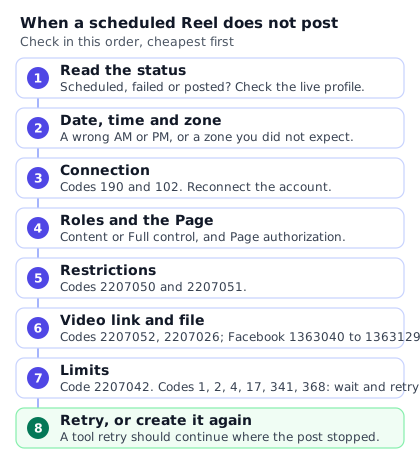
- Read the status. Find the item in the app, in Business Suite or in your tool. Is it still scheduled, did it fail, or did it post while you were not looking? Check your live profile and Page first, so you never schedule a second copy of a Reel that already went out.
- Check the date, time and zone. A wrong AM or PM, or a zone you did not expect, explains many "missing" Reels. The Reel may simply be waiting. The time zone section above shows how each method reads the clock.
- Check the connection. If a tool says Meta rejected its access, reconnect the account. In Meta's error list, code 190 means the access token expired, and 102 means the login or token is invalid. The subcodes say why: 459 the user has to fix a problem on Facebook, 460 the password changed, and 463 or 467 an expired or invalid token. Codes 10 and 200 to 299 mean a permission is missing or was removed. The fix is a new token, which means reconnecting.
- Check roles and the Page. The person who connected the account must still be able to do tasks on the Page, which Meta names as Content or Full control. A Page can also start requiring Page Publishing Authorization, and until that is done the Instagram account cannot be published to through the API.
- Check for restrictions. Instagram's error codes list 2207050, "The Instagram account is restricted." Meta's fix is to sign in to the Instagram app and complete the steps it asks for. Code 2207051 says "We restrict certain activity to protect our community", and Meta says the post may have been flagged as spam.
- Check the video link and the file. Code 2207052, with code 9004, means Instagram could not fetch the media from its link. The link has to be valid and public when Instagram tries it. Code 2207026 means the video format is not supported, and Meta asks for MOV or MP4. On Facebook, codes 1363040, 1363127, 1363128 and 1363129 point to the aspect ratio, resolution, duration and frame rate. Our specs guide lists the limits.
- Check the limits. Code 2207042 means the account reached the number of API posts Meta allows, and Meta says to try again the next day. Codes 1, 2, 4, 17, 341 and 368 are temporary, and for each Meta says to wait and retry.
- Retry, or create it again. In a tool, a retry should continue where the post stopped. In the app, a failed Reel may need to be made again. If a Business Suite item failed, read Meta's troubleshooting article in a browser.
What PublishClip shows when a Reel fails
The Posts page lists each Reel with its status. For a failure it shows Meta's own words, and a button retries it. If Meta rejected access, PublishClip marks the account and emails you to reconnect. A Reel held back by the daily limit shows as deferred, with a note that PublishClip will try again. It is not marked as failed.
If you are not sure whether a Reel went out, check the live profile first. A retry in PublishClip picks up from the last saved step and is built to avoid a second copy. Posting by hand on top of a half-finished Reel can create one. When the same error keeps coming back, copy Meta's exact text and code. They tell you which of the checks above to run.
A 30-day Reel calendar template
Here is a plan you can copy: three Reels a week for four weeks, using the three time slots from your test. The example is an invented neighbourhood salon, there only to show the shape. Swap in your own business and your own pillars.
A pillar is a repeating type of Reel. This salon uses four: before and after, quick tip, behind the scenes, and booking reminder. Rotating them keeps the feed varied without a fresh idea every day. Each Reel goes to both apps, with a caption written for each.
| Day | Slot | Pillar | Hook | Caption | File |
|---|---|---|---|---|---|
| 1, Mon | A | Before and after | Watch this colour change | Ready | Ready |
| 3, Wed | B | Quick tip | The one habit that dulls your shine | Ready | Ready |
| 5, Fri | C | Behind the scenes | What happens before you sit down | Ready | Ready |
| 8, Mon | B | Booking reminder | Two chairs free this Saturday | Ready | Ready |
| 10, Wed | C | Before and after | A fringe that finally sits right | Ready | Ready |
| 12, Fri | A | Quick tip | How to dry your hair in half the time | Ready | Ready |
| 15, Mon | C | Behind the scenes | Setting up the shop at opening | Draft | Ready |
| 17, Wed | A | Booking reminder | Last call for this week | Draft | Ready |
| 19, Fri | B | Before and after | From dull to glossy | Draft | To edit |
| 22, Mon | A | Quick tip | A brush that will not tug | Draft | To edit |
| 24, Wed | B | Behind the scenes | Meet the team behind the chairs | To write | To film |
| 26, Fri | C | Booking reminder | Book now for the holidays | To write | To film |
A Reel is ready to schedule only when its Caption and File both say Ready.
How to run it
- Film in one batch. One session can give you a month of clips. Edit them together, then write the captions.
- Schedule only what is ready. Set each Reel's day and slot, and use a calendar view to spot gaps and pile-ups.
- Keep a buffer. Leave one or two open days a week for news you cannot plan, and post those live.
- Review on day 28. Compare the slots as in the test above, then plan next month.
For the weekly routine behind this, including how to turn one long video into many Reels, read our guide to repurposing video content. For the caption differences between the apps, see the cross-posting guide.
Key takeaways
- You can schedule Instagram Reels for free in the app, in Meta Business Suite, or with a scheduling tool.
- As of 17 October 2026, the app allows 30 days ahead without a subscription and 365 days with Meta One Advanced, Expert or Max. The 75 days in older guides is a 2022 figure.
- No Meta page we could read states Business Suite's window. Open its date picker and trust what it allows.
- Instagram's API has no scheduling field, so a tool holds your video and publishes at the minute. Its access, your video link and your account must work on the day.
- A tool can attach library music only if it uses Meta's Audio API.
- Choose times in your audience's time zone, and re-check the queue around the clock changes on 25 October and 1 November 2026.
- Instagram says to post when your audience is awake and most active. Use your insights and a four-week test.
Frequently asked questions
Short answers to common questions about scheduling Reels.
Can I schedule Instagram Reels for free?
Yes. You can schedule Reels on Instagram for free in the app, and as of 17 October 2026 Meta's help page says up to 30 days ahead without a subscription. Meta Business Suite and the free plans of scheduling tools are other free routes, each with its own limits. You need a paid Meta One plan, Advanced or higher, only to schedule up to a year ahead in the app. PublishClip is a free tool for Facebook and Instagram Reels.
How far in advance can I schedule an Instagram Reel?
As of 17 October 2026, Meta's help page says up to 30 days in the Instagram app without a subscription, and up to a year (365 days) with Meta One Advanced, Expert or Max. Facebook Reels that Meta holds can be set 10 minutes to 29 days ahead. Business Suite's limit is not stated on any page we could read, so open its date picker. Tools set their own limits. The 75 days in older guides is from 2022.
Can I schedule Reels from my computer?
Yes, but not with the app flow. Meta's help page for in-app scheduling describes the Instagram app only. On a PC or Mac, use Meta Business Suite in your browser, which Meta says works on desktop and in its mobile app, or a web-based scheduler. Meta's Facebook scheduling page for Meta One says its year-long window is available only on mobile devices, so a paid plan does not change that.
Can I schedule a Reel to Facebook and Instagram at once?
Yes, with Business Suite or a tool. Meta's Business Suite article is titled "Post Facebook and Instagram content in Meta Business Suite", and tools can send one video to both apps. Whether you can write a separate caption for each depends on the tool. The in-app steps on Meta's help page cover Instagram only. Each app keeps its own rules, so see our cross-posting guide before you schedule.
Can I add trending music to a scheduled Reel?
Meta's scheduling help page does not mention music, so test one Reel before you rely on it. Add the sound as you normally would, schedule the Reel, and check it after it posts. A tool can attach audio only if it uses Meta's Instagram Audio API, released on 1 June 2026. That API returns audio authorized for third-party use, and the choice may be smaller than in the app. PublishClip does not attach library music.
Why can I not schedule a Reel on Instagram?
Start with the account. Meta's page describes in-app scheduling for public accounts and says the feature is not available to teens. The toggle is "Schedule this reel" under "More options". Then check the date, because without a subscription the limit is 30 days. Product tagging, collaborative posts, sponsored posts and fundraisers do not work with scheduled content. In Business Suite or a tool, the Instagram account must be professional and linked to a Page you manage.
Do I need a business account to schedule Reels?
For in-app scheduling, Meta's current help page asks for a public account and names no account type, though older guides said professional. Tools that log in with Facebook need an Instagram professional account, either Business or Creator, linked to a Facebook Page, and Business Suite is built around the same kind of account. Switching from a personal account is a setting in the app. Our guide to connecting Instagram to a Facebook Page covers the steps.
What is the best time to post Instagram Reels?
Instagram's creator FAQ says: "When your audience is awake and most active. Use your insights to understand their habits." There is no universal best time, and Instagram says reactions in the first 30 minutes do not rank a post higher. Check your follower activity in insights, pick three time slots, rotate them over four weeks, and compare views per 1,000 followers. Twelve Reels is a small sample, so treat the result as a hint.
Sources and how this was checked
Last checked: 17 October 2026. We opened each page below on that date, and every number quoted here is the one on the page that day. Open the page itself before you rely on a limit.
Meta help pages and announcements
- Meta One scheduling on Instagram: posts and Reels, shown as "Updated: 4 weeks ago", Stories and grid preview
- Meta One scheduling on Facebook
- Introducing Meta One, 15 September 2026
- Facebook videos as Reels: Meta newsroom, 17 June 2025 and Facebook Help
- Meta Business Suite for creators
- Creator guidance: Instagram for Creators FAQ and Introducing Views, 14 November 2024
- Music: Meta Music Guidelines
Meta for Developers
- Instagram: content publishing, media reference, publishing limit reference, platform overview and changelog
- Reels Publishing API for Pages and the Instagram Audio API
- Errors: Instagram error codes and Graph API error handling
History, prices and clocks
- Search Engine Journal, 8 November 2022, the source of the old 75-day and 25-a-day figures
- Pricing pages: Buffer, Later, Metricool and Planable
- Clock changes: GOV.UK, NIST and EU Directive 2000/84/EC
What we could not confirm
- Business Suite's window and current steps. Meta's Business Help Center articles, such as posting in Business Suite and its troubleshooting article, load their text with scripts. Our tools saw only the titles.
- Four smaller points. No page we could read says whether Business Suite has a fee, whether a Reel keeps library music when you schedule it in the app, whether in-app scheduling has a daily limit, or whether Meta One changes anything in Business Suite.
- When the no-subscription window changed from the 75 days reported in 2022 to the 30 days Meta states now.
- Reels on the free plans of Buffer, Metricool and Planable. Their pricing pages do not say, and we did not test the tools.
About this guide
This guide comes from the team behind PublishClip, and Method 3 describes our own product as its code and pages stood on 17 October 2026. We will re-check the guide regularly while Meta One is new. If you find a mistake, tell us.