Cross Post Reels to Facebook and Instagram: 3 Free Ways
You can cross post Reels to Facebook and Instagram in three free ways: with Instagram's own share setting, in Meta Business Suite, or with a publishing tool that uses Meta's official API. The right one depends on two things. Do you post as a Facebook Page, and do you want one caption or two?
This guide is for small businesses, creators and social media managers who have a Facebook Page, an Instagram professional account and one finished vertical video. It covers setup, the steps for each method, the file that passes on both apps, how to write two captions, and what Meta says about original content.
Last checked: 17 October 2026. We opened every Meta page named here on that date, and each number is the one on the page that day. Meta changes menus and limits without notice, so check the date before you rely on a figure.
On this page
- Cross post Reels to Facebook and Instagram: the short answer
- What must be set up first
- Method 1: share Instagram Reels to Facebook from the app
- Method 2: post to Facebook and Instagram at once in Meta Business Suite
- Method 3: a publishing tool that uses the Meta API
- One master file that passes on both apps
- Write two captions, not one
- What does not carry over between the apps
- Cross-posting and reach: what Meta says about original content
- A ten-minute weekly routine
- Key takeaways
- Frequently asked questions
- Sources and how this was checked
Cross post Reels to Facebook and Instagram: the short answer
You can cross post Reels three ways: Instagram's share setting, Meta Business Suite, or a publishing tool that uses Meta's API. All three cost nothing to start, as of 17 October 2026. To post to a Page, each one needs an Instagram professional account that is linked to that Page, and a role on the Page that lets you publish.
Each method can post Reels to Facebook and Instagram at the same time, or within a few minutes. Here they are side by side.
| Method | What you need | Best for | Main catch |
|---|---|---|---|
| 1. Instagram share switch | The Instagram app on Android or iPhone, and full control of the Page | One phone and one caption | One caption for both apps, and you share while you create the Reel |
| 2. Meta Business Suite | Page and Instagram linked in one business portfolio, with full control or Content access | A calendar, a team, a computer | Menu names change, and the editor does less than the phone apps |
| 3. Publishing tool | An Instagram professional account linked to a Page, and Page access for the tool | Two captions, a queue and retries | The tool holds your video, and it inherits Meta's daily limits |
If you only have 20 seconds, use this rule:
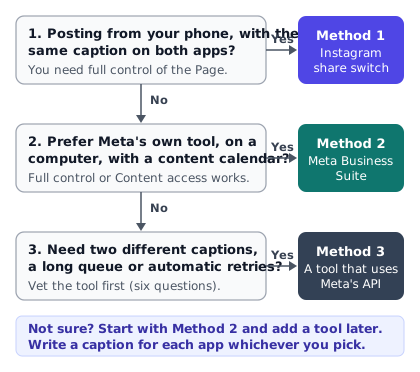
- Posting from your phone with one caption: use Method 1, Instagram's share switch.
- Working on a computer, or with a team and a calendar: use Method 2, Meta Business Suite.
- Want two captions, a queue and automatic retries: use Method 3, a tool that uses Meta's API.
How far ahead you can schedule is a separate question, and the answer differs by method. Our guide to scheduling Instagram Reels puts every window side by side, with sources and dates.
The Page catch in one paragraph
Most guides skip one thing: the Page. Meta treats a Facebook profile and a Facebook Page differently. Instagram can share a Reel to a Page, if you have full control of it. Facebook's own share setting does not work the other way for Pages. Business Suite and publishing tools handle a Page in both directions. The table in the next section shows which route works for which account.
What must be set up first
Three things must be true before any method can post to a Page. Check them once, and every method below gets easier.
An Instagram professional account
Meta's publishing guide says its API publishes to Instagram professional accounts. To share an Instagram post or reel to a Facebook Page, Instagram's help page asks for the same: a professional profile, which means a business or creator account. That page warns that switching to a professional profile makes it public. It adds that sharing posts from a personal Instagram profile to a Page "is no longer available".
A Facebook Page you can publish as
Each method asks for a different level of access to the Page. Meta's Page access article names three levels for Pages in a business portfolio: partial access with business tools only, partial access with business tools and Facebook, and full control. Partial access can create and manage Page content in Business Suite. Only full control can also change settings and manage other people's access.
Here is how that maps to the three methods:
- Method 1 asks for full control. Instagram's help page lists "Full control of the Facebook Page" as a requirement.
- Method 2 asks for full control or Content permission, according to Meta's article on reels in Business Suite.
- Method 3 depends on Meta's API. Its Reels guide for Pages asks for a Page access token from someone who can perform the CREATE_CONTENT task.
So a freelancer with partial access can post through Business Suite or a tool. Instagram asks for full control for its share switch, so that route may be closed to them.
The two accounts must be linked
Linking is what lets Meta send a Reel from one app to the other. Meta's article on connecting a professional account and a Page says that connecting enables cross-posting. You need full control of a Page, and the Instagram account must be in the same business portfolio. An Instagram account can be in only one portfolio at a time.
Two notes from that page matter. Once you connect them, anyone with access to either the Page or the Instagram account can manage both. And once you have linked a Page, you can share your Instagram posts to Facebook only through that Page, not to another Page or a Facebook profile.
Business Suite adds a trap. If you add an Instagram account to the same portfolio but do not connect it to the Page, the two appear as separate profiles. Meta says that adding the account to a portfolio "does not automatically connect it to a Facebook Page". Cross-posting in Business Suite needs them connected. Our guide to connecting Instagram to a Facebook Page walks through the steps and the usual fixes.
Accounts Center is not the same as a Page link
Meta uses three overlapping ideas: Accounts Center, the Page link and the business portfolio. Its help pages also say it is "gradually updating people to Meta Accounts", so you may see either name for the same settings.
Meta's Accounts Center article covers posts and stories and does not mention reels. It says that if you have Facebook business Pages, you "can't share any posts or stories you make on your Pages". Read that closely. It is about sharing from a Page to Instagram. It does not say you cannot share to a Page. Instagram's own articles fill that gap, as the table shows.
| From and to | Does it work? | What Meta says |
|---|---|---|
| Instagram professional account to a Facebook Page | Yes | Needs a linked Page and full control of it. Use the Instagram app or Business Suite. |
| Personal Instagram profile to a Facebook Page | No | Instagram's help page says the ability "is no longer available". |
| Instagram to a personal Facebook profile | Yes, with a catch | Set up in Accounts Center. Once a Page is linked, sharing goes through that Page only. |
| Facebook Page to Instagram, from the Facebook app | No | Not currently available for Pages, pro-mode profiles or additional profiles. |
| Personal Facebook profile to Instagram | Yes, on phones | Facebook app for iPhone or Android only, to one Instagram account at a time. |
| Page and Instagram in Business Suite | Yes, both ways | The Page and the Instagram profile must be connected and in the same portfolio. |
Meta's pages do not always agree in wording, and some describe menus we could not open on a phone. Test with one short throwaway Reel before you rely on any setting, and delete it afterwards.
Method 1: share Instagram Reels to Facebook from the app
Method 1 is the quickest if you already post from your phone. Instagram's help page says you can only share a reel to Facebook from the Instagram app for Android or iPhone. It says the feature "isn't available to everyone", and that you can only share a reel when you create it. If your account is professional and linked to a Page, the same switch sends the Reel to that Page.
Share one Reel as you publish it
Meta describes the steps on two help pages with slightly different wording. This is the flow for a professional account with a linked Page.
- Open the Instagram app and start a new Reel. Add your video, a cover and your caption.
- Go to the last screen, before you tap Share.
- Find the Facebook option. One Meta article calls it "Also share on...". Another calls it "Share to Facebook".
- Turn on the switch next to your Page. If your profile is already linked to a Page, Meta says sharing is turned on by default.
- Tap Share. Meta says the reel is posted to your Instagram profile and your Facebook Page.
We could not open the app screens ourselves, so these steps follow Meta's Page sharing article and its reel to Page article as read on 17 October 2026. Labels move around. Look for a Facebook switch, and trust what you see on screen over this list.
Auto share Reels to Facebook every time
The same pages describe automatic sharing, and Meta documents two routes. In the first, go to your profile, tap Menu, then Crossposting. Below "Share to Facebook as", tap Meta Account, select your Page, and below "Automatically share" switch on sharing for your reels. In the second, go to Menu, then Accounts Center, then Sharing across profiles. Choose the account to share from and the account to share to, then switch on "Your Instagram reels".
Meta adds that you can turn off sharing for a single Reel even when automatic sharing is on. To stop it for good, go to Menu, then Crossposting, then Accounts Center, and switch the toggle off.
Watch for duplicates. If automatic sharing is on and you also post the same Reel to the Page through Business Suite or a tool, you may get two posts. No Meta page we read says it merges them.
Recommended on Facebook is not a Page post
Instagram has a second, similar-sounding option. Its help page says that if you post a reel and your account is public, you can choose to have it "shown as recommended content on Facebook instead". The word "instead" matters. A recommended Reel can reach people on Facebook who do not follow you. It does not become a post on your Page. Meta's page on who can see your reels says such reels "can be recommended to anyone based on what may be relevant to them".
To check which one you have, open your Page and look in its Reels tab. Meta renamed the Videos tab to the Reels tab in June 2025. Or open Business Suite and go to Content, then Posts & reels, then Published. If your Reel is not listed there, it is not a post on your Page.
What carries over, and when sharing fails
Meta says a reel shared from Instagram appears as a reel on Facebook. The help article has you write the caption and pick the cover before you turn on the Facebook switch. It describes no separate Facebook caption in this flow, so plan on one caption.
For a personal profile with no default set, Meta says the Facebook audience follows your Instagram privacy: public stays public, private becomes friends, and under 18s get friends. For a Page, Meta says reels from business or creator Pages can only be posted publicly. When your Reel is public on Facebook, people there can use its original audio, and they can remix it if you allow remixing on Instagram.
If sharing fails, Meta's fix list gives these steps, in order:
- Update both the Instagram and Facebook apps, and check your internet connection.
- Go to Accounts Center, then Sharing across profiles, and check that "Your Instagram reels" is on.
- Check that your Facebook account is listed under Accounts in Accounts Center.
- Turn the Reels toggle off and on again to refresh the connection.
- Check Account Status, below "More info and support", for restrictions.
- Close and reopen both apps, then log out and back in.
- If nothing works, go to Menu, then Help, then Report a problem.
For a Page, rule out three things first. Is your Instagram account professional? Is the Page linked? Do you have full control of the Page?
Share Facebook Reels to Instagram, the other way round
You can share a Facebook Reel to Instagram, but only in narrow cases. Facebook's help page says it works from the Facebook app for iPhone and Android, with both accounts in the same Accounts Center, to one Instagram account at a time, and only when you create the Reel.
Meta's page on how Facebook Reels are shared adds the catch for Page owners. It says the ability "is not currently available for people using Pages, profile with pro mode, or additional profiles". If you post as a Page, use Method 2 or Method 3.
Past Reels: import up to 100
If your old Instagram Reels never reached Facebook, Meta's import page says you can import up to 100 of them to a Page or pro-mode profile. Pick five or fewer and they post straight away. Pick six to 100 and Meta schedules them over the next 30 days. Reels that were already cross-posted, or that have comment polls, branded content, very long captions or an "Add Yours" sticker, are not eligible.
Method 2: post to Facebook and Instagram at once in Meta Business Suite
Meta Business Suite is Meta's publishing and inbox tool for Pages and Instagram accounts. Meta says it is free to use on desktop and in its mobile app. It needs a business portfolio, which holds your Page, Instagram account and ad account. To post a Reel on both Facebook and Instagram from one screen, this is the route Meta documents in its cross-posting article.
How to post Reels on a Facebook Page from a computer
These steps for the Meta Business Suite Reels composer come from Meta's article on creating and managing reels. They apply to a Page and an Instagram profile that are already connected.
- Open Meta Business Suite and click Create reel. It is on the home page and in the Content tab.
- Under Post to, choose where the Reel goes. If your Page and Instagram account are connected, Meta says both are selected by default. Deselect one if you want only one app.
- Under Media, add your video.
- Under Thumbnail, choose a frame or upload an image.
- Under Reel details, write your caption. Meta says you can also customize the details for Facebook and Instagram.
- Click Next. If you are posting to Facebook, you can change the audio, the aspect ratio or the length on the next screen. Click Next again.
- Choose whether to share now, schedule it or save it as a draft. You can also set closed captions, remix rules and who can see the Reel.
- Click Share, Schedule or Save.
Meta shows a preview on the right of how the Reel will look on your Facebook and Instagram feeds. The phone app is similar: tap the plus button, choose Reel, add your video and pick Share to. Then choose Publish now or Schedule for later.
What Business Suite can cross-post, and where
Meta's cross-posting article lists which content can go where. For Reels, it looks like this.
| You create | It can also go to |
|---|---|
| An Instagram reel | Facebook Reels, Instagram Stories and Facebook Groups |
| A Facebook reel | Instagram Reels, Facebook Stories and Facebook Groups |
Two notes from the same article. Cross-posting a Facebook reel to Facebook Stories works only in Business Suite on a computer. And cross-posting needs the Page and the Instagram profile to be connected and in the same business portfolio.
Limits and catches
Business Suite is Meta's own tool, but it has limits that matter for Reels.
- The editor is split. Meta says you can edit the audio, aspect ratio or length "only if posting to Facebook". It also says you cannot create a reel from photos, or edit a video reel, when posting to Instagram.
- Page Reels are public. On mobile, Meta says Reels from business or creator Pages can only be posted publicly.
- Bulk upload is Facebook only. Meta's bulk upload page says bulk-uploaded reels can only be posted to your Facebook Page, not to Instagram.
- Scheduling limits are unclear. Meta's scheduling article explains how to save, schedule and reschedule posts. It gives no window. Open the date picker, or read our guide to scheduling Reels.
- Menus change. Meta moves labels often. Confirm each one on screen.
What you get, and who it suits
Meta says Business Suite includes a calendar for scheduled content, an inbox for messages and comments from your Page and Instagram account, and insights. Its creator tools article adds that you can view Facebook and Instagram metrics side by side, and that most tools from the old Creator Studio moved here. Mind the name. Meta now uses "Creator Studio" for a different thing: an AI companion app that its help page says is available on iOS only, for adults in the US and Canada.
Business Suite suits people who work on a computer, share access with a team, or want one calendar for both apps. It also works with Content permission alone, so it can be the practical choice for a Page that someone else owns. It suits you less if you want to queue dozens of Reels at once, because Meta's bulk upload posts only to the Page.
Method 3: a publishing tool that uses the Meta API
A publishing tool connects to your accounts through Meta's official API and posts for you. Many tools exist. This section explains how they work, the limits they all share, and how to judge one. We make one of them, PublishClip, so we say plainly what it does and does not do.
How it works in plain English
You upload your video once. The tool keeps it in storage. At the time you pick, the tool asks Meta to publish it, and Meta fetches the file from a private link that the tool creates. Meta's Instagram guide says it fetches media with cURL, so the file "must be hosted on a publicly accessible server at the time of the attempt".
For Instagram, there are three steps. The tool creates a container for the Reel with the video link and caption. It checks the container's status until it is ready, and Meta suggests checking "once per minute, for no more than 5 minutes". Then it publishes the container. For Facebook, the Reels guide for Pages also has three steps: start an upload session, upload the video from a file or a hosted URL, and finish the session as published. A good tool saves what each step returns before it moves on, so a retry does not post twice.
Limits every tool inherits from Meta
Every tool works inside Meta's limits. These are the ones that matter, as of 17 October 2026:
- Daily caps. Meta's Instagram guide says accounts are "limited to 100 API-published posts within a 24-hour moving period". Its carousel notes and the publishing limit reference say 50. Meta's own pages disagree, so a careful tool reads the real quota from the account at run time. For Facebook, the Reels API allows 30 API-published posts in 24 hours. Instagram also limits an account to 400 containers in 24 hours.
- Pages only on Facebook. The Reels guide for Pages says you can only publish Reels to Facebook Pages. A personal Facebook profile cannot be a target for the API.
- Professional accounts only on Instagram. The publishing guide says the API publishes to Instagram professional accounts.
- A reachable file. Facebook rejects files on sites whose robots.txt blocks its fetcher, and files hosted on Meta's own CDN.
- Page authorization. An account linked to a Page that requires Page Publishing Authorization cannot be published to until that is completed.
What a tool can add, and what it may not do
A tool can add things Meta's apps do not. It can keep a caption for each app, a queue and a calendar, schedule in your time zone, retry after an error, and alert you when an account needs reconnecting.
Some things a tool may not do. Meta's guide lists shopping tags and filters as unsupported through the API. Music is the biggest gap. On 1 June 2026, Meta released the Instagram Audio API, which lets an app attach audio to a Reel. It works only for apps that use Facebook Login. Meta says it returns audio "that has been authorized for third party use" and that the selection "may vary from what appears in the native app". So a tool can add library music only if it has built that. Ask.
Six questions to vet a tool
Ask these six before you connect an account.
- Is it the official API? The tool should send you to a Meta login. If it asks for your Instagram password, walk away.
- Which permissions does it ask for, and why? For both apps, Meta's guides list instagram_basic, instagram_content_publish and pages_read_engagement, plus pages_show_list and pages_manage_posts for Facebook. A good tool explains any extra permission.
- Where is my video kept, and for how long? Look for private storage, short-lived links and a clear retention rule.
- How are access tokens stored? They should be encrypted, and removed when you disconnect.
- Can I delete my data myself? Look for a way to delete your videos and your account without writing to anyone.
- What happens at the daily cap, or when Meta rejects a post? The tool should show Meta's error text, wait or defer, and never publish twice.
PublishClip, stated plainly
PublishClip is a free web app for posting Facebook Reels and Instagram Reels. This is what it does, as its code and pages stood on 17 October 2026.
- You connect a Facebook Page and its linked Instagram professional account through Meta's login. Its privacy page explains each of the six permissions it asks for.
- You upload one vertical video, 9:16 and 3 to 90 seconds long. It converts the file to H.264 and AAC in your browser when needed, and keeps it in private storage. Meta gets a short-lived signed link when it is time to publish.
- Each account has its own caption box, with a Copy to all button and a counter for Instagram's 2,200 characters.
- You post now or schedule for a time in your own time zone. It asks Instagram to show each Reel in the Feed as well as the Reels tab.
- If Meta rejects a post, you see Meta's own error text and can retry. A retry picks up where the post stopped.
This is what it does not do. It does not post to YouTube Shorts or TikTok today. It adds no library music, so it publishes the audio already in your file. It does not yet send Instagram's AI label, which Meta added to its API on 22 June 2026. It sets no custom Facebook cover, because Meta's Reels API for Pages has no cover field. And it does not lift Meta's daily limits.
It is free, with no card. If that fits, you can register for free. The pricing page lists what the free plan includes, and the features page shows the whole flow.
The three methods side by side
The first table showed what each method needs. This one shows what each method does with your Reel, as of 17 October 2026.
| Question | 1. Instagram share | 2. Business Suite | 3. Publishing tool |
|---|---|---|---|
| Cost | Free in the apps | Free, says Meta | Varies. Buffer's free plan has 3 channels and 10 scheduled posts per channel. |
| Separate captions | No | Yes, customize details per app | Depends on the tool |
| Direction | Instagram to Facebook | Both ways | Each app gets its own post |
| Past Reels | Import up to 100 | Manage in Content | Depends on the tool |
| Who holds the video | Meta | Meta | The tool, until post time |
Buffer's figures come from its pricing page. It lists custom video covers only on paid plans. Metricool's free plan allows one brand and up to 20 scheduled posts a month. Neither page says whether Reels work on a free plan, so test one before you plan around it.
One master file that passes on both apps
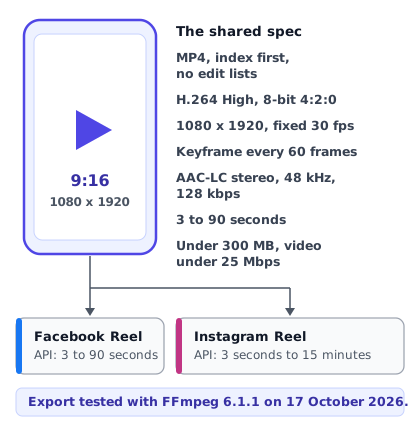
You do not need two videos. You need one file that passes the strictest rules of both apps. Those rules sit in Meta's APIs, so a tool, Business Suite or the phone app will accept a file that meets them.
Why 3 to 90 seconds
Facebook's app is looser than its API. Meta says Reels on Facebook can be any length or orientation, but its Reels API accepts only 3 to 90 seconds. Instagram's API accepts 3 seconds to 15 minutes. A file inside the shared range works everywhere, with any method.
The shared spec
This table sets the two API specs next to the one file that passes both. The sources are Meta's Instagram media reference and its Reels guide for Pages, read on 17 October 2026.
| Property | Instagram API | Facebook API | Master file |
|---|---|---|---|
| Container | MP4 or MOV, index first, no edit lists | MP4 recommended | MP4, index first, no edit lists |
| Video codec | H.264 or HEVC | H.264 or H.265, also VP9 and AV1 | H.264 High |
| Scan and chroma | Progressive, closed GOP, 4:2:0 | Progressive, closed GOP, 4:2:0 | Progressive, closed GOP, 4:2:0 |
| Frame rate | 23 to 60 fps | 24 to 60 fps, fixed | 30 fps fixed |
| Size | Up to 1920 wide, 9:16 recommended | 1080 by 1920 recommended, 540 by 960 minimum | 1080 by 1920 |
| Length | 3 seconds to 15 minutes | 3 to 90 seconds | 3 to 90 seconds |
| Audio | AAC, up to 48 kHz, mono or stereo | AAC-LC, stereo, 48 kHz, 128 kbps or more | AAC-LC stereo, 48 kHz, 128 kbps |
| Bitrate and size | Video up to 25 Mbps, file up to 300 MB | No file size stated | Under 25 Mbps, under 300 MB |
For the full table for each app, see our guides to Facebook Reels size and specs and Instagram Reels size and specs.
The export command we tested
This FFmpeg command makes a file that meets the table. It suits a source that is already 9:16, or one you have reframed. We ran it on 17 October 2026 with FFmpeg 6.1.1 on a generated 1920 by 1080 test clip.
ffmpeg -i in.mp4 -vf "scale=1080:1920:force_original_aspect_ratio=decrease,pad=1080:1920:(ow-iw)/2:(oh-ih)/2,setsar=1" \
  -c:v libx264 -profile:v high -preset medium -crf 20 -pix_fmt yuv420p -r 30 -g 60 -sc_threshold 0 -bf 0 \
  -c:a aac -b:a 128k -ar 48000 -ac 2 \
  -movflags +faststart -use_editlist 0 out.mp4
Then check the result with ffprobe:
ffprobe -v error -show_entries stream=codec_type,codec_name,profile,width,height,r_frame_rate,pix_fmt,bit_rate,sample_rate,channels:format=duration,size,bit_rate -of default=nw=1 out.mp4
Our result was H.264 High, 1080 by 1920, yuv420p and 30 frames per second, with AAC-LC stereo at 48,000 Hz and about 128 kbps. A scan of the file showed the index box before the media data and no edit lists. A default encode with no flags put the index last and wrote two edit lists, one for each track.
Three details are worth knowing:
- The index and edit lists.
-movflags +faststartmoves the index to the front, and-use_editlist 0removes the edit lists. Meta's spec says "moov atom at the front" and "no edit lists". In our run, leaving B-frames on made the video start 0.067 seconds after the audio, so-bf 0removes them and both streams start at 0.000. - Keyframes.
-g 60with-sc_threshold 0gives a keyframe every 60 frames, about every 2 seconds at 30 fps. With no B-frames, every group of pictures is closed. With edit lists off, the muxer shifts video by one audio frame, so our second keyframe sat at 2.021 seconds. That is normal. - Ten-bit sources. In our test, a generated 10-bit clip made the command stop with an x264 error when we left out
-pix_fmt yuv420p. With the flag, the output was 8-bit High profile. Meta's API specs name 4:2:0 and say nothing about 10-bit, though its Facebook page for app uploads lists HDR as recommended. We export 8-bit as a precaution for the API route.
Meta's pages say nothing about how strictly each item is enforced. This is the documented target. Only a test post proves that your file passes.
One warning about the pad filter. It adds black bars when the source is not 9:16. Meta's tips for Facebook Reels list these among the Reels to avoid: "Visibly recycled from other apps (i.e. contains watermarks)", "Uploaded with a border around it" and horizontal ones. So reframe horizontal footage instead of padding it, and always export from your editor, not from a download of the other app's Reel.
Write two captions, not one
The video can be the same. The words should not be. The two apps have different rules, different habits and different places to send people. These are the Facebook and Instagram Reels caption differences that matter, as of 17 October 2026.
| Item | Instagram Reel caption | Facebook Reel description |
|---|---|---|
| Length | 2,200 characters in Meta's API reference. The Help pages we read give no number for the app. | No number on the Meta pages we read. Facebook Help calls the description optional. |
| Hashtags | Up to 5, says Instagram Help. Meta's API reference still says 30. | No limit stated. Facebook Help says hashtags help people find your reel in search. |
| Mentions | Up to 20 @ tags through the API | Not stated on the pages we read |
| Links | Treat as plain text. Put your link in your profile, which takes up to 5 websites. | Not confirmed. Test one Reel. |
| "Link in bio" | Works, because the profile holds links | Means nothing. Say what to do on Facebook. |
| Long captions | Fold behind "more" on most screens. We found no cut-off from Meta. | Fold behind "more" on most screens. We found no cut-off from Meta. |
Hashtags: five is the number now
Instagram's Help Center says: "You can use up to 5 tags on a post." Social Media Today reported on 18 December 2025 that Instagram would "gradually update" the limit to five, because fewer, more targeted tags work better than many generic ones. Meta's API reference still says 30, and how the API treats a sixth tag is not documented. So write five or fewer for Instagram, whatever method you use. On Facebook, one or two is plenty. That last point is our advice, not a Meta rule.
Links and the profile
We found no Instagram Help page that says in so many words that a link in a caption is not tappable. But Meta's Meta One announcement lists "links in organic posts and reels" as a feature of the Advanced plan, from 49.99 USD a month. That suggests a normal account does not get them, so write your Instagram caption as if nobody can tap a link. Use the profile instead: Instagram's help page on websites says you can add up to 5. On Facebook, skip "link in bio". It points to a place that does not exist there.
An invented example: a bakery
This example is made up to show the idea. It is not a real business. A small bakery films a 20-second Reel of cinnamon rolls coming out of the oven.
Instagram caption:
The first tray of cinnamon rolls comes out at 7 a.m. and is usually gone by 9.
Save this for your next breakfast plan. Order ahead through the link in our bio.
#bakery #cinnamonrolls #freshbaked #localbakery #breakfast
Facebook description:
Cinnamon rolls, fresh out of the oven at 7 a.m., Tuesday to Sunday.
We bake one tray at a time, so the first rolls go fast. Want a box set aside? Message us here by 5 p.m. the day before, and we will keep it at the counter for you.
Look at what changed. The Instagram version has a hook, one detail, a save prompt, a pointer to the bio and exactly five hashtags. The Facebook version gives the days, a plain next step and a way to act inside Facebook. Neither has a raw link.
Three patterns for each app
These are writing patterns, not rules from Meta. Meta publishes no caption formula.
For Instagram:
- Hook, detail, ask. Open with the hook, add one detail, and end with one action, such as save, comment or tap the profile link.
- Question first. Ask a question the video answers. Give the answer in the Reel, and use the caption for the next step.
- Short list. Name three things from the video, one per line. A list is easy to skim when a caption folds.
For Facebook:
- Headline, detail, next step. Say what it is, when and where, then how to act, such as message the Page or book.
- Two or three sentences of story. Describe the moment in the Reel as if you were telling a neighbour.
- Announcement. State what is new, the date and how to order.
On both apps, put the most important words first, and read each caption once on the other app's screen before you post. For words that appear on screen, see our guide to adding captions to Reels. Those are part of the video, so they are the same on both apps.
What does not carry over between the apps
One video does not make one identical post. These things stay with the app where you set them, or may not travel at all.
- Music rights. Instagram's help page on the licensed library says its music is "intended for personal, non-commercial use", and that certain business accounts do not have access. Those accounts may be able to use Meta's royalty-free Sound Collection, and Facebook has its own Sound Collection page. Licensed audio can also be muted when Meta's agreements change. No page we read says whether a licensed track survives the move to the other app. The safe route is original audio, or royalty-free audio mixed in before you export.
- Stickers, polls and labels. Meta's import page skips reels with comment polls, "Add Yours" stickers or branded content, so treat those as tied to the app where you add them. Instagram's API sets a paid partnership label for each post when you publish.
- Remix and original audio. Meta says that if you cross-post a public reel to Facebook, anyone there can create a reel with your original audio, unless you turn this off in your Facebook settings. Remix choices are separate on each app.
- Covers. Instagram's API accepts a cover image or a frame choice. Facebook's Reels API for Pages has no cover field. In Business Suite you pick a thumbnail on screen. Check how the Facebook copy looks after posting.
- Collaborators. Each app handles them its own way. Instagram's API takes up to 3 collaborator usernames on a Reel. Meta's Reels API for Pages lets a Page invite other Pages, up to 10 invitations per Page per 24 hours.
- Comments, edits and counts. Each app has its own comments, and Business Suite shows both in one inbox. Meta does not say that a caption change in one app updates the other, so change both. View counts are separate too, as the last question below explains.
Cross-posting and reach: what Meta says about original content
You may read that cross-posted Reels get less reach, or more. We found no Meta page that publishes data either way, so we make no claim.
What Meta does publish is its rules on original content. They matter because cross-posting puts one video in two places.
What Facebook says
Meta's March 2026 newsroom post says content "filmed or produced directly by a creator or owner of a Profile or Page" is original on Facebook. It calls low-value edits to someone else's content, such as "adding borders, inserting captions, and changing the reel's speed", unoriginal. It says accounts that mostly post unoriginal content may be deemed non-recommendable and demonetized. It also says views and watch time for original Reels "approximately doubled" in the second half of 2025, against the same period of 2024. That figure is about original content in general. It does not show that cross-posting helps.
Meta's original content guidelines name two problems. "Duplicating content" is posting content that belongs to another creator, or already exists on Facebook, with no meaningful role in creating it. "Minor editorialization" means small changes to clips you did not film, such as borders, logos, watermarks, captions, background music and speed changes.
What Instagram says
Instagram's help page on original content says content is original "when it is created by the same account that posts it". It is unoriginal when it is re-shared without a material edit, or when the account had no role in creating it. Its examples of minor edits, such as borders and watermarks, are about content the account did not film. Its recommendations page lists "Unoriginal content that is largely repurposed from another source with only minor, immaterial edits" among content that may not be recommended, and says similar guidelines apply to Facebook.
What this means for your own Reel
Your own footage, posted from your own accounts, fits both definitions of original. Nothing in these pages says that posting it on a Page and a profile counts as duplication, and nothing says it does not. They do point to a clear habit: cross post from your master file, not from a copy you downloaded from the other app. A download can carry a watermark, and Meta's tips for Facebook Reels list watermarks from other apps among the things to avoid. For how Reels compare with other platforms, see our guide to Reels vs YouTube Shorts vs TikTok.
A four-week test you can run yourself
Because there is no public data, test it on your own account.
- Pick eight Reels of similar type and length.
- Post four of them to both apps. Post the other four to one app only, alternating which app gets them.
- After 48 hours, record each app's views and watch time. Meta's API notes that insights data can be delayed by up to 48 hours.
- Divide views by your follower count on that app, and compare per 1,000 followers.
- Treat the result as a hint. Eight Reels is a small sample.
If cross-posted Reels do as well, keep going. If they do worse on one app, try a second cut or a different caption there.
A ten-minute weekly routine
A routine keeps cross-posting from turning into a daily chore. This one takes about ten minutes for each Reel.
- Minute 0 to 2: check the master file. Confirm it is 9:16, 3 to 90 seconds and exported from your editor. Run ffprobe if you use the command above.
- Minute 2 to 6: write two captions. Write the Instagram caption first, with five hashtags at most. Then write the Facebook description with a plain next step. Read each once.
- Minute 6 to 8: pick the method. One caption from a phone: use the share switch. A calendar: use Business Suite. Two captions and a queue: use a tool. Turn off automatic sharing if you use a second method.
- Minute 8 to 9: set the time. Our guide to scheduling Instagram Reels explains time zones and windows.
- Minute 9 to 10: check both apps after posting. Open the Page's Reels tab and your Instagram profile. Confirm the caption, the cover and the sound on each.
Once a month, add a two-minute check. Confirm that the Page link still works, that the right people have access, and that Account Status shows no restrictions on either app.
Key takeaways
- You can cross post Reels to Facebook and Instagram free in three ways: Instagram's share switch, Meta Business Suite, or a publishing tool that uses Meta's API.
- To post to a Page, all three need an Instagram professional account linked to that Page. The share switch asks for full control of the Page. Business Suite asks for full control or Content permission.
- Instagram can share Reels to a Page. Facebook's own share setting cannot send a Page's Reels to Instagram, so Pages need Business Suite or a tool.
- The share switch sends one caption. Business Suite lets you customize details for each app. A tool may or may not.
- One master file works on both: 1080 by 1920, H.264, 30 fps, stereo AAC, 3 to 90 seconds, index first, no edit lists.
- Write two captions. Instagram allows five hashtags now, and links in captions should be treated as plain text.
- Music rights, stickers, remix settings, covers and view counts are separate on each app.
- Meta says original content is made by the account that posts it. It has published no data on cross-posted Reels, so run your own test.
Frequently asked questions
Short answers to common questions about cross posting Reels.
Can I post a Reel to Facebook and Instagram at the same time?
Yes. Instagram's share switch posts the Reel to your Instagram profile and your Facebook Page when you tap Share. Meta Business Suite publishes to both from one screen, because Meta says posts publish to both by default when your accounts are connected. A publishing tool sends the Reel to each app through Meta's API, one after the other, and Instagram can take a few minutes to process it. So "at the same time" really means within minutes. For an exact minute on both, schedule it and check each app.
Can I cross post an Instagram Reel to a Facebook Page and not only my profile?
Yes, if your Instagram account is a professional one that is linked to the Page. Instagram's help page asks for a professional profile, full control of the Page and a connection between the two. Then turn on the Facebook switch when you create the Reel, or set up automatic sharing under Crossposting. Meta says sharing posts from a personal Instagram profile to a Page is no longer available. Once a Page is linked, Meta says your shares go to that Page only.
Why did my Instagram Reel not appear on Facebook?
Start with the link, not the Reel. Check that the Reels toggle is on in Accounts Center, that your Facebook account or Page is listed there, and that both apps are up to date. Meta's fix list also suggests turning sharing off and on, checking Account Status for restrictions, restarting both apps and logging in again. Then check where you are looking. A Reel "recommended on Facebook" is not a post on your Page. Look in the Page's Reels tab, or in Business Suite under Content.
Can I share a Facebook Reel to Instagram?
Yes, from a personal Facebook profile, in the Facebook app for iPhone or Android. Both accounts must be in the same Accounts Center, and you can share to one Instagram account at a time. Meta says this is not currently available for people using Pages, profiles in pro mode or additional profiles. If you post as a Page, use Meta Business Suite, where Meta lists Instagram Reels as a place a Facebook reel can be cross-posted, or use a publishing tool.
Do I need two different videos for Facebook and Instagram?
No. One 9:16 file works on both apps. The strictest limits sit in Meta's APIs, so a master file that is 1080 by 1920, H.264, 30 frames per second, with stereo AAC audio, 3 to 90 seconds long and under 300 MB passes both. Edit the words, not the video, and write a caption for each app. Make a second cut only if the Reel carries a link, a handle or a call to action that makes sense on one app only.
Is cross posting Reels free?
Yes, as of 17 October 2026. Meta says Business Suite is free on desktop and in its app, and the share switch is part of Instagram. Meta's September 2026 announcement says the core experience across its apps stays free, and it does not list cross-posting or Business Suite among the paid Meta One features. Tools vary. PublishClip is free, and Buffer's free plan allows three channels with ten scheduled posts each. Meta can change its plans, so do not assume this stays true.
Will Facebook and Instagram show the same view count?
No. Each app counts plays on its own surface. Facebook defines views as the number of times your reel was played. Meta's API reference says Instagram's views metric counts plays on Instagram, and it offers separate Facebook and combined figures for a Reel that is shared to both. Meta says insights data can be delayed by up to 48 hours. Compare each app with itself over time, and use a combined number only if a tool or the API supplies one.
Sources and how this was checked
Last checked: 17 October 2026. We opened each page below on that date, in a real browser where Meta's help pages need one. Every figure quoted here is the one on the page that day. Open the page itself before you rely on a limit.
Instagram Help Center: Share reels to Facebook, Share to a Page, Reel to Page, Fix sharing, Who can see your reels, Connecting to a Page, Hashtags, Add a website, Audio, Licensed music, Original content and Recommendations.
Facebook Help Center: Share to Instagram and Create a reel.
Meta Business Help Center: How reels are shared, Requirements, Tips, Import reels, Original content, Insights, Sound Collection, Post content, Create and manage reels, Cross-posting, How Business Suite works, Creator tools, Creator Studio app, Bulk upload, Scheduling, Connect a Page, Page access and Connect Instagram.
Meta Accounts Center and newsroom: Accounts Center, original creators, 12 March 2026, videos as reels, 17 June 2025 and Meta One, 15 September 2026.
Meta for Developers: Instagram publishing guide, media reference, publishing limit, media insights, Audio API, changelog and Reels API for Pages.
News, prices and our own test: Social Media Today, 18 December 2025, Buffer pricing and Metricool pricing. We ran the FFmpeg command above with FFmpeg and ffprobe 6.1.1 on a generated 1920 by 1080 clip on 17 October 2026, probed the result and scanned the file's boxes.
What we could not confirm
- The app's own caption limit. Instagram's Help pages give no number. The 2,200 characters come from Meta's API reference.
- Facebook's reel description limit, and links in it. The pages we read state neither.
- The exact labels on the app screens. Meta names the Facebook switch two ways, and we could not open the apps ourselves.
- Whether a licensed song, a custom cover or a sticker survives the move to the other app. No page we read says.
- How Meta treats a Reel posted twice by two methods. No page we read covers it.
- Whether cross-posted Reels reach more or fewer people. Meta has published no data.
- Business Suite's scheduling window. Its scheduling article gives none.
- The menu path to the "recommended on Facebook" setting. Instagram's pages name the choice but not the path.
- Instagram's publishing cap. Meta's pages say 100 in one place and 50 in two others.
About this guide
This guide comes from the team behind PublishClip, and Method 3 describes our own product as its code and pages stood on 17 October 2026. We will re-check it every three months, and whenever Meta changes Accounts Center or the Reels composer. If you find a mistake, tell us.