Instagram Reel Not Uploading? Fixes for Stuck Reels
Seeing an instagram reel not uploading message after you have spent an hour cutting clips, timing captions, and picking a cover frame is one of the most frustrating moments in short-form video publishing. Sometimes the progress bar freezes at the top of your feed and refuses to budge. Sometimes the Reel sits on "Processing" or "Preparing" for half an hour before vanishing without a trace. And if you publish through Meta Business Suite or a third-party scheduler, you might get a cryptic numeric code like 2207026, 9007, or 1363040 while the exact same MP4 uploads from your phone on the first try.
The reason most troubleshooting guides waste your time is that they treat every failed Reel as the same problem and tell you to reinstall the app. In practice, a failed Reel falls into one of four distinct situations: an in-app upload stall on your phone, a desktop failure inside Meta Business Suite, a rejected container in Meta's Graph API, or a Reel that actually published on your grid but is hidden from non-followers. Reinstalling the Instagram app can wipe your unsaved drafts, and it will never fix a 10-bit HDR video stream, an expired Facebook Page token, or an audio bitrate that exceeds Meta's parser limits.
Last checked: 17 October 2026. Every specification, error code, and menu path in this guide was verified against Meta's official developer documentation and Help Center articles on 16 and 17 October 2026. Because Meta updates app menus and API rules without prior notice, check the dates cited beside each rule.
On this page
- Instagram reel not uploading: find your situation first
- Quick fixes for a stuck upload in the app
- Check the video file, the cause apps never explain
- Stuck on processing: how long to wait
- Upload fails in Meta Business Suite
- API and scheduler errors decoded
- Account and permission problems
- Facebook Reels that will not upload or publish
- It posted, but nobody can see it
- A 60-second pre-flight checklist
- How PublishClip shows failures
- Key takeaways
- Frequently asked questions
- Sources and how this was checked
Instagram reel not uploading: find your situation first
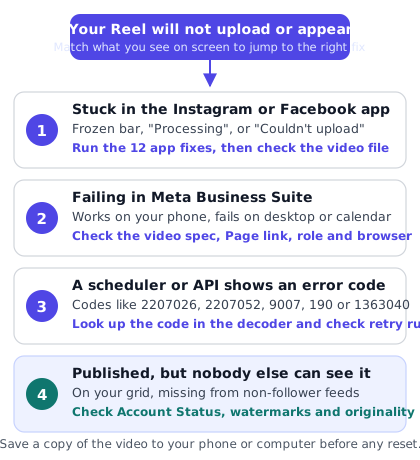
When you run into an instagram reel not uploading, start by matching what you see on screen to one of the four situations below. Each path points to a different layer of Meta's publishing stack, so jumping straight to the right section will save you from resetting settings that are not broken.
- Stuck in the app: Your Reel shows a frozen progress bar, stays on "Preparing" or "Processing", or displays "Couldn't upload Reel, try again later" inside the Instagram or Facebook mobile app.
- Failing in Business Suite: Your video uploads on your phone, or passes the initial file picker on your computer, but fails when you click Publish or Schedule inside Meta Business Suite.
- A tool shows an error code: Your scheduling tool or custom script stops and returns a Graph API code or Instagram subcode such as
2207026,2207052,9007,190, or1363040. - Posted but nobody can see it: The upload finished and the Reel sits on your profile tab, yet it gets zero reach with non-followers or cannot be viewed by other accounts.
If you are holding your phone right now with a stuck Reel in the app, run these first five checks in order before you touch anything destructive:
- Save a copy of the video to your camera roll from the drafts screen or your editing app so you cannot lose the cut.
- Switch between Wi-Fi and mobile data and turn off any active VPN or content-filtering profile, then tap Retry once.
- Wait five minutes without force-closing the app if the status says "Processing", because Meta's server-side transcoder may still be finishing the container.
- Open the draft, remove any interactive sticker or licensed audio track, and export a clean 1080x1920 H.264 MP4 if the upload fails immediately upon tapping Share.
- Check your Account Status inside Instagram settings to confirm that a temporary posting restriction or community flag is not blocking new media.
Why the same video behaves differently across tools
A single MP4 file can succeed in the Instagram mobile app, fail silently in Meta Business Suite, and throw a hard 352 / 2207026 format error in a third-party scheduler. That happens because the mobile app includes a local pre-processor on your phone. Before sending bytes over the network, the iOS and Android apps often re-wrap the container, flatten variable frame rates from screen recordings, and downscale oversized 4K frames to 1080 pixels wide.
When you upload through a desktop browser or a tool that uses Meta's IG User Media API, your file is fetched or streamed directly to Meta's backend ingestion servers without your phone's local cleanup step. Those backend parsers check the container format, codec profile, pixel format, audio bitrate, and MP4 atom layout against strict rules. Understanding which gate rejected your file is the difference between a two-minute fix and an hour of guesswork.
Quick fixes for a stuck upload in the app
When a Reel fails inside the Instagram mobile app, Instagram's official troubleshooting page recommends restarting your device, testing Wi-Fi against mobile data, and treating app deletion and reinstallation as a last resort. Below are the twelve practical fixes for an in-app stall, ordered from the safest, zero-cost checks to the last-resort resets that risk your local drafts.
1. Save your video file before you touch anything
Before you cancel a stuck upload, clear a cache, or log out, secure a backup of your edited video. When Instagram stores a Reel in Drafts, those project files and temporary clips live inside the app's local sandbox on your phone—not in your cloud account. Logging out of Instagram, offloading the app, clearing storage on Android, or deleting and reinstalling the app on iOS will permanently erase every draft on that device.
If the Reel is already sitting in the stuck banner at the top of your feed and you edited it inside Instagram's built-in camera, open your profile, go to the Reels tab, tap Drafts, open the draft if a copy remains there, and tap the download or save icon at the top of the preview screen to write the video to your phone's camera roll. If you edited the video in CapCut, Premiere, Final Cut, or DaVinci Resolve, keep that exported MP4 safe in your Files or Photos app before continuing.
2. Switch between Wi-Fi and mobile data and turn off VPNs
Instagram video uploads rely on long-lived HTTPS upload sessions. Office Wi-Fi networks, café captive portals, hotel routers, and consumer VPN tunnels frequently drop or throttle large upstream transfers after a few megabytes, leaving the upload progress bar stuck at 80% or 95%.
Turn off any VPN, DNS ad-blocker, or Apple Private Relay tunnel first. If you are on Wi-Fi, turn Wi-Fi off and let your phone connect over 4G or 5G mobile data, then tap the retry button on the failed upload banner. Conversely, if you are walking between mobile cell towers with weak upload bandwidth, move to a stable Wi-Fi connection. Testing both connections is one of the primary steps on Instagram's troubleshooting checklist because it immediately isolates router-level packet loss.
3. Give a stuck progress bar two minutes before force-closing
When the banner at the top of your feed says "Posting" or "Finishing up", the app is either pushing the final byte chunks or waiting for Instagram's backend to acknowledge the container. Force-closing the app in the middle of that handshake can leave a half-written session in the app's local queue. When you reopen Instagram, the app tries to resume the broken session and gets stuck in an infinite loop.
Leave the app open in the foreground with your screen awake for two to three minutes after switching to a clean network. If the banner exposes a three-dot menu or an X button with a Retry or Discard option, use that control rather than swiping the app away from your phone's app switcher.
4. Duplicate the draft or start a fresh post from your camera roll
Sometimes a draft file itself becomes corrupted inside the Instagram app—especially if you recorded multiple clips inside the app, saved the draft, updated the Instagram app two days later, and came back to publish it. Internal pointers to temporary audio snippets or transition effects can break across app updates.
If tapping Share on an older draft triggers an instant "Couldn't upload" error, do not keep tapping retry on the same draft. Save the video preview to your camera roll, close the drafts screen, tap the + button to create a brand-new Reel, and select the saved MP4 from your gallery. Creating a fresh composition builds a clean upload session without the stale draft metadata.
5. Strip interactive stickers, polls, or third-party effects
Reels let you layer polls, quizzes, Add Yours prompts, GIF stickers, captions, and camera AR effects on top of your video. Each of those overlays adds metadata parameters that Instagram's server has to validate when building the post. When one effect or sticker asset is deprecated or temporarily broken on Meta's side, the entire Reel fails to upload with a generic error message.
Open the draft, remove all interactive stickers and AR filters so only the base video and plain text remain, and try posting again. If you need captions on the video, burning them directly into the video pixels or using standard auto-captions is much less likely to trip a sticker validation bug; our guide on how to add captions to Reels walks through the cleanest options.
6. Test without library music or replace the audio track
Music licensing rules change by country, account type, and audio track. If you attached a trending song from Instagram's audio library and your account is a Business account—or if the rightsholder restricted that track while your Reel was sitting in drafts—the upload can fail during server-side rights verification.
To test whether the audio selection is the blocker, open your draft, remove the library music track, and try uploading with only your original camera audio. If it goes through, the sound was restricted for your account category or region.
7. Shorten your caption and count your hashtags and @mentions
Instagram's app interface does not always stop you from pasting a caption that violates backend limits, especially when you paste text from a notes app. According to Meta's IG User Media reference and Instagram error codes table, Instagram enforces three hard limits on every Reel caption:
- Maximum caption length: 2,200 characters.
- Maximum hashtags: 30
#tags per caption. - Maximum mentions: 20
@mentions per caption (exceeding this triggers subcode2207040in the API).
If your caption is near 2,200 characters, contains 31 hashtags, or tags an account that has blocked you or disabled @mentions in its privacy settings, the publish step will fail. Copy your caption to your clipboard, replace it with a two-word test caption, and try sharing. You can always edit the caption or add extra context after the Reel is live.
8. Free up at least 2 GB of local phone storage
Before Instagram uploads a Reel, the app renders your trims, text layers, color filters, and audio mix into a temporary output file in your phone's local storage. If your iPhone or Android phone has only a few hundred megabytes of free space left, that local render silently fails out of disk space, and Instagram surfaces a generic upload error.
Open your phone's storage settings and check available space. Clear at least 2 GB to 3 GB of free room by removing old downloads or backing up old camera roll videos, then retry the Reel.
9. Restart the Instagram app and reboot your phone
A full device restart clears stuck background network sockets and frees hardware video encoder memory that can lock up after heavy editing in apps like CapCut or Lightroom Mobile. Instagram's Help Center explicitly lists restarting your phone or tablet as a core troubleshooting step. Close Instagram, turn your phone completely off and back on, and open Instagram fresh on a strong connection.
10. Update the Instagram app and your phone's operating system
In its article on when something is not working with the Instagram app, Instagram notes that older versions of the app gradually lose support as features change. When Meta updates the Reels ingestion protocol or adds new parameters (such as the 2025–2026 updates for longer Reels and trial distribution), an app build from several months ago may send an outdated payload that the server rejects.
Open the Apple App Store or Google Play Store, search for Instagram, and install any pending update. Updating the app in place preserves your local drafts, unlike deleting the app.
11. Clear cache (Android) or reinstall the app as a last resort (iOS)
If a ghost upload banner is permanently wedged at the top of your feed and refuses to cancel, the local upload queue database is corrupted.
- On Android: Open Settings → Apps → Instagram → Storage and tap Clear Cache first. Clearing the cache does not delete your login or drafts. Only tap Clear Storage / Clear Data if the cache clear fails and you have already exported every draft to your phone's gallery.
- On iPhone (iOS): iOS does not offer a separate button to clear an app's cache without removing the app's documents. As Instagram's troubleshooting guide warns, treat deleting and reinstalling the app as a last resort. Export every draft to your Photos library first, delete Instagram, restart the iPhone, and install a fresh copy from the App Store.
12. Report a technical problem inside Instagram
When a server outage or account-specific bug on Meta's side blocks uploads across every network and video file, use the built-in diagnostic reporter so your account log is attached. In the Instagram app, open your profile, tap the Menu icon at the top right, open Help (or scroll to How to report things), and tap Report a problem. Describe the exact error banner and attach a screenshot of the stuck state.
Check the video file, the cause apps never explain
When a Reel fails in a scheduler, in Meta Business Suite, or in the app right after you select an exported file from your editor, the culprit is almost always the video file itself. Neither the Instagram app nor Business Suite gives you a useful readout of which stream property failed; they simply say the video could not be uploaded or that the format is not supported.
Fortunately, Meta publishes the exact engineering requirements that its backend transcoder checks on the IG User Media reference page. If your video matches every row of that table, you eliminate file-level rejections completely.
Meta's documented Instagram Reel video specifications
The table below shows the official video and audio requirements listed in Meta's Instagram Graph API documentation as of 17 October 2026, alongside the safest target values to set in your video editor. For a complete breakdown of dimensions, cover ratios, and safe zones, see our Instagram Reels size and specs guide.
| Property | Meta's documented API spec | Safe export target | What happens when violated |
|---|---|---|---|
| Container format | MOV or MP4 (MPEG-4 Part 14), no edit lists, moov atom at the front | MP4 with +faststart and no edit lists | Error 352 / 2207026 (format not supported) or stalled processing |
| Video codec | H.264 or HEVC (H.265), progressive scan, closed GOP, 4:2:0 chroma | H.264 High profile, 8-bit yuv420p | Container status turns to ERROR with subcode 2207026 or 2207053 |
| Aspect ratio | 9:16 recommended (to avoid cropping or blank space) | 9:16 vertical (1080 x 1920) | Rejected on Facebook API (1363040) or pillarboxed/cropped |
| Maximum width | 1,920 pixels maximum horizontal width | 1,080 pixels wide by 1,920 pixels tall | 4K (2160x3840) files fail validation even when under 100 MB |
| Frame rate | 23 to 60 frames per second (fps) | 30 fps constant frame rate (CFR) | Variable frame rate screen recordings drift out of sync or fail |
| Video bitrate | 25 Mbps maximum (VBR) | 8 to 15 Mbps (or CRF 20 in x264) | Slow download timeout (2207003) or rejection |
| Duration | 3 seconds minimum to 15 minutes maximum (API); 3 to 90 s on Facebook API | 5 to 90 seconds when cross-posting to both | Clips under 3.0 s or over the cap fail container creation |
| File size | 300 MB maximum (Instagram API); 1 GB on Facebook Reels API | Under 150 MB | Upload timeout or immediate size rejection |
| Audio codec and rate | AAC, up to 48 kHz sample rate, 1 or 2 channels (mono or stereo), 128 kbps | AAC-LC, 48 kHz, stereo (2 channels), 128 kbps | High-bitrate (256+ kbps), PCM, or 5.1 surround tracks fail parsing |
How to inspect your video in five seconds with ffprobe
Instead of guessing how your video editor exported a clip, you can inspect the exact stream metadata using ffprobe, the free analyzer included with FFmpeg. Run this tested command in your terminal on macOS, Linux, or Windows:
ffprobe -v error \
  -show_entries stream=codec_type,codec_name,profile,width,height,r_frame_rate,pix_fmt,bit_rate,sample_rate,channels:format=duration,size,bit_rate \
  -of default=nw=1 file.mp4
That single command prints the video codec (codec_name=h264), profile (profile=High), dimensions (width=1080, height=1920), pixel format (pix_fmt=yuv420p), frame rate (r_frame_rate=30/1), audio codec (codec_name=aac), sample rate (sample_rate=48000), channel count (channels=2), total duration in seconds, and file size in bytes.
If you also want to verify that your keyframes (closed GOP) fall at regular intervals, run this second tested ffprobe check to list the presentation timestamps of every frame alongside its frame type (I for keyframes):
ffprobe -v error -select_streams v:0 \
  -show_entries frame=pict_type,pts_time \
  -of csv=p=0 file.mp4
The seven hidden file problems that break Reel uploads
When we compare failed user files against Meta's specification table and developer validation reports, the same seven file traits come up repeatedly:
- 4K vertical exports (2160 x 3840) that exceed the 1,920-pixel width rule. Modern iPhones, Android flagships, and mirrorless cameras record in 4K by default. Look closely at Meta's specification: the rule says maximum horizontal width is 1,920 pixels, not 1,920 pixels on the narrow side. Even in a vertical 9:16 video, a 4K frame is 2,160 pixels wide by 3,840 pixels tall—which exceeds 1,920 pixels wide. In a developer validation write-up testing Meta's Reel specification, a 2,160-pixel-wide vertical file that weighed well under 100 MB was rejected by the API for exceeding the width limit. Treat that as a field report rather than an official Meta announcement, and always scale your vertical exports to 1080 x 1920. If your source clip is horizontal 16:9 (1920 x 1080), convert it to a vertical 9:16 canvas first using the steps in our guide to converting horizontal video to vertical for Reels.
- 10-bit HDR and Dolby Vision phone footage (
yuv420p10le). Recent iPhones and high-end Android phones shoot in 10-bit HDR (HEVC Main 10). When we tested a 10-bit phone-style clip with FFmpeg 6.1.1, running a standard H.264 encode without an explicit pixel format flag kept the output as High 10 (yuv420p10le). Adding-pix_fmt yuv420pconverted it cleanly to 8-bit High (yuv420p). Meta's specification states4:2:0chroma subsampling with H.264 or HEVC and says nothing about 10-bit profiles, so converting 10-bit footage to 8-bityuv420pis a smart precaution whenever an HDR clip refuses to upload or turns blown-out and washed-out after processing. - MP4
moovindex placed at the end of the file and edit lists present. Meta's Reel specification explicitly requires "no edit lists" and "moov atom at the front of the file". When we tested a default FFmpeg MP4 encode with no extra muxer flags, FFmpeg placed themoovindex atom after themdatmedia data and wrote twoedtsedit list boxes (one for the video track and one for the audio track). Adding-movflags +faststartmoves themoovatom to the front so Meta's server can start reading stream headers before downloading the entire file, but the two edit lists remain unless you also pass-use_editlist 0. While we found no public statement from Meta on how strictly edit lists are enforced on every endpoint, matching the documented target removes a known variable. - Audio bitrate above 128 kbps or uncompressed PCM audio. Many desktop NLE presets export AAC audio at 256 kbps or 320 kbps, and QuickTime
.movexports from pro cameras often carry uncompressed 16-bit or 24-bit Linear PCM (pcm_s16le) audio. Meta's spec table lists AAC at 128 kbps, up to 48 kHz, 1 or 2 channels. In the same developer validation field report mentioned above, a video with a 256 kbps audio track was flagged during validation. Keeping audio at 128 kbps AAC-LC stereo at 48 kHz guarantees compatibility. - Variable frame rate (VFR) from screen recordings and front cameras. Screen recorders on iOS, Android, and macOS adjust their capture rate dynamically between 12 fps and 120 fps depending on screen motion. When Meta's transcoder reads a VFR stream whose instantaneous frame rate spikes above 60 fps or drops below 23 fps, processing can fail or produce severe audio-video sync drift. Converting the stream to a constant 30 fps (
-r 30) fixes it. - Clips that are 2.9 seconds long or over the endpoint's duration ceiling. A 3-second bumper exported from a timeline is often 2.93 or 2.97 seconds long when measured by
ffprobe. Because Meta's minimum Reel duration is 3.0 seconds, a 2.97-second file fails immediately. On the upper end, while Instagram's app camera can record longer clips and the Instagram API lists up to 15 minutes, the Facebook Reels Publishing API for Pages enforces a hard 3 to 90 seconds window (returning error1363128outside that range). - Corrupted custom cover image or out-of-range thumbnail offset. If you attach a custom cover image or specify a frame offset (
thumb_offsetin milliseconds) that falls beyond the video's actual duration, Instagram returns error1 / 2207057("The thumbnail offset you entered is out of bounds for this video"). Read our Instagram Reel cover guide for exact cover dimensions and safe zones.
The tested FFmpeg command that fixes non-compliant Reels
We tested the following single-pass FFmpeg command on FFmpeg 6.1.1 and verified the output with ffprobe and an MP4 atom box scan. It scales or pads any clip into a clean 1080 x 1920 vertical frame, converts 10-bit inputs to 8-bit yuv420p H.264 High profile at a constant 30 fps, places a keyframe every 60 frames (2 seconds), encodes stereo 48 kHz AAC audio at 128 kbps, moves the moov atom to the very front of the file, and strips all edit lists:
ffmpeg -i input.mp4 \
  -vf "scale=1080:1920:force_original_aspect_ratio=decrease,pad=1080:1920:(ow-iw)/2:(oh-ih)/2,setsar=1" \
  -c:v libx264 -profile:v high -preset medium -crf 20 -pix_fmt yuv420p \
  -r 30 -g 60 -sc_threshold 0 -bf 0 \
  -c:a aac -b:a 128k -ar 48000 -ac 2 \
  -movflags +faststart -use_editlist 0 \
  output.mp4
Why is -bf 0 (disabling B-frames) paired with -use_editlist 0 here? In our FFmpeg 6.1.1 tests, when you turn off edit lists with -use_editlist 0 on a stream that uses B-frames, the video track starts 0.067 seconds after the audio track because the muxer can no longer use an edit list to hide the B-frame decode delay. Adding -bf 0 keeps both the video and audio streams starting at 0.000 seconds (with the second keyframe landing at roughly 2.02 seconds due to a single 21 ms AAC priming frame), while producing zero edit lists and placing the moov header before mdat. Remember that a real test publish to your account is the only final proof that Meta's servers accept a given file.
Stuck on processing: how long to wait
One of the most searched questions after an instagram reel not uploading is how many minutes "Processing" or "Preparing" is supposed to take before you should give up. Many third-party blogs invent specific minute thresholds for the mobile app, claiming that 15 minutes or 45 minutes is the official cutoff.
Here is the honest truth: Meta publishes no upload-time or processing-time figure for the Instagram mobile app. How fast a Reel finishes in the app depends on your upstream connection speed, the file size and length of the video, and the current queue depth on Meta's transcoding cluster.
What Meta does publish is the exact polling guidance for its API container pipeline, documented in the IG Container reference and Content Publishing guide. Because every Reel—whether uploaded from an app or a scheduler—has to be transcoded and checked on Meta's backend before going live, those API container states show you what is happening behind the curtain.
The five Instagram container states (status_code)
When a tool creates a Reel container on Instagram (POST /{ig-user-id}/media), Meta returns a container ID. The tool then checks GET /{ig-container-id}?fields=status_code,status,copyright_check_status. Meta's documentation defines five possible values for status_code:
IN_PROGRESS: Instagram is still downloading the video from the source URL, checking its format, or transcoding its streams. If you try to publish the container while it is stillIN_PROGRESS, Meta rejects the publish call with error9007 / 2207027("The media is not ready for publishing, please wait for a moment").FINISHED: Transcoding and validation succeeded, and the container is ready to be published withPOST /{ig-user-id}/media_publish.PUBLISHED: The container has already been published and is live on the Instagram account.ERROR: The container failed to complete the publishing process. Whenstatus_codeisERROR, the companionstatusfield holds the specific Instagram error subcode (such as2207026for an unsupported video format or2207052when the file could not be fetched). Once a container entersERROR, it cannot be recovered; you must fix the cause and create a new container.EXPIRED: The container was not published within 24 hours of creation and has expired. You must create a new container.
Along with status_code, Instagram's container object exposes copyright_check_status, which contains a boolean matches_found field and a status value of completed, error, in_progress, or not_started.
Meta's 5-minute polling rule
In its Content Publishing documentation, Meta advises querying a container's status about once per minute, for no more than 5 minutes. For most compliant 1080p Reels under 90 seconds, server-side processing finishes within one to five minutes. If a container remains stuck in IN_PROGRESS well past that five-minute window—or flips to ERROR—continuing to poll the same container rarely helps; creating a fresh container with a verified MP4 is the reliable move.
Facebook Reels status phases (video_status)
If you are publishing a Facebook Reel through the Reels Publishing API for Pages, Meta exposes an even more granular status object when you query GET /{video-id}?fields=status. Its top-level video_status field reports one of seven states: uploading, upload_complete, processing, ready, error, expired, or upload_failed. Beneath that, Meta splits progress into three sub-objects:
uploading_phase: Reports status (in_progress,complete,error,not_started) andbytes_transfered(spelled with onerin Meta's API response), which tells you the exact byte offset where an interrupted upload stopped so your client can resume from that byte instead of starting from zero.processing_phase: Tracks server-side video transcoding after all bytes have arrived.publishing_phase: Reportspublish_statusandpublish_timeonce the Reel is scheduled or published to the Page.
Upload fails in Meta Business Suite
A classic headache for social media managers is a Reel that uploads fine from the Instagram phone app, yet fails every time you try to publish or schedule it inside Meta Business Suite on a desktop computer. Meta maintains a dedicated Business Help Center article on troubleshooting errors creating, scheduling, or publishing posts in Meta Business Suite (note that Meta's Business Help Center renders its body text via client-side scripts, so open that link in a full desktop browser).
When Business Suite rejects a Reel, work through these six causes in order.
1. Business Suite enforces stricter file checks than the phone app
As noted earlier, your phone's Instagram app silently re-encodes many non-standard video files before uploading. When you drag an MP4 from your Mac or PC into Meta Business Suite in Chrome or Safari, the browser sends that file to Meta's backend without the phone app's forgiving pre-processor. If your file is 4K (2160 x 3840), uses 10-bit HDR color, has a 256+ kbps or PCM audio stream, or is slightly under 3 seconds or over 90 seconds when cross-posting to both Facebook and Instagram, Business Suite will fail during the processing step or disable the Publish button. Run the FFmpeg re-encode command from the previous section first; that single step resolves the majority of desktop Business Suite failures.
2. Cross-posting one Reel to both Facebook and Instagram hits the stricter cap
Inside Business Suite's composer, you can check both your Facebook Page and your Instagram professional account to publish simultaneously. When you select both destinations, your video and caption have to satisfy the intersection of both platforms' rules at once. For example, an aspect ratio or duration that works on one destination may trigger a validation block on the other. Test by unchecking Facebook and saving as an Instagram-only draft (or vice versa) to see which account is rejecting the post. For a full comparison of what survives when you post to both networks at once, read our guide to cross-posting Reels to Facebook and Instagram.
3. The link between your Facebook Page and Instagram account is half-broken
Business Suite reaches your Instagram account through its connection to your Facebook Page and Business Portfolio. If someone recently changed the Instagram password, enabled two-factor authentication, switched the Instagram account from Business/Creator back to Personal, or left the link in a "Needs confirmation" state, Business Suite will still display your Instagram handle in the composer checkboxes—but the moment you click Publish or Schedule, the backend call fails for lack of permission.
Open Meta Business Suite → Settings → Business assets (or Linked accounts inside your Facebook Page settings) and verify that the Instagram connection does not show a yellow warning badge or a Confirm connection button. Our step-by-step guide on how to connect Instagram to a Facebook Page walks through repairing a half-linked account.
4. Your Page role or Business Portfolio task access changed
To publish or schedule Reels to an Instagram account connected to a Facebook Page, Meta's Instagram Platform overview states that the person acting must have the right task access on the Page—specifically Content task access or Full control (with Full control required for initial linking and asset changes). If an agency admin downgraded your Page access or moved the Page into a different Business Portfolio without assigning you to both the Page and the Instagram asset, your uploads will fail.
5. Page Publishing Authorization (PPA) is pending on your account
Meta requires certain Pages—especially those with large followings or admins in different countries—to complete Page Publishing Authorization, which means confirming the primary country location of the people who manage the Page and turning on two-factor authentication on the personal Facebook profile. According to Meta's Content Publishing documentation, if an Instagram account is connected to a Facebook Page that requires Page Publishing Authorization, publishing to that Instagram account through the API is blocked until PPA is completed. Check your Facebook Page's Page Setup or Quality / Restrictions tab to see if an authorization prompt is waiting for you.
6. Browser extensions, stale cookies, or sleep timers interrupted the upload
Desktop video uploads in Business Suite stream hundreds of megabytes through browser XHR/Fetch requests. Privacy extensions, script blockers, aggressive ad-blockers, or your laptop going to sleep while a 200 MB file is uploading will sever the request and leave the composer stuck on a spinning wheel.
Test the upload in an Incognito or Private window with all browser extensions disabled, keep the browser tab in the foreground until the progress percentage reaches 100% and the green check mark appears, or install the Meta Business Suite mobile app on your phone to test whether the failure is isolated to your desktop browser.
API and scheduler errors decoded
When an upload fails in a third-party scheduling tool (or in your own code built on the Instagram Reels API), you have a major advantage over in-app users: Meta's servers return an explicit numeric code and error_subcode.
Unfortunately, many tools either pass the raw number straight to the screen without context or wrap it in a vague "Media upload failed" banner. We built the master decoder table below directly from three primary Meta developer references checked on 16 and 17 October 2026: Instagram Platform Error Codes, Graph API Error Handling, and the Reels Publishing API for Pages.
Find your code or subcode in the first column to see Meta's official message, what it actually means in plain English, how to fix it, and whether retrying the call is safe.
| Code / Subcode | Meta's documented message or name | Plain meaning | What to do | Retry? |
|---|---|---|---|---|
-2 / 2207003 | It takes too long to download the media. | Meta's server timed out while fetching your video_url. | Serve the video from a fast CDN, lower bitrate under 25 Mbps, and create a new container. | Yes (new container) |
-2 / 2207020 | The media you are trying to access has expired. | The Instagram container is older than 24 hours (`EXPIRED`). | Do not reuse old container IDs. Create a brand-new container and publish within 24 hours. | Yes (new container) |
-1 / 2207001 | Instagram server error. | Transient internal error on Instagram's backend. | Wait a few minutes with exponential backoff, then try again. | Yes (after waiting) |
-1 / 2207032 | Create media fail, please try to re-create media. | Container creation failed inside Instagram's pipeline. | Discard the failed attempt and call POST /{ig-user-id}/media to create a new container. | Yes (new container) |
-1 / 2207053 | Unknown upload error. | An unspecified upload or video transcoding error occurred (mainly on video). | Re-encode the video with the tested FFmpeg command, then create a new container and retry. | Yes (new container) |
1 / 2207057 | Thumbnail offset out of range. | Your thumb_offset (in ms) is negative or longer than the video duration. | Set thumb_offset between 0 and the video's duration in milliseconds, or use cover_url. | No (fix parameter) |
4 / 2207051 | We restrict certain activity to protect our community. | Instagram's anti-spam/integrity filter flagged the action (not a standard rate limit). | Stop automated retries immediately. Check Account Status in the Instagram app and reduce posting frequency. | No (stop and check app) |
9 / 2207042 | You have reached the maximum number of posts that are allowed to be published by Content Publishing API. | The account hit its rolling 24-hour API publishing limit. | Check GET /{ig-user-id}/content_publishing_limit and wait until older posts age past 24 hours. | Yes (next day) |
24 / 2207006 | The media cannot be found. | Permission error or expired token prevents reading the media/container. | Verify the user's token and Page/Instagram permissions; reconnect the account if expired. | No (fix token/permissions) |
24 / 2207008 | The media builder does not exist or has expired. | Temporary race condition on a newly created container, or an expired builder. | Retry 1 or 2 times over 30 seconds to 2 minutes; if it still fails, create a new container. | Yes (1–2 times, then new container) |
25 / 2207050 | The Instagram account is restricted. | The Instagram professional account is inactive, checkpointed, or restricted. | Open the Instagram mobile app, log in as that account, and complete any security or policy prompts. | No (resolve in app) |
100 / 2207023 | The media type is unknown. | The media_type parameter is missing or invalid. | Pass media_type=REELS when creating a Reel container. | No (fix parameter) |
100 / 2207040 | Cannot use more than the maximum of 20 mentions. | The caption or tags include more than 20 @ mentions. | Reduce the number of @ mentions in the caption to 20 or fewer. | No (fix caption) |
352 / 2207026 | The video format is not supported. Please check spec for supportedate format. | The video container, codec, width, pixel format, or audio failed spec checks. | Re-encode to MP4 (H.264 High, 8-bit yuv420p, 1080x1920, AAC 128k, +faststart) and create a new container. | No (re-encode file) |
9004 / 2207052 | The media could not be fetched from this uri. | Meta's crawler could not download your video_url or cover_url. | Ensure the URL is public HTTPS, returns HTTP 200 without auth headers, and has a valid presigned expiry. | No (fix URL access) |
9007 / 2207027 | The media is not ready for publishing, please wait for a moment. | You called media_publish while status_code was still IN_PROGRESS. | Poll GET /{ig-container-id}?fields=status_code once a minute until it returns FINISHED, then publish. | Yes (after FINISHED) |
36004 / 2207010 | The image caption is too long. | Caption exceeds 2,200 characters or 30 hashtags. | Trim the caption to 2,200 characters or fewer and at most 30 hashtags. | No (shorten caption) |
1363040 | Facebook Reels API: Invalid aspect ratio. | The Facebook Reel video is not 9:16 vertical. | Crop or pad the video to a 9:16 aspect ratio (such as 1080 x 1920). | No (re-encode file) |
1363127 | Facebook Reels API: Invalid resolution. | The video resolution falls outside Facebook Reels API bounds. | Export at 1080 x 1920 (minimum 540 x 960 recommended). | No (re-encode file) |
1363128 | Facebook Reels API: Invalid duration. | The video is shorter than 3 seconds or longer than 90 seconds. | Trim or pad the video so its exact duration is between 3.0 and 90.0 seconds. | No (trim file) |
1363129 | Facebook Reels API: Invalid frame rate. | The video frame rate is below 24 fps or above 60 fps. | Re-encode at a constant frame rate between 24 and 60 fps (such as -r 30). | No (re-encode file) |
1 or 2 | Graph API: API Unknown / API Service (temporary). | Temporary Graph API outage or transient server fault. | Wait with exponential backoff and retry the request. | Yes (wait and retry) |
4, 17, 32, 613, 341 | Graph API: Application / User / Pages / Custom rate limit reached. | Your app, user token, or Page exceeded Meta's call rate quota. | Pause polling and API calls, honor rate headers, and retry after the cooldown window. | Yes (wait and retry) |
368 | Graph API: Temporarily blocked for policies violations. | Meta temporarily blocked the action due to a policy or spam trigger. | Wait out the temporary block and review the content and posting cadence before retrying. | Yes (after block lifts) |
10 or 200–299 | Graph API: Permission denied / Permission error. | Required scope (`instagram_content_publish`, `pages_manage_posts`, etc.) is missing or revoked. | Do not retry. Have the user reconnect and grant all required permissions and Page task access. | No (reconnect) |
102 or 190 | Graph API: Session invalid / Access token expired or invalid (subcodes 458, 459, 460, 463, 467). | The user logged out, changed their password, hit a checkpoint, or the token expired. | Never retry with a dead token. Send the user through the login/reconnect flow for a fresh token. | Never (reconnect) |
Instagram publishing codes
Look closely at three Instagram subcodes that trip up both creators and developers:
- Error
352 / 2207026("The video format is not supported"): Even down to the typo in Meta's raw message string ("supportedate format"), this is the #1 file error on the Instagram Graph API. It fires whenever a container's video stream uses an unsupported codec or pixel format, exceeds 1,920 pixels in horizontal width, or carries an audio track that the parser rejects. Do not retry the same file—run it through the tested FFmpeg command above and create a new container. - Error
9004 / 2207052("The media could not be fetched from this uri"): Unlike the mobile app, standard Instagram API publishing does not push video bytes inside thePOST /{ig-user-id}/mediarequest. Instead, the scheduler sends avideo_urlparameter and Meta's crawler downloads the file. If that URL lives behind a firewall, requires a session cookie, redirects through an HTML landing page, uses an Amazon S3 or Cloudflare R2 presigned URL that expired before the scheduled post time, or blocks Meta's user-agent inrobots.txtor a WAF rule, Meta cannot fetch the file and returns2207052. - Error
9007 / 2207027("The media is not ready for publishing, please wait for a moment"): This happens when a scheduler or script callsPOST /{ig-user-id}/media_publishbefore the container'sstatus_codehas transitioned fromIN_PROGRESStoFINISHED. The container itself is not broken—the caller simply needs to wait, checkGET /{ig-container-id}?fields=status_codeabout once a minute, and callmedia_publishonly after it seesFINISHED. - Error
4 / 2207051vs9 / 2207042: Notice the crucial distinction in Meta's table. Top-level code4on the Graph API usually means application rate limiting, except when paired with Instagram subcode2207051("We restrict certain activity to protect our community"). That pair is an anti-spam integrity block, not a simple rate limit—keep hammering it with automated retries and you risk deeper account restrictions. By contrast,9 / 2207042is the rolling 24-hour publishing limit (content_publishing_limit), where waiting until the next day is the right move. Also remember that Meta's IG User Media documentation caps container creation at 400 containers per 24 hours per Instagram user, even if you never publish them.
Facebook Reels codes
When publishing to a Facebook Page via the Reels Publishing API, Meta returns dedicated four-part validation codes in the 1363xxx range:
1363040: Invalid aspect ratio. The API requires a 9:16 vertical video.1363127: Invalid resolution. Keep your export at 1080 x 1920 (minimum 540 x 960).1363128: Invalid duration. The Facebook Page Reels API accepts videos from 3 seconds to 90 seconds only, and permits at most 30 API-published Reels per Page in a 24-hour period.1363129: Invalid frame rate. The frame rate must sit between 24 fps and 60 fps (notice that the minimum here is 24 fps, whereas Instagram's API table lists 23 to 60 fps—so 23.976 fps cinema timelines can pass Instagram's table while risking a boundary issue on Facebook unless you export at 24, 25, or 30 fps).
Graph and token codes
Meta's Graph API Error Handling guide divides general platform errors into two buckets: errors you should wait and retry, and errors you must never retry without human action:
- Wait and retry: Codes
1and2(temporary Graph API errors),4and17(app and user throttling),341(application limit reached), and368(temporarily blocked for policy violations). Note that codes32(Pages API limit) and613(custom rate limit) appear on Meta's rate-limiting documentation and follow the same cooldown logic. - Never retry automatically: Codes
10and200through299(missing permissions),102(invalid session), and190(expired or invalid OAuth access token, including subcodes458,459,460,463, and467). Retrying a dead token wastes quota and will fail 100% of the time until the user reconnects.
Account and permission problems
Sometimes your video file is 100% compliant and your internet connection is rock solid, yet every scheduled or live Reel fails because Meta invalidated the authentication bridge between your account, your Facebook Page, and your publishing tool. If your scheduler is failing across every video you queue, check our guide to scheduling Instagram Reels and work through these seven account-level causes.
1. Expired or invalidated access tokens (Code 190 and its subcodes)
When you connect an Instagram account to a scheduler, Meta issues an OAuth access token. Even long-lived tokens do not last forever, and several everyday actions immediately revoke a token before its expiration date. When a call fails with Graph API code 190, look at the error_subcode in the response:
- Subcode
458(App not installed): Someone opened their Facebook settings (Settings & privacy → Settings → Business integrations or Apps and websites) and removed the scheduling app. - Subcode
459(User checkpointed): Meta's security system placed a login checkpoint on the personal Facebook account that authorized the connection. The user must log in tofacebook.comor the Facebook app and complete the identity check. - Subcode
460(Password changed): The user changed their Facebook (or Instagram) password, which immediately invalidates existing OAuth sessions. - Subcode
463(Expired): The token passed its natural expiration timestamp without being refreshed. - Subcode
467(Invalid access token): The token string is malformed, revoked, or belongs to a deactivated session.
In every single 190 case, the fix is the same: sign in to your scheduling tool and click Reconnect so you go through Meta's login dialog and issue a fresh token.
2. Missing Facebook Page task access or Business Portfolio permissions
For any tool using the Instagram API with Facebook Login, Meta requires two things: the Instagram professional account must be linked to a Facebook Page, and the Facebook user who logs in must be able to perform tasks on that Page (where Meta names Content task access or Full control).
A common failure happens in teams and agencies: Alice connects the client's Page and Instagram account to the scheduler in January. In June, the client removes Alice from the Facebook Page. At that instant, every token issued through Alice's Facebook profile loses permission to publish to the Page and its linked Instagram account, and scheduled Reels fail with code 10, 200, or 24 / 2207006. Another current admin with Full control or Content access on the Page must reconnect the account.
3. The Instagram account was switched back to Personal
Meta's Content Publishing API works only with Instagram professional accounts (either Business or Creator). If an account owner switches their profile back to a Personal account—or makes the account Private—API publishing stops immediately. Open the Instagram app, go to Settings and activity → Account type and tools, and confirm the account is set to Business or Creator.
4. The link between the Facebook Page and Instagram account was broken
Even if your Instagram account is still a Business or Creator account, disconnecting it from its Facebook Page breaks tools that rely on Facebook Login. You can verify and repair the link from either side, as documented in Facebook Help's Connect or disconnect an Instagram account and your Page: switch into your Facebook Page, open Settings & privacy → Settings → Permissions → Linked accounts → Instagram, and confirm the handle is connected and fully confirmed. For every edge case—including when a ghost Page is already holding the link—see our guide on connecting Instagram to a Facebook Page.
5. Page Publishing Authorization or two-factor authentication requirements
As noted in the Business Suite section, Meta's Content Publishing guide warns that an Instagram account linked to a Facebook Page requiring Page Publishing Authorization (PPA) cannot be published to through the API until the Page admin finishes authorization. Similarly, if your Business Portfolio enforces two-factor authentication (2FA) for all members and your personal Facebook profile has not turned on 2FA, Meta blocks asset tasks until you enable 2FA.
6. Restricted Instagram accounts (25 / 2207050 and 4 / 2207051)
When Instagram returns 25 / 2207050 ("The Instagram account is restricted") or 4 / 2207051 ("We restrict certain activity to protect our community"), no outside tool can override the block. Open the Instagram mobile app on your phone, clear any pop-up warning or captcha challenge, and open Settings and activity → Account Status to see whether a post violation, copyright strike, or automated-behavior flag has restricted publishing.
Facebook Reels that will not upload or publish
Many creators who search for an instagram reel not uploading are also trying to publish the exact same vertical video to Facebook—or are seeing their cross-posted Reel fail on the Facebook side while succeeding on Instagram.
All Facebook videos are now Reels, but the API still enforces strict bounds
In June 2025 (updated July 2025), Meta announced that all videos on Facebook will be shared as reels, replacing the old Video tab with a unified Reels tab and removing length and format restrictions in the native Facebook interface. By September 2025, Facebook's Help Center article on viewing and playing reels added an explicit update note stating: "All videos posted to Facebook will be shared as reels, regardless of length or orientation."
However—and this catches almost every creator and developer off guard—that unification applies to Facebook's consumer surface, not to the Reels Publishing API for Pages (/{page-id}/video_reels). As of 17 October 2026, Meta's Reels API documentation for Pages still enforces the classic short-form specification and throws hard error codes when you step outside it:
- Aspect ratio (
1363040): Must be 9:16 vertical. - Resolution (
1363127): Recommend 1080 x 1920 (minimum 540 x 960). - Duration (
1363128): Must be between 3 seconds and 90 seconds. A 2-minute video that uploads fine in the Facebook mobile app or Instagram API will be rejected by the Facebook Page Reels API with error1363128. - Frame rate (
1363129): Must be between 24 fps and 60 fps. - Daily API cap: Limited to 30 API-published Reels per Facebook Page per 24 hours.
For the full side-by-side table comparing what the Facebook app accepts versus what the Facebook Reels API accepts, read our Facebook Reels size and specs guide.
Facebook Pages vs personal profiles
If you are trying to schedule or upload a Facebook Reel through a third-party tool and cannot find your personal Facebook profile—even if you turned on Professional Mode—that is a platform boundary. Meta's Reels Publishing API is documented for Facebook Pages (/{page-id}/video_reels) using a Page access token with pages_show_list, pages_read_engagement, and pages_manage_posts permissions. To post a Reel to a personal Facebook profile, use the Facebook mobile app or Meta's native tools.
Resuming an interrupted Facebook Reel upload
Unlike Instagram's standard video_url fetch model, the Facebook Reels API uses a three-phase session (start, upload to rupload.facebook.com, and finish). If a large upload drops halfway through on a flaky connection, the session does not have to be thrown away. Querying GET /{video-id}?fields=status returns uploading_phase.bytes_transfered, allowing an API client or scheduler to resume sending bytes from that exact offset.
If you are uploading or viewing Reels in a desktop browser on facebook.com and the player or uploader freezes, Facebook's Help Center guide lists four checks in order: check your internet connection, update your web browser to the latest version, restart your computer, and if it still fails, use the in-app Report a problem link.
If your Reel is set to cross-post automatically from the Instagram app to Facebook and only the Facebook copy is missing, check Instagram's Help Center article on fixing problems sharing Instagram reels to Facebook: confirm that your Facebook Page or profile is still connected inside Accounts Center → Connected experiences → Sharing across profiles, and that your Facebook Page permissions have not expired.
It posted, but nobody can see it
Sometimes what looks like an instagram reel not uploading is not an upload failure at all. The upload completed, the container status reached PUBLISHED, and the video is sitting on your profile—yet when you check an hour later, it has near-zero views, does not appear on your main profile grid, or cannot be seen by people who do not follow you.
Before you delete the Reel and re-upload it (which resets any early engagement and burns another slot of your daily quota), check these five visibility gates.
1. Check "Also share to Feed" vs the Reels-only tab (and Trial Reels)
When you publish a Reel in the app or through the API (share_to_feed=true vs false), you choose whether the Reel appears on your main profile grid or only on your dedicated Reels tab (the clapperboard icon). If you or your tool published with share_to_feed turned off—or published the video as a Trial Reel (which Instagram shows only to non-followers first and hides from your main profile grid and followers' feeds until you graduate it)—looking at your main profile grid makes it seem as if the Reel vanished. Tap the Reels tab (or the Trial Reels section) on your profile to verify whether it is live there.
2. Check Account Status for recommendation blocks
A Reel can be public on your profile while being ineligible for Recommendations (the Explore page, the main Reels tab, and suggested feeds for non-followers). Open the Instagram app, go to your profile menu, and tap Account Status. Look at What can't be recommended. As explained in Instagram's Help Center guide on Recommendations, if your account or a specific post has been flagged under Meta's Recommendation Guidelines, followers can still find it on your grid, but non-followers will never be served the Reel in their feeds.
3. Visible watermarks and recycled or unoriginal content
Both Instagram and Facebook actively demote Reels that carry visible watermarks or logos from other platforms (such as a bouncing TikTok watermark or a CapCut end-card template) or that repost someone else's clip without meaningful creative transformation.
In Instagram's Help Center page on original content and Meta's March 2026 announcement on prioritizing original content on Facebook, Meta states that content filmed or produced directly by the creator or Page owner is treated as original, whereas low-value edits to someone else's video—such as adding borders, inserting captions, or changing playback speed—are treated as unoriginal and may cause an account to be deemed non-recommendable or demonetized. Always export your clean master timeline without third-party watermarks before uploading. Our cross-posting guide covers how to keep one master file compliant across both platforms.
4. Reel length over 3 minutes and recommendation rules
In January 2025, Instagram expanded the Reels editor to let creators publish Reels up to 3 minutes long and stated that Reels up to 3 minutes are eligible to be recommended to non-followers. Later in November 2025, Instagram's camera added support for recording up to 20 minutes, while the API accepts up to 15 minutes. However, Instagram's creator guidance notes that videos longer than 3 minutes are generally not recommended to new audiences in the Reels feed the same way short Reels are. If you uploaded a 6-minute vertical video and wonder why non-follower reach dropped to zero, length eligibility is the first thing to check.
5. Muted audio or regional copyright blocks
When a Reel includes copyrighted music embedded in the video file itself (rather than attached via Instagram's licensed audio picker or Audio API), Meta's copyright detection system (copyright_check_status in the container API) can flag a match. Depending on the rightsholder's policy, Instagram or Facebook may mute the audio track or block the video from playing in specific countries. Open the Reel from a secondary account to see if a "Video unavailable in your region" or "Audio muted" banner appears.
A 60-second pre-flight checklist
If you publish Reels every week—especially from a desktop editor or through a scheduler—running a 60-second check before you export and queue your video prevents almost every file and account rejection covered in this guide.
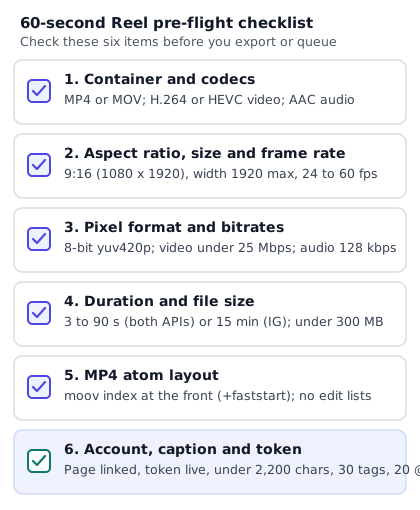
Here is the exact six-point check to save alongside your export preset:
- Container and codecs: Export as
.mp4(MPEG-4 Part 14) with H.264 High profile video and AAC-LC audio. Avoid raw camera.movfiles with uncompressed PCM audio. - Dimensions and frame rate: Set your timeline and export canvas to 1080 x 1920 (9:16 vertical). Never leave horizontal width at 2,160 pixels (4K vertical), and lock frame rate to a constant 24, 25, 30, or 60 fps (never variable frame rate).
- Color depth and bitrates: Convert 10-bit HDR phone clips to 8-bit
yuv420p, keep video bitrate under 25 Mbps (8 to 15 Mbps is plenty for 1080p), and set audio to 128 kbps stereo at 48 kHz. - Duration and file size: Confirm the exported file is at least 3.0 seconds long (3.5+ seconds is safer), 90 seconds or under if it will go through the Facebook Page Reels API (or up to 3 minutes for full Instagram recommendation eligibility, 15 minutes max on the Instagram API), and under 300 MB.
- MP4 atom order: Enable Fast Start / Web Optimized (
-movflags +faststart) in your encoder so themoovindex sits at the front of the file, and omit edit lists (-use_editlist 0 -bf 0) when re-encoding with FFmpeg. - Caption and account readiness: Keep captions at or below 2,200 characters, 30 hashtags, and 20
@mentions, and verify that your Instagram professional account is actively linked to your Facebook Page with a valid login token and remaining daily quota.
How PublishClip shows failures
We built PublishClip specifically for publishing and scheduling Facebook and Instagram Reels, and one of our core design rules is that a tool should never hide why a post failed or risk double-posting your video when you click retry.
Here is how PublishClip handles the failure modes covered in this guide as of 17 October 2026:
- You see Meta's real error text and code. When Meta rejects a container or a publish call, PublishClip records and displays Meta's actual error message alongside the plain-English fix, rather than masking it behind a generic "Something went wrong" alert.
- One-click retry that resumes safely and never double-publishes. If a Reel fails because of a transient network hiccup or a temporary Meta server error (
-1 / 2207001,1, or2), clicking Retry picks up from the last incomplete step. If a container already finished processing, PublishClip publishes that container; if a container enteredERRORorEXPIRED, it creates a fresh one. Once a Reel is recorded as published, PublishClip locks that target so a retry can never post the same Reel twice. - Posts over a daily API cap wait instead of failing. If your account reaches its rolling 24-hour publishing limit (
9 / 2207042on Instagram or the 30-post daily limit on the Facebook Page Reels API), PublishClip holds the queued Reel and waits for quota to open up rather than marking the post dead. - Clear Reconnect prompts when access changes. When Meta returns code
190,102, or a permission error because a password changed or a Page role shifted, PublishClip stops retrying immediately and shows a Reconnect button on the affected account so you can restore access in one step.
Key takeaways
- Triage before you reset: Separate in-app phone stalls, Meta Business Suite failures, API/scheduler error codes, and post-publish visibility issues before you touch app data. Back up your video to your camera roll before logging out or reinstalling Instagram, because local drafts are not stored in the cloud.
- The phone app forgives files that Business Suite and the API reject: If a Reel works on your phone but fails on desktop or in a scheduler, inspect the file with
ffprobe. The usual culprits are 4K vertical width (2160 x 3840 instead of 1080 x 1920), 10-bit HDR pixel formats (yuv420p10le), audio above 128 kbps or in PCM format, variable frame rates, or an MP4moovatom at the end of the file. - Meta publishes no in-app processing time: Ignore blogs that quote invented minute cutoffs for the mobile app. On the API side, Meta advises polling a container's
status_codeabout once a minute for up to 5 minutes until it changes fromIN_PROGRESStoFINISHED. - Follow the error code: Use the 26-row decoder table above to separate retryable errors (
2207001,2207003,9007 / 2207027, Graph codes1,2,4,17) from errors that must never be retried without fixing the file or reconnecting the account (352 / 2207026,9004 / 2207052,4 / 2207051,10,190). - Facebook's app and API have different duration rules: Even though Facebook Help states as of September 2025 that all videos posted to Facebook are shared as Reels regardless of length or orientation, the Facebook Reels Publishing API for Pages still enforces 9:16 vertical, 24 to 60 fps, and a 3-to-90-second duration window.
Frequently asked questions
Short answers to the most common questions when a Reel gets stuck or refuses to upload.
Why is my Instagram Reel stuck on processing?
When a Reel stays on "Processing" or "Preparing", Instagram's servers are still downloading your video, transcoding its video and audio streams, or running automated copyright and integrity checks. On a slow Wi-Fi or mobile connection, or when your source file is a large 4K or variable-frame-rate video, that step takes longer or stalls silently. For the Graph API, Meta advises polling a container once a minute for up to 5 minutes; if a Reel stays stuck well past that window, save a copy of your video, switch networks, and upload a clean 1080x1920 H.264 MP4.
Why does my Reel say it could not upload?
A "Couldn't upload Reel" message usually points to one of four causes: a dropped upload connection (common on public Wi-Fi or VPNs), a video file that violates Meta's codec or dimension rules, a broken draft or sticker inside the app, or an account-level block. Save the video to your camera roll first so you do not lose your edit, test switching between Wi-Fi and mobile data, shorten your caption under 2,200 characters with at most 30 hashtags and 20 mentions, and re-export the video as an 8-bit 1080x1920 MP4 with 128 kbps AAC audio.
How long should a Reel take to upload?
Meta does not publish an official upload or processing time for the Instagram mobile app, because total time depends on your upload bandwidth, the file size of your clip, and current server load. The only timing rule Meta states in its documentation is for the Instagram Content Publishing API, where developers are advised to check a container's status about once per minute for no more than 5 minutes. Most 1080p Reels under 90 seconds finish within a few minutes on a stable connection; if yours sits frozen much longer, the transfer or container has likely stalled.
Why does my Reel fail in Meta Business Suite but work in the app?
The Instagram mobile app runs a local pre-processor on your phone that downscales 4K frames, flattens variable frame rates, and re-encodes audio before uploading. When you upload from a computer in Meta Business Suite or a scheduler, your raw file goes straight to Meta's backend parsers, which strictly reject widths over 1,920 pixels, non-standard audio tracks, or clips outside the destination's length limits. Business Suite can also fail when the link between your Facebook Page and Instagram professional account needs re-confirmation, when your Page role changed, or when a browser extension blocks the upload request.
What file size can I upload?
As of 17 October 2026, Meta's Instagram Graph API documentation specifies a maximum video file size of 300 MB for Reels, with a maximum horizontal width of 1,920 pixels, a maximum video bitrate of 25 Mbps, and a duration between 3 seconds and 15 minutes. For Facebook Pages, Meta's Reels Publishing API documentation lists a maximum file size of up to 1 GB and a duration between 3 and 90 seconds. In practice, exporting a 1080x1920 H.264 MP4 at 8 to 15 Mbps keeps a 60-second Reel well under 120 MB and prevents download timeouts.
Can I recover a Reel that failed to upload?
Often yes, provided you do not log out or delete the Instagram app first. When an in-app upload fails, check the banner at the top of your home feed for a Retry option, or open your profile, go to the Reels tab, and tap Drafts to see if Instagram saved a working copy there. If you can open the draft, tap the save or download icon in the editor preview to export the video directly to your phone's camera roll before you try posting again. Once you delete or reinstall the app, any unsaved local drafts are gone permanently.
Does deleting and reinstalling the app fix it?
Deleting and reinstalling the Instagram app clears a corrupted local upload queue on iOS, which can remove a ghost upload banner that refuses to cancel, and forces your phone onto the newest app build. However, Instagram's own troubleshooting page lists reinstallation as a last resort for a critical reason: deleting the app permanently deletes every unpublished Reel draft stored on your phone. It also will not fix a rejected video file, a broken Facebook Page connection, or an account restriction. Always export your drafts to your camera roll and try network and file fixes first.
Sources and how this was checked
Last checked: 17 October 2026. We reviewed each official Meta developer reference and Help Center page below on 16 and 17 October 2026, and ran the ffprobe and ffmpeg commands locally on FFmpeg 6.1.1 to verify their exact stream outputs and MP4 atom layouts.
Meta for Developers documentation
- Instagram Platform Error Codes — source of every
2207xxxsubcode, top-level code pairing, and message string in the decoder table. - Graph API Error Handling — source of general Graph API codes (
1,2,4,10,17,102,190and subcodes458,459,460,463,467,200–299,341,368) and retry rules. - IG Container Reference — source of
status_codevalues (EXPIRED,ERROR,FINISHED,IN_PROGRESS,PUBLISHED) andcopyright_check_status. - IG User Media Reference (
POST /{ig-user-id}/media) — source of the Instagram Reel video specification table, caption/hashtag/mention limits, and the 400-containers-per-24-hours limit. - Instagram Content Publishing Guide and Instagram Platform Overview — source of the 1-minute / 5-minute polling guidance, Page task access rules, and Page Publishing Authorization requirement.
- Reels Publishing API for Pages — source of Facebook Reels error codes (
1363040,1363127,1363128,1363129), the 3-to-90-second and 30-posts-per-day API limits, andvideo_statusphases includingbytes_transfered.
Meta Help Center and Newsroom
- Instagram Help: Troubleshooting and Something is not working with the Instagram app
- Instagram Help: Fix problems sharing Instagram reels to Facebook
- Instagram Help: Recommendations on Instagram and About original content on Instagram
- Meta Newsroom: Helping Creators Break Through by Prioritizing Original Content, March 2026, and Making It Easier to Create Videos on Facebook, June 2025
- Facebook Help: Unable to view or play reels, including the September 2025 update note on all Facebook videos being shared as Reels
- Meta Business Help Center: Troubleshoot errors creating, scheduling, or publishing posts in Meta Business Suite
Video encoding reference