Instagram Reel Cover: Size, Safe Zones and How to Change
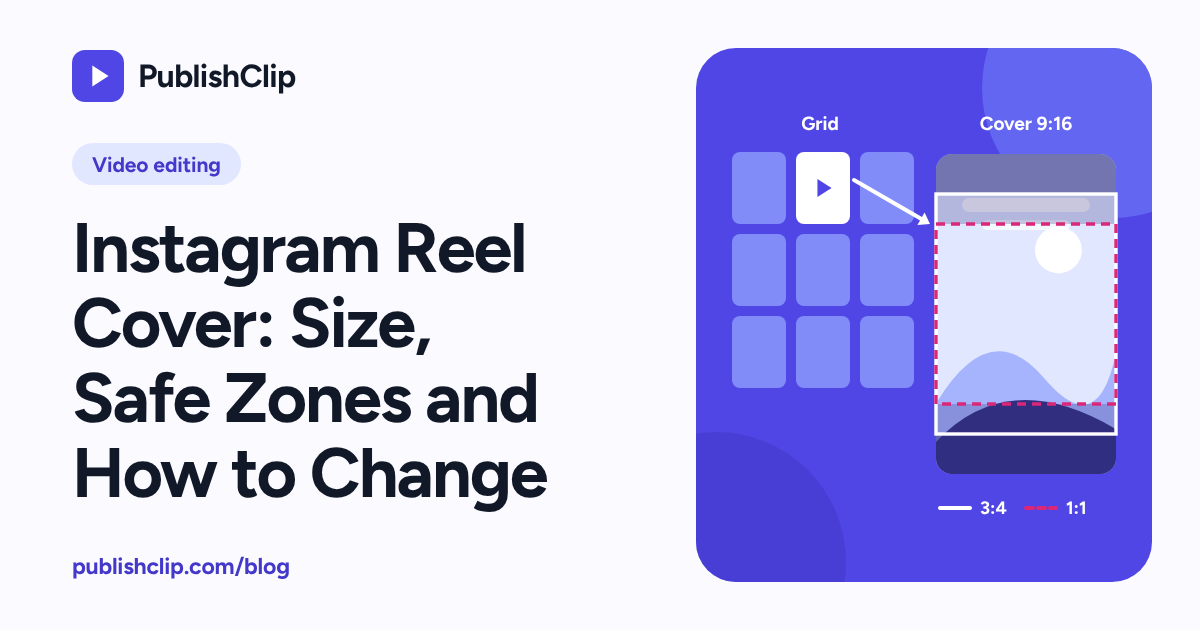
An Instagram reel cover is the still image that represents your vertical video before someone taps to watch, and getting its size and safe zones right keeps your title and face from being cut off on your profile grid. Three terms often get mixed up when people talk about short video packaging. The cover is the custom image or chosen video frame you assign to the Reel. The thumbnail is the cropped version of that cover that Instagram shows on your main profile grid, in the Reels tab, or in search results. The first frame is simply millisecond zero of your video file, which plays the instant the clip starts and acts as the fallback cover if you never set one.
This guide gives you the exact pixel dimensions for a 9:16 cover, the crop arithmetic for the 3:4, 4:5 and 1:1 views, and a safe-zone rule that keeps your text readable everywhere. It also walks through how to pick a frame or upload a custom file in the app, what sources conflict on changing a cover after posting, how Meta's Graph API handles cover_url and thumb_offset, what you can and cannot control on Facebook Reels, and how to build clean covers with free tools or tested FFmpeg commands.
Last checked: 17 October 2026. We read Meta's developer documentation, W3C contrast standards, FFmpeg documentation and scheduler pricing pages on that date, and we ran every FFmpeg command in this guide on FFmpeg 6.1.1. Where Instagram's consumer Help Center pages conflict with current creator guides, we lay out both sides so you can test with a throwaway post first.
On this page
- Instagram reel cover size and where it appears
- The safe-zone rule: design for the middle square
- How to choose a cover frame or upload one
- How to change an Instagram Reel cover after posting
- Covers for scheduled and API-published Reels
- Facebook Reel thumbnails: what you can and cannot control
- Design a cover people tap
- Make covers with free tools and FFmpeg
- Test your covers
- A cover checklist
- Key takeaways
- Frequently asked questions
- Sources and how this was checked
Instagram reel cover size and where it appears
An Instagram reel cover is a 1080 by 1920 pixel JPEG at a 9:16 aspect ratio, up to 8 MB in the sRGB colour space. The Reels tab displays that full 9:16 vertical image, while your main profile grid crops the top and bottom into a shorter rectangle and a feed post uses the middle 1:1 square.
Because one image serves several screens, your cover never stays at a single shape. A viewer who taps the Reels icon on your profile sees the tall 9:16 image. A viewer who lands on your main profile tab sees every post and Reel arranged in a three-column grid. A follower who scrolls past your Reel in the home feed or spots it in Explore sees a cropped preview tile or the playing video itself.
What Meta's official API documentation states
The clearest primary source for cover specifications is Meta's IG User Media reference, read on 17 October 2026. Under its cover image rules for Reels, Meta lists five exact requirements:
- Format: JPEG image.
- File size: 8 MB maximum.
- Colour space: sRGB. Images using other colour spaces are converted to sRGB by Meta's servers.
- Recommended aspect ratio: 9:16 to avoid cropping or blank space.
- Automatic cropping rules: If the aspect ratio is not 9:16, Meta uses the middle-most 9:16 rectangle as the cover image for the Reels tab. If you also share the Reel to your feed, Meta uses the middle-most 1:1 square as the cover image for the feed post.
Those five rules explain almost every surprise people run into when uploading a custom Instagram reel cover. When you upload a wide photo or a 4:5 portrait graphic as a cover, Instagram does not add bars to make it fit. Instead, it slices out the middle 9:16 strip first, and then slices the middle square out of that strip for feed surfaces. Starting with a 1080 by 1920 pixel sRGB JPEG keeps you in charge of the full frame from the start. For the video file itself, see our Instagram Reels size and specs guide.
Where your cover appears across Instagram
To design one file that works everywhere, it helps to trace the four places where your cover image can show up.
| Surface | Shape shown | Pixels used from a 1080 x 1920 cover | What the viewer sees |
|---|---|---|---|
| Reels tab on your profile | 9:16 vertical | 1080 x 1920 (full frame) | The entire cover, with the view count in the bottom corner. |
| Main profile grid | 3:4 vertical (reported) or 1:1 / 420 x 654 (older Help text) | 1080 x 1440 at 3:4, or 1080 x 1080 at 1:1 | A three-column tile with a small Reel icon in the corner. |
| Shared to main feed | 1:1 square (per Meta API docs) or 4:5 portrait in feed view | 1080 x 1080 (centre square) or 1080 x 1350 | The feed preview or autoplay frame before a viewer taps in. |
| Explore and search results | Tall tile or square tile depending on layout | Centre-cropped from the 9:16 cover | A small tile next to other videos on the same topic. |
The profile grid conflict: 3:4 versus 420 by 654 versus 1:1
If you search for the exact profile grid ratio in 2026, you will find three different numbers across official pages and creator guides. Rather than pretend one number is settled law, here is what each source says as of 17 October 2026.
First, Instagram's consumer Help article on Reel size and aspect ratios on Instagram (which loads its body via browser scripts and is surfaced in search snippets) still quotes a cover photo thumbnail size of 420 by 654 pixels, which works out to a ratio of roughly 1:1.557 (or 70:109). That same Help snippet also states that cover photos cannot be changed once uploaded.
Second, Meta's IG User Media API reference, read on 17 October 2026, states that if you share a Reel to your feed, Instagram uses the middle-most 1:1 square for the feed post.
Third, creator guides and design tools since January 2025 report that Instagram updated the main profile grid from 1:1 squares to vertical 3:4 rectangles (often quoted as 1080 by 1440 pixels, or 1015 by 1350 pixels when accounting for slight horizontal zoom).
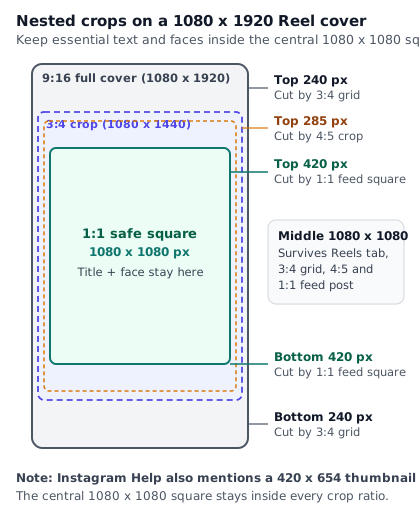
Why does this conflict matter to your workflow? Because accounts roll out grid changes at different times, and older Help Center pages often lag behind app updates. Fortunately, you do not have to guess which grid ratio a viewer's phone shows. Every single one of those crops—whether 1:1.55, 3:4, 4:5 or 1:1—is centred vertically and horizontally on your 1080 by 1920 cover. If you place your headline, face and key object inside the central 1080 by 1080 square, your cover survives every crop without losing a letter.
Why sRGB and JPEG matter for colour and sharpness
Meta specifies JPEG up to 8 MB in the sRGB colour space, and notes that images in other colour spaces are converted to sRGB. Phones and modern cameras frequently shoot photos and video in Display P3 or Rec. 2020 colour spaces. When you export a still frame from a video editor or a design app in Display P3 and upload it without converting to sRGB first, automatic server-side conversion can shift skin tones toward orange or dull bright brand colours.
Keeping your export settings locked to sRGB and baseline JPEG avoids that colour shift. A 1080 by 1920 JPEG saved at high quality (85 to 95 percent in a design tool, or -q:v 2 in FFmpeg) typically weighs between 250 KB and 900 KB. That is well under Meta's 8 MB ceiling while remaining clean enough that Instagram's own compression does not introduce blocky artefacts around bold text.
The safe-zone rule: design for the middle square
Because Instagram crops from the top and bottom edges inward toward the middle, the safest way to design an Instagram reel cover is to treat the outer top and bottom strips as background only. Everything that carries meaning—your face, your product, your three-word hook, your logo—belongs inside the central 1080 by 1080 pixel square.
The exact crop arithmetic on a 1080 by 1920 frame
When your source canvas is 1080 pixels wide by 1920 pixels tall, every centre crop keeps the full 1080-pixel width (or trims a tiny margin on some grid views) and removes equal strips from the top and the bottom. The arithmetic is simple: subtract the target height from 1920, then divide by two.
| Crop ratio | Height at 1080 px wide | Total height removed | Pixels cut from top | Pixels cut from bottom | Share of height removed |
|---|---|---|---|---|---|
| 9:16 (Reels tab) | 1920 px | 0 px | 0 px | 0 px | 0% |
| 1:1.55 (420 x 654 scaled) | 1682 px | 238 px | 119 px | 119 px | 12.4% total (6.2% each end) |
| 3:4 (profile grid report) | 1440 px | 480 px | 240 px | 240 px | 25.0% total (12.5% each end) |
| 4:5 (portrait feed crop) | 1350 px | 570 px | 285 px | 285 px | 29.7% total (14.8% each end) |
| 1:1 (central safe square) | 1080 px | 840 px | 420 px | 420 px | 43.8% total (21.9% each end) |
Look at the last two columns. For a 3:4 grid tile, Instagram cuts 240 pixels off the top and 240 pixels off the bottom (12.5 percent at each end). For a 4:5 portrait view, it cuts 285 pixels off the top and 285 pixels off the bottom. For the 1:1 feed square documented in Meta's API reference, it cuts 420 pixels off the top and 420 pixels off the bottom.
Side margins and corner icon zones
Vertical cropping is the biggest trap, but two smaller details can still clip your cover text on a phone screen:
- Left and right side padding. Some third-party guides note that when a 1080 by 1440 tile is fitted into the profile grid, a narrow strip on the left and right edges can be trimmed or sit right against the adjacent column border. Leaving an 80-pixel margin on the left and right (so your text sits inside a 920-pixel horizontal band from
x = 80tox = 1000) stops letters from touching the edge of the tile. - Corner badges and view counters. On the main profile grid, Instagram places a small Reel clapperboard or pinned-post icon in the top-right corner of the tile. On the Reels tab, it puts a play icon and view count in the bottom-left corner of the 9:16 tile. Keeping your headline out of the outer corners of your safe zone prevents those icons from sitting on top of a word.
Wait: do not confuse organic cover safe zones with ad safe zones. Meta's Business Help Center publishes a separate guide on text overlays and the safe zone for ads in Stories and Reels for paid placements while the video is playing. For organic video playback and burned-in subtitles, see our guides to converting horizontal video to vertical and adding captions to Reels. Here we are only concerned with the static cover image before playback starts.
Our headline overflow test: why 16 characters at 120 pixels fails
A rule like "keep text inside the central 1080 by 1080 square" sounds easy until you type a headline in a bold font and discover that the ends of the line get chopped off. On 17 October 2026, we tested headline sizing on a 1080 by 1920 JPEG using FFmpeg 6.1.1 (6.1.1-3ubuntu5) and DejaVuSans-Bold.ttf.
When we drew the 16-character string 3 WAYS TO FIX IT on a single line at fontsize=120 with an 8-pixel black border, the rendered text was wider than the entire 1080-pixel frame. The first character and the last character bled right off the left and right edges of the image, even though the vertical position (y=(h-text_h)/2) sat dead centre in the 1080 by 1080 safe square.
Why did that happen? In a bold sans-serif typeface, an uppercase character plus its letter spacing averages about 0.65 to 0.72 times the font size in width. At 120 pixels tall, each character takes roughly 80 pixels of width, so 16 characters need nearly 1,280 pixels—200 pixels wider than a 1080-pixel Reel cover.
To stay safely inside a 920-pixel horizontal text band (1080 pixels minus 80 pixels of padding on each side), use these tested limits for bold uppercase headlines:
- At 110 to 120 px font size: at most 9 to 11 characters per line (for example,
FIX IT NOW, broken across two lines). - At 84 to 96 px font size: at most 12 to 14 characters per line (for example,
3 WAYS TO FIXon line one andYOUR REEL GRIDon line two). - At 68 to 76 px font size: at most 15 to 18 characters per line. Do not go smaller than 64 pixels on a 1080-wide canvas, or the letters will blur when scaled down to a 130-pixel-wide tile on a phone screen.
How to choose a cover frame or upload one
Every time you publish a Reel, you have two ways to set its cover: scrub through the video to pick a still frame, or upload a separate image file that you prepared in a design tool or video editor.
Setting the cover inside the Instagram mobile app
When you create a Reel in the Instagram app on iPhone or Android, the cover picker sits on the final share screen right next to your caption box. Menu labels shift slightly across app versions, so follow the wording on your screen:
- Open the Instagram app, tap the create button, and choose Reel.
- Select or record your vertical video clip, add any edits, and proceed to the final share screen where you write your caption.
- Tap the Edit cover label on the video preview thumbnail.
- To choose a video frame: Drag your finger along the timeline scrubber at the bottom of the screen until you land on a sharp, unblurred frame where the subject's eyes are open and any on-screen text lies inside the middle of the frame.
- To upload a custom image: Tap Add from camera roll (or Add from device), then pick your prepared 1080 by 1920 sRGB JPEG.
- To check the profile grid crop: Tap the Profile grid tab at the top of the cover screen (reported across current app versions; confirm on your device). Drag the image vertically if you need to re-centre it, though if you designed inside the central 1080 by 1080 square, the default centre position will already frame your subject cleanly.
- Tap Done at the top right, finish your caption, and publish or schedule the Reel.
Choosing a cover frame versus uploading a custom graphic
You do not need a heavy graphic template for every video. In fact, many accounts do best by combining a clean video frame with a three-word title card that already appears in the video itself. Here is how to decide between picking a frame and uploading a separate JPEG.
| Approach | When it works best | Main risk to avoid |
|---|---|---|
| Pick a frame from the video | Talking-head tips, product demos, behind-the-scenes clips where a real face or action shot carries the story. | Motion blur, mid-blink faces, or picking a frame where burned-in captions sit too low and get sliced in half by the grid crop. |
| Upload a custom 1080 x 1920 JPEG | Series posts, tutorials, price breakdowns, or comparison videos where a consistent grid title helps profile visitors find a topic. | Making the cover look like a cluttered banner ad, or placing text outside the central 1080 x 1080 safe square. |
| Bake a 0.2-second cover frame into the video | Cross-posting workflows where you want the video itself to carry a clean frame at a known timestamp (such as 0.5 seconds). | Holding a static slide for two full seconds at the start of the video, which makes viewers scroll away before the action begins. |
If you prefer picking a frame from the video rather than managing separate JPEG files, use a simple trick while filming: at the end of your take, look straight into the lens, hold a natural expression for two seconds, and point toward the middle of the frame or hold up the finished product. In your editor, you can either keep a brief beat of that pose or export that exact still frame as your cover JPEG.
Setting a cover in Meta Business Suite
If you publish from a computer using Meta Business Suite, the composer includes a thumbnail picker in the Reel creation flow. After you upload your video file, scroll to the thumbnail or cover section, where Business Suite lets you choose a frame from the video or upload an image from your computer. Meta's Business Help Center pages are rendered by browser scripts and could not be verified via automated fetch on 17 October 2026, so open the Business Suite composer on your account and check whether it shows a grid crop preview before you publish.
How to change an Instagram Reel cover after posting
What if you published a Reel last week and just noticed that the profile grid cut the top line of your headline in half, or caught your face mid-blink? Whether you can replace the cover on an already published Reel is the second place where Instagram's own documentation and everyday creator reports disagree.
What conflicting sources say as of 17 October 2026
On one side, Instagram's consumer Help article on Reel size and aspect ratios (read via search snippet on 17 October 2026) contains a line stating that once a cover photo is uploaded, you cannot change it.
On the other side, creator guides and social media help desks report that the Instagram mobile app has allowed users to edit a Reel's cover after posting for several years via the post's Edit screen.
Why would an official Help snippet say you cannot change a cover while the app menu lets you do it? Help Center articles are not always updated at the same time across every language and region, and some notes originally written for early Reels versions remain on the page. Because we do not state unverified app behaviour as guaranteed fact, treat post-publish cover editing as something to confirm on your own phone before you rely on it for a client launch.
The reported in-app steps to edit a published cover
To check and use this feature on your Instagram app on iPhone or Android:
- Open your Instagram profile and tap the Reel whose cover you want to change.
- Tap the three-dot menu (
...) on the right side or top corner of the Reel. - Tap Edit.
- Tap the Cover text on the video thumbnail on the left side of the Edit screen.
- Scrub the timeline to pick a new frame from the video, or tap Add from camera roll (or Add from device) to upload a replacement 1080 by 1920 JPEG.
- Tap Done, then tap the tick mark or Done again to save your edited Reel.
Keep three practical notes in mind when you edit a cover after publishing:
- Check the gridcrop yourself first. Creators report that the post-publish cover editor does not always show the same interactive profile grid preview tab that you see when creating a brand-new Reel. If you upload a replacement JPEG, make sure its key elements already sit inside the central 1080 by 1080 pixel square so you do not have to eyeball the crop.
- Refresh your profile. After you save the new cover, the old thumbnail can stay cached on your own phone for a minute or two. Force-close and reopen the app, or check from a browser, to confirm the new cover updated on both the Reels tab and the main profile grid.
- You cannot change the cover through the API after publishing. Meta's IG User Media reference accepts
cover_urlandthumb_offsetonly when creating the media container before publishing. Once a Reel is live, no Graph API endpoint replaces its cover image; any change must be made inside the Instagram mobile app.
Covers for scheduled and API-published Reels
When you schedule an Instagram Reel through a third-party tool or publish from your own backend, the cover is set during the initial container creation call in Meta's Graph API. For the full three-call container workflow, see our guide to the Instagram Reels API, and for a broader comparison of scheduling methods see our guide on how to schedule Instagram Reels.
How cover_url and thumb_offset work in Meta's API
According to Meta's IG User Media reference (POST /{ig-user-id}/media, read 17 October 2026), a tool can define a Reel's cover in two ways when it creates the media container:
cover_url: The public URL of a JPEG image (up to 8 MB, sRGB, 9:16 recommended) that sits on a server Meta can fetch from. Meta downloads that JPEG and uses it as the Reel's cover image.thumb_offset: The location, in milliseconds, of the video frame to use as the Reel's cover thumbnail. The default value is0(the very first frame of the video).
What happens if a request sends both cover_url and thumb_offset on the same container creation call? Meta's reference states explicitly: if you specify both cover_url and thumb_offset, cover_url is used and thumb_offset is ignored.
Here is how those two parameters compare in practice:
| Parameter | What it accepts | Default if omitted | Precedence | Common failure mode |
|---|---|---|---|---|
cover_url | Public HTTP/HTTPS URL to a JPEG up to 8 MB (sRGB, 9:16 recommended) | None (falls back to thumb_offset) | Wins over thumb_offset when both are sent | Signed URL expires before container creation runs, or image is PNG/WebP instead of JPEG. |
thumb_offset | Integer offset in milliseconds from `0` up to less than the video's duration | 0 (first frame) | Ignored if cover_url is also present | Offset is negative or greater than or equal to video duration (triggers error 2207057). |
Error 2207057 and public URL rules
Meta's Instagram Platform error codes reference, read on 17 October 2026, lists two cover-related errors that break scheduled Reels when a tool is not careful:
- Error
1/ subcode2207057(Thumbnail offset out of range): Meta returns"The thumbnail offset you entered is out of bounds. Please enter a value that is at least 0 and less than the video's duration."Notice that the rule says less than the video's duration, not less than or equal to. If your clip is exactly 15,000 milliseconds long and a frame picker sendsthumb_offset=15000because you dragged the slider to the very end, the container creation call fails with2207057. Tools should clamp any chosen frame offset to at least 100 milliseconds before the end of the file. - Error
9004/ subcode2207052(Media could not be fetched from this URI): Just likevideo_url, thecover_urlmust be reachable by Meta's servers over the public internet at the moment the container is created. If a scheduling tool generates a short-lived signed storage link when you queue the post on Monday for a Reel that publishes on Friday, the signed link will have expired by the time Friday's job callsPOST /{ig-user-id}/media. Instead, the tool must generate the signedcover_urlat publish time right before calling Meta.
Check whether your scheduler includes custom covers on its free plan
Even though Meta's API accepts cover_url and thumb_offset at no cost on the same container call that uploads the video, not every scheduling tool exposes cover selection on its free tier.
For example, when we read Buffer's pricing page on 17 October 2026, its Free plan (which includes up to 3 channels and 10 scheduled posts per channel) explicitly listed custom video covers as not included, reserving them for paid tiers starting with Essentials at 5 USD a month per channel. Before you build a batch of custom cover JPEGs for a month of scheduled Reels, check your scheduler's composer screen to confirm whether it lets you upload a cover image or scrub for a frame on your current plan.
How PublishClip handles covers
In PublishClip's publishing package (checked on 17 October 2026), each media record has two optional cover fields: cover_path (the storage key of a JPEG image) and cover_offset_ms (a frame offset in milliseconds). When PublishClip creates an Instagram Reel container, its Meta driver checks those fields in the exact order Meta's API expects:
- When
cover_pathis set, the driver generates a fresh signed URL at publish time and sendscover_urlon the container request. - Otherwise, when
cover_offset_msis set, the driver sendsthumb_offsetin milliseconds. - When neither is set, Instagram defaults to
thumb_offset=0(the first frame of the video).
Where do you pick that cover or frame inside PublishClip? Our browser-based video Studio—where you will be able to trim clips, reframe horizontal video to 9:16, add captions, and choose a frame or custom cover—is currently in progress (as of 17 October 2026, /studio is a placeholder route). Until the Studio cover picker ships in the live composer UI, any Reel you schedule through PublishClip uses the first frame of your uploaded MP4 as its cover. A simple workaround today is to place your clean title frame at the very first frame (0.0 seconds) of your video before uploading.
Facebook Reel thumbnails: what you can and cannot control
If you publish the same vertical video to both Instagram and a Facebook Page, you will quickly run into an asymmetry: Instagram's API has full support for custom cover JPEGs and millisecond frame offsets, while Facebook's Reels API does not.
Meta's Reels Publishing API for Pages has no cover parameter
We checked Meta's Reels Publishing API for Pages guide on 17 October 2026. The API publishes a Facebook Reel in three steps (upload_phase=start, uploading the binary or file_url to rupload.facebook.com, and upload_phase=finish with video_state set to PUBLISHED, SCHEDULED or DRAFT).
Across all three phases in that documentation, there is no cover_url, thumb_offset, or custom thumbnail parameter for Facebook Reels. Because the official Reels API for Pages provides no cover field, PublishClip sets custom covers on Instagram Reels only and sends no cover parameter when publishing a Facebook Reel. For the full specification of what the Page Reels API accepts, see our Facebook Reels size and specs guide.
What you can do in the Facebook app, Business Suite, and with frame zero
What if you care about how your Facebook Reel thumbnails look on your Page's Reels tab? You have three practical options:
- Make the very first frame of your video file count. When a tool publishes a Facebook Reel through the API, Facebook selects a default frame from the video—most often the opening frames. If the first 0.1 to 0.2 seconds of your video file already show a sharp face, clear lighting, and your three-word hook inside the central safe zone, both Instagram and Facebook get a clean thumbnail automatically.
- Post or schedule directly in the Facebook app or Meta Business Suite. When you upload a Reel manually in the Facebook mobile app or through Meta Business Suite on a computer, the composer UI provides a thumbnail picker where you can select a frame or upload a custom image before publishing.
- Changing a Facebook Reel thumbnail after posting: Third-party reports conflict on whether and where you can edit a Facebook Reel's thumbnail after it goes live, and the Meta help pages we could read on 17 October 2026 do not state a rule. Treat post-publish thumbnail editing on Facebook as unconfirmed and test it on a single post on your Page before counting on it.
Design a cover people tap
A technically valid 1080 by 1920 sRGB JPEG can still fail at its actual job if nobody can read it on a phone screen. When someone lands on your profile grid or scrolls your Reels tab, they decide in about a second whether a tile is worth tapping. Neither Instagram nor any third party publishes verified proof that one cover aesthetic automatically gets more views in the feed, because feed viewers usually see your video already playing. Where a good cover earns its keep is on your profile grid and Reels tab, turning a one-time viewer into someone who watches three more clips and follows you.
One subject, three to five words
The most common cover mistake is treating a 1080 by 1920 canvas like a magazine page and filling it with ten-word sentences, tiny subheadings, logos, arrows and three different fonts.
On a phone screen, a three-column profile grid divides the width of the screen by three. On a typical 390-pixel-wide phone viewport, each grid tile is only about 130 CSS pixels wide. At 130 pixels wide, a 12-word sentence turns into an illegible grey smudge.
Stick to three rules for every cover:
- One visual subject. Show one clear face with an expressive look, or one clear close-up of the finished product or result. Avoid collages of four tiny photos.
- Three to five words maximum. Write a label that names the problem, the result, or the specific topic of the video—not a full sentence. Think road sign, not paragraph.
- Keep both inside the central 1080 by 1080 square. Place the face or object in the upper two-thirds of the central square and the three-to-five-word headline in the lower third of the central square, so neither the 3:4 grid crop nor the 1:1 feed crop touches them.
Six cover patterns for small businesses
If you want a repeatable system rather than reinventing your layout every week, rotate through these six cover patterns. Every example below uses three to five words that fit inside the central 1080 by 1080 square at 84 to 100 pixels tall.
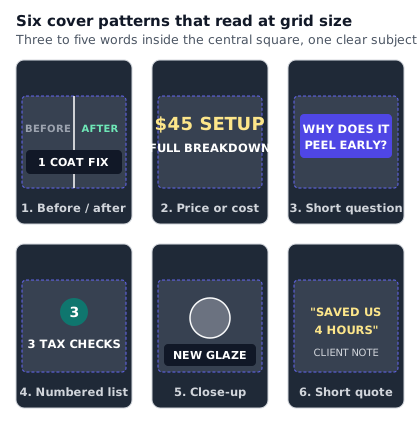
| Pattern | Visual subject in safe square | Example 3–5 word text | Best business fit |
|---|---|---|---|
| 1. Before and after | Split frame or holding the finished repair/makeover | 1 COAT FIX or DAY 1 VS DAY 14 | Salons, contractors, cleaners, alterations, fitness, landscapers. |
| 2. Price or cost breakdown | Product on table or project wide shot | $45 DESK SETUP or REAL KITCHEN COST | Home services, retail shops, event planners, freelancers. |
| 3. Direct question | Face looking at lens with a raised eyebrow or holding the culprit item | WHY DOES IT PEEL? or WORTH THE UPGRADE? | Repair shops, skincare, software, consultants, mechanics. |
| 4. Numbered list or check | Holding up three fingers or pointing to a checklist prop | 3 TAX CHECKS or 4 PACKING RULES | Accountants, legal, coaches, travel, clinics, educators. |
| 5. Product or process close-up | Macro shot of texture, pour, stitch or tool in action | NEW ESPRESSO GLAZE or HOW WE HEM DENIM | Bakeries, cafes, makers, ceramics, apparel, restaurants. |
| 6. Short outcome quote | Calm portrait of the business owner or client result | "SAVED US 4 HOURS" or "ZERO CALL-BACKS" | B2B services, agencies, bookkeepers, local trades. |
Contrast and consistency
Even a three-word headline disappears if you place white letters directly over a bright shirt or a sunlit window. You do not need to guess whether your text is dark or bright enough: use the accessibility standard built for screen legibility.
The W3C's WCAG 2.2 Success Criterion 1.4.3 Contrast (Minimum) (Level AA, read 17 October 2026) requires a contrast ratio of at least 4.5:1 for normal text and at least 3:1 for large-scale text (defined as at least 18 point, or 14 point bold, which corresponds to roughly 24 pixels and 18.5 pixels in CSS). While your cover headline is large on a 1080-pixel canvas, remember that the profile grid shrinks the entire image by more than eight times on a phone screen. Aiming for 4.5:1 or higher between your letters and the immediate background behind them keeps the words crisp at thumbnail size.
Three simple ways to guarantee a 4.5:1 contrast ratio on any video frame:
- Solid or semi-opaque pill box. Put a dark charcoal (
#111827) or deep indigo (#312e81) rounded rectangle behind white (#FFFFFF) or warm yellow (#FDE68A) text. White#FFFFFFon#111827has a contrast ratio above 17:1—more than triple the WCAG 1.4.3 minimum. - Thick stroke plus subtle drop shadow. If you do not want a box covering your photo, add a 6-to-8-pixel dark stroke (
borderw=8:bordercolor=blackin FFmpeg) around white bold letters. - Consistent two-font, two-colour system. Pick one bold sans-serif font, one primary background pill colour, and one accent word colour. Use them on every Reel cover so visitors scanning your profile grid can tell your categories apart at a glance.
Finally, keep your cover honest. Never put a number, a dramatic result, or a product on the cover that does not actually appear in the Reel. Viewer trust drops the moment a tap feels like a bait-and-switch.
Make covers with free tools and FFmpeg
You can create a 1080 by 1920 Instagram reel cover in under two minutes using a phone app, a browser design tool, or the command line. Below are the free no-code options and the exact FFmpeg commands we tested on 17 October 2026.
Free no-code tools: Instagram Edits and design templates
If you prefer a visual editor on your phone or in a browser:
- Edits by Instagram. Meta launched its standalone Edits app for creators (also covered in Instagram Help: About Edits) in April 2025 as a free mobile video creation app. It lets you edit vertical clips, add text overlays, and export cleanly without a watermark, so you can position your title inside the middle square and save a frame directly on your phone.
- Browser design tools (such as Canva or Figma). Create a custom canvas at 1080 by 1920 pixels. Drag two horizontal guides onto the canvas at y = 420 px and y = 1500 px (which mark the top and bottom of the central 1080 by 1080 safe square), plus two optional guides at y = 240 px and y = 1680 px (which mark the 3:4 profile grid crop). Lock those guides on a top layer, drop your frame or photo underneath, type your three-to-five-word headline inside the middle square, and export as a standard sRGB JPEG.
Tested FFmpeg commands for extracting frames, adding headlines, and previewing at grid size
If you batch-produce clips on your computer or build an automated workflow, FFmpeg can extract a still frame, scale it to 1080 by 1920, draw a centred headline, and render a phone-grid legibility preview in seconds. We tested all four commands below on 17 October 2026 using FFmpeg 6.1.1 (6.1.1-3ubuntu5) and ffprobe on a 1920 by 1080 test video and a 1080 by 1920 vertical clip, referencing the official FFmpeg filters documentation.
1. Extract a single 1080 by 1920 JPEG frame at a chosen timestamp
Suppose your speaker holds a clean pose at 2.5 seconds (-ss 2.5) into in.mp4. This command seeks to 2.5 seconds, grabs one video frame (-frames:v 1), scales it to 1080 by 1920 with full-range JPEG chroma (yuvj420p), and writes a high-quality JPEG (-q:v 2):
ffmpeg -ss 2.5 -i in.mp4 -frames:v 1 -q:v 2 \
  -vf "scale=1080:1920,format=yuvj420p" \
  cover.jpg
If your source video is horizontal (1920 by 1080) and you want to centre-crop it to 9:16 before scaling to 1080 by 1920 so faces are not stretched, combine crop and scale (and see our full guide on how to convert horizontal video to vertical):
ffmpeg -ss 2.5 -i horizontal.mp4 -frames:v 1 -q:v 2 \
  -vf "crop=ih*9/16:ih,scale=1080:1920,format=yuvj420p" \
  cover.jpg
2. Verify the output JPEG dimensions and pixel format with ffprobe
Before uploading or sending cover.jpg to Meta's API, confirm that it is a 1080 by 1920 mjpeg file under 8 MB:
ffprobe -v error \
  -show_entries stream=codec_name,width,height,pix_fmt:format=size \
  -of default=nw=1 cover.jpg
In our test on 17 October 2026, ffprobe reported codec_name=mjpeg, width=1080, height=1920, pix_fmt=yuvj420p, and a file size well under 200 KB.
3. Burn a high-contrast headline into the central safe square
As we found in our overflow test earlier, a 16-character string (3 WAYS TO FIX IT) at fontsize=120 overflows a 1080-pixel canvas. To keep a bold headline safely inside the 1080 by 1080 central square, either shorten the line to 9–11 characters at fontsize=110 or use fontsize=88 for up to 13 characters. Here is the tested drawtext command using an 8-pixel black stroke (borderw=8:bordercolor=black) centred on the frame:
ffmpeg -i cover.jpg -frames:v 1 -q:v 2 \
  -vf "drawtext=fontfile=/usr/share/fonts/truetype/dejavu/DejaVuSans-Bold.ttf:text='FIX IT FAST':fontsize=110:fontcolor=white:borderw=8:bordercolor=black:x=(w-text_w)/2:y=(h-text_h)/2,format=yuvj420p" \
  cover-titled.jpg
Want to place a two-line headline in the lower third of the central 1080 by 1080 safe square (for example at y = 1180 and y = 1300, well above the y = 1500 bottom boundary of the 1:1 square) so it does not cover the speaker's face in the middle of the frame? Chain two drawtext filters with a semi-opaque dark box (box=1:boxcolor=black@0.75:boxborderw=20):
ffmpeg -i cover.jpg -frames:v 1 -q:v 2 \
  -vf "drawtext=fontfile=/usr/share/fonts/truetype/dejavu/DejaVuSans-Bold.ttf:text='3 TAX CHECKS':fontsize=92:fontcolor=white:box=1:boxcolor=black@0.75:boxborderw=20:x=(w-text_w)/2:y=1160,drawtext=fontfile=/usr/share/fonts/truetype/dejavu/DejaVuSans-Bold.ttf:text='BEFORE FRIDAY':fontsize=92:fontcolor=0xFDE68A:box=1:boxcolor=black@0.75:boxborderw=20:x=(w-text_w)/2:y=1290,format=yuvj420p" \
  cover-two-lines.jpg
Both y=1160 and y=1290 sit inside the central 1080 by 1080 square (y = 420 to y = 1500) and inside the 3:4 profile grid crop (y = 240 to y = 1680).
4. Preview how your cover looks at phone-grid size (130 pixels wide)
Designers almost always judge a cover while looking at a 27-inch monitor where the image is 600 pixels wide. To see the exact resolution a phone user gets on a three-column profile grid, scale your 3:4 centre crop (1080:1440) down to 130 pixels wide, and then scale it back up to 390 pixels wide with nearest-neighbour pixels (flags=neighbor) so you can inspect the real pixelation:
ffmpeg -i cover-two-lines.jpg -frames:v 1 \
  -vf "crop=1080:1440:0:240,scale=130:-1,scale=390:-1:flags=neighbor" \
  grid-preview.png
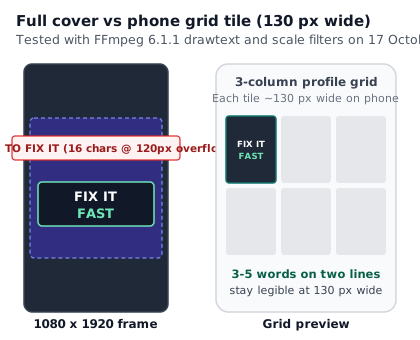
If you open grid-preview.png and can still read every word without squinting, your cover is ready to publish.
Test your covers
Because no honest guide can promise that a specific cover colour or font will boost your views, the right way to find out what works for your audience is to run a calm four-week test on your own account.
How to run a four-week cover style test
Pick two distinct cover approaches and alternate them across 12 Reels (for example, three Reels a week for four weeks):
- Style A (Six Reels, odd posts): A clean still frame taken from the video showing a close-up face or finished product, with no added graphic template.
- Style B (Six Reels, even posts): A custom 1080 by 1920 JPEG with a three-to-five-word headline inside a high-contrast pill box in the lower third of the central 1080 by 1080 square.
Keep everything else as steady as you can. Post in the same time slots, use the same video length range (such as 20 to 45 seconds), and cover similar topics across both groups.
What to compare on day 28
At the end of the four weeks, do not just look at raw view totals—a single viral Reel in the main feed can skew the average even when most viewers never saw the cover tile. Instead, look at two signals inside Instagram Insights and on your profile:
- Views on older Reels after you publish a new one. When a new Reel brings visitors to your profile grid, which back-catalogue tiles do they tap next? If the six Style B Reels pick up steady second-week and third-week views while Style A Reels flatten out after 48 hours, your grid titles are helping profile visitors browse.
- Profile visits to follows. When six consecutive tiles on your profile grid have readable, consistent 3:4 covers that state who you help and what you make, new visitors understand your account faster.
Twelve Reels is a small sample, so treat the winner as a practical direction for your next month of posts rather than a permanent rule.
A cover checklist
Run through these ten checks before you export or schedule your next Instagram reel cover:
- Canvas size: 1080 by 1920 pixels (9:16 vertical aspect ratio).
- File format and colour: JPEG (
mjpeg), sRGB colour space, under 8 MB (aim for 250 KB to 900 KB). - Central 1:1 safe square: Every essential word, face and product sits between
y = 420 pxandy = 1500 px(the middle 1080 by 1080 square), leaving 420 pixels at the top and bottom as background only. - 3:4 grid awareness: Nothing important sits in the top 240 pixels or bottom 240 pixels, which are cut off on a 1080 by 1440 profile grid.
- Side padding: Text stays at least 80 pixels away from the left and right edges (
x = 80 pxtox = 1000 px). - Corner clearance: The top-right corner of the grid crop and the bottom-left corner of the 9:16 frame are clear of text so Instagram's Reel icon and view count do not cover a word.
- Word count and font size: Three to five words maximum, set at 84 to 110 pixels tall, with no more than 9 to 13 characters per line so the text never overflows 1080 pixels.
- Contrast: At least a 4.5:1 contrast ratio between the text and its immediate background (WCAG 2.2 SC 1.4.3), using a dark pill box or thick stroke where needed.
- 130-pixel squint test: Still readable when scaled down to 130 pixels wide to match a phone's three-column profile grid.
- First-frame backup for cross-posting: If you also publish to Facebook Reels through an API tool (or through PublishClip while our Studio cover picker is in progress), place a clean frame at
0.0seconds of the video itself.
Key takeaways
- An Instagram reel cover is a 1080 by 1920 pixel JPEG (9:16 aspect ratio) up to 8 MB in the sRGB colour space, per Meta's IG User Media reference read on 17 October 2026.
- Sources conflict on the exact profile grid thumbnail size (third-party guides report a 3:4 grid since January 2025; Instagram Help text seen via search quotes 420 by 654 pixels; Meta's API doc says a Reel shared to the feed uses the middle 1:1 square).
- You do not need to pick a side in that conflict: design inside the central 1080 by 1080 pixel square (420 pixels from top and bottom) and your cover survives 9:16, 1:1.55, 3:4, 4:5 and 1:1 crops alike.
- Keep cover headlines to three to five words across two lines. In our FFmpeg 6.1.1 test on 17 October 2026, a 16-character single line at 120 pixels overflowed the 1080-pixel width.
- Through Meta's Graph API,
cover_urloverridesthumb_offsetwhen both are sent, and an out-of-rangethumb_offsettriggers error2207057. - Meta's Reels Publishing API for Pages has no cover parameter, so tools like PublishClip set custom covers on Instagram only. Making the first frame of your video clean gives Facebook Reels a strong default thumbnail too.
Frequently asked questions
Short answers to common questions about sizing, cropping, and changing an Instagram Reel cover.
What size is an Instagram Reel cover?
An Instagram Reel cover should be a 1080 by 1920 pixel JPEG at a 9:16 aspect ratio, saved in the sRGB colour space and under 8 MB. As of 17 October 2026, Meta's IG User Media API reference recommends 9:16 to avoid cropping or blank space in the Reels tab, and states that if you share the Reel to your feed, Instagram uses the middle-most 1:1 square (1080 by 1080 pixels). Because the profile grid also crops top and bottom (reported as 3:4, or 1080 by 1440), keep all text and faces inside the central 1080 by 1080 square.
Why is my Reel cover cropped?
Your Reel cover gets cropped because Instagram uses one vertical 9:16 image across several different screen shapes. The Reels tab shows the full 1080 by 1920 image, a 3:4 profile grid removes 240 pixels from the top and 240 pixels from the bottom (leaving 1080 by 1440), and a 1:1 feed square removes 420 pixels from the top and bottom (leaving the middle 1080 by 1080). If you upload a cover whose aspect ratio is not 9:16, Meta's API docs state that Instagram slices out the middle 9:16 rectangle first. Keep titles inside the central 1080 by 1080 square to prevent cutoffs.
Can I change a Reel cover after posting?
Sources conflict, so test on your own phone before counting on it. Instagram's older consumer Help text (seen via search on 17 October 2026) says cover photos cannot be changed once uploaded, while current creator guides report that you can open a published Reel in the Instagram mobile app, tap the three-dot menu, choose Edit, tap Cover on the thumbnail, and pick a new frame or upload a new JPEG from your camera roll. You cannot change a published Reel's cover through Meta's Graph API; API parameters (cover_url and thumb_offset) work only when creating the container before publishing.
Can I set a custom cover on a scheduled Reel?
Yes, if the tool or app you schedule with exposes that option. In the Instagram app and Meta Business Suite, you can choose a frame or upload a custom cover before you schedule the Reel. In Meta's Graph API, scheduling tools pass either cover_url (a public JPEG up to 8 MB) or thumb_offset (a frame timestamp in milliseconds, where cover_url wins if both are sent). However, some schedulers restrict custom covers to paid tiers—Buffer's free plan, read on 17 October 2026, excludes custom video covers—so check your tool's plan and composer first.
What is the best Facebook Reel thumbnail size?
Use the same 1080 by 1920 pixel (9:16) vertical dimensions and keep your subject and headline inside the central 1080 by 1080 safe square. When you upload a Reel manually in the Facebook app or Meta Business Suite, you can pick a video frame or upload a custom thumbnail image at that 9:16 size. However, as of 17 October 2026, Meta's official Reels Publishing API for Facebook Pages has no cover or thumbnail parameter at all. If you publish Facebook Reels through an API tool like PublishClip, put a clean title frame at the very start of the video file.
Should the cover match the first frame?
Your cover does not have to be identical to the first frame on Instagram, where you can upload a separate 1080 by 1920 JPEG or pick a frame from later in the clip. Still, making the very first 0.1 to 0.2 seconds of your video show a clean, well-lit frame with your headline inside the central safe square is a smart habit. It gives Facebook Reels (which lack an API cover parameter) a sharp default thumbnail, serves as a fallback if you forget to upload a separate JPEG, and immediately shows feed viewers what the video is about as playback starts.
Sources and how this was checked
Last checked: 17 October 2026. We opened the developer documentation, standards pages and vendor pricing pages below on 16 and 17 October 2026, and we ran the FFmpeg commands on FFmpeg 6.1.1 (6.1.1-3ubuntu5) on 17 October 2026.
Meta for Developers and Meta Help
- IG User Media reference (
POST /{ig-user-id}/media) — cover image specifications (JPEG, 8 MB max, sRGB, 9:16 recommended, middle 9:16 and middle 1:1 cropping rules,cover_urlversusthumb_offsetprecedence). - Instagram Platform error codes — error
1/ subcode2207057for out-of-bounds thumbnail offset, and9004/2207052for unreachable media URIs. - Reels Publishing API for Pages — Facebook Page Reels upload flow and parameters (confirming no custom cover parameter exists in the API).
- Instagram Help: Reel size and aspect ratios on Instagram — consumer Help page listing the older 420 by 654 thumbnail figure and post-upload note.
- Edits by Instagram and Instagram Help: About Edits — Meta's free mobile editing app for creators.
- Meta Business Help Center: About text overlays and the safe zone for ads in Stories and Reels — ad-specific overlay guidance.
Standards, tools and pricing
- W3C WCAG 2.2 Understanding Success Criterion 1.4.3: Contrast (Minimum) — Level AA 4.5:1 normal text and 3:1 large text contrast ratios.
- FFmpeg Filters Documentation —
scale,crop,format,drawtextandflags=neighborfilter reference. - Buffer Pricing — read 17 October 2026 to check custom video cover availability on free versus paid plans.
What we could not confirm from an official page
- Instagram's consumer Help Center body text and Business Suite articles. Pages on
help.instagram.comandfacebook.com/business/helprender their body text with client-side scripts; automated fetches on 17 October 2026 returned only page shells, and their text was read via search snippets. Open those pages in a browser to check for recent wording edits. - The exact date and rollout scope of the 3:4 profile grid and post-publish cover editing. Both come from third-party creator reports rather than a dated Meta developer changelog, and conflict with the older consumer Help snippet. Test with a throwaway post on your own account first.
- Whether a published Facebook Reel thumbnail can be changed after posting. Reports disagree and Meta's readable pages do not state a rule.
About this guide
This guide was written and checked by the team behind PublishClip, and the section on scheduled and API-published covers describes our own codebase as it stood on 17 October 2026. We re-check this post every three months as Instagram updates its grid and cover tools.